


Turn any WP Staging backup into a fully working local copy of your live site: same content, same plugins, same database. WP Staging CLI sets up everything automatically on Windows, macOS, or Linux — no Docker expertise needed. Just copy, paste, run. Still fully containerized and Docker compatible.
We love Docker ❤️ but it is not always easy. That is why we created WP Staging CLI.
Built on Docker so it feels native, but you never touch a compose file.
New to Docker?
You only need Docker Desktop, or Docker Engine plus Docker Compose. You do not need to learn any Docker commands.
If Docker is not on your machine yet, install the free Docker Desktop and then come back to this page.
WP Staging CLI is an independent tool and is not affiliated with, authorized, sponsored, or endorsed by Docker Inc. “Docker” and the Docker logo are trademarks or registered trademarks of Docker Inc.
What you’ll get:
- Isolated local Docker based site with same PHP & WordPress versions
- Automatic database import and configuration
- Behind each command is a full Docker setup that you never have to see
- All docker images can be exported and deployed
- Automatic SSL handling. No local SSL warnings in your browser
- Cleans up containers and volumes when you are done
- Think of it as a shortcut to everything you wish Docker did for WordPress out of the box.
You are ready in sixty seconds
- Make sure Docker is installed and running
- Have your WP Staging Developer license key ready
- Copy the commands below to your terminal or if you want it even easier, use the WP Staging commands generator inside the WP Staging plugin for a simple copy and paste experience without the need to customize manually any arguments:
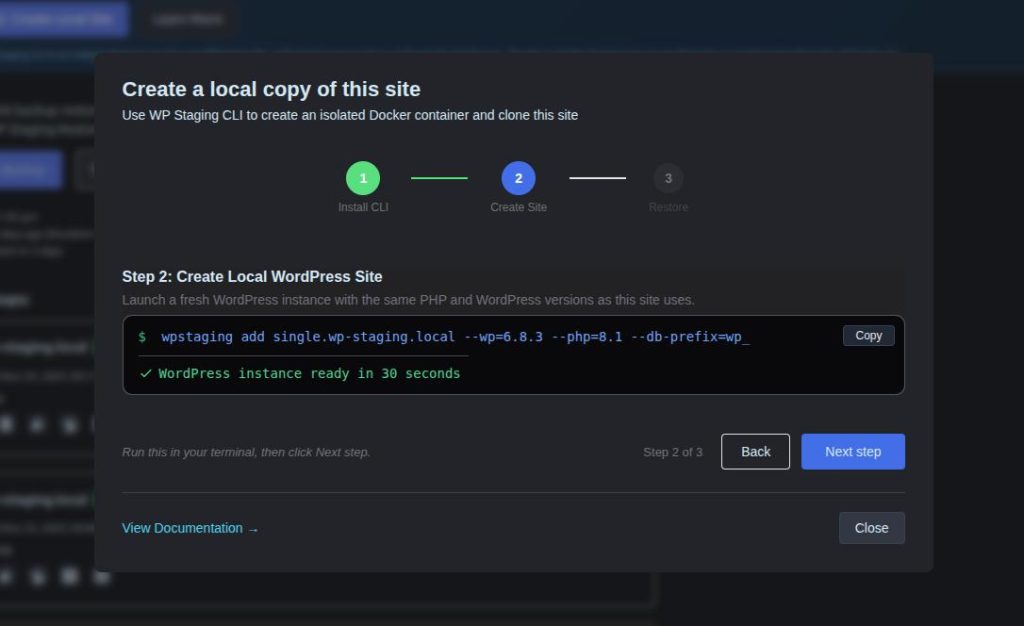
If you want to create the site completely manually follow the commands below – It’s still easy:
Select your operating system and install WP Staging CLI
macOS, Linux, WSL:
curl -fsSL https://wp-staging.com/install.sh | bashOptionally: If you have a license key you can add it already during the installation. Replace LICENSE_KEY with your WP Staging Pro Developer or Agency License key. If you don’t provide a license key you will be asked for it.
curl -fsSL https://wp-staging.com/install.sh | bash -s -- -l LICENSE_KEYWindows PowerShell:
& ([scriptblock]::Create((irm https://wp-staging.com/install.ps1))) -l LICENCE_KEYWindows CMD:
curl -fsSL https://wp-staging.com/install.cmd -o install.cmd && install.cmd -l LICENSE_KEY && del install.cmdCreate a local WordPress site and import the production sites data
Use the one command below to create a new website with the latest WordPress version and automatically download and import a WP Staging backup to it:
wpstaging add mysite.local --from=BACKUP_URLNeed a Multisite?
wpstaging add mysite.local --multisite --from=BACKUP_URLNote: The multisite setup currently only supports subdirectory mode (e.g. https://site.local/subsite/). Subdomain mode (e.g. https://subsite.site.local) is not yet supported.
Replace BACKUP_URL with the link to a WP Staging backup. You can either point to a path on your local disk or a remote path from a URL so the actual command will look like this:
wpstaging add mysite.local --from=https://mysite.com/wp-content/.../backup_1234.wpstgGet the full path to a WP Staging backup from: Backup & Migration → Actions → Copy Link to Backup.
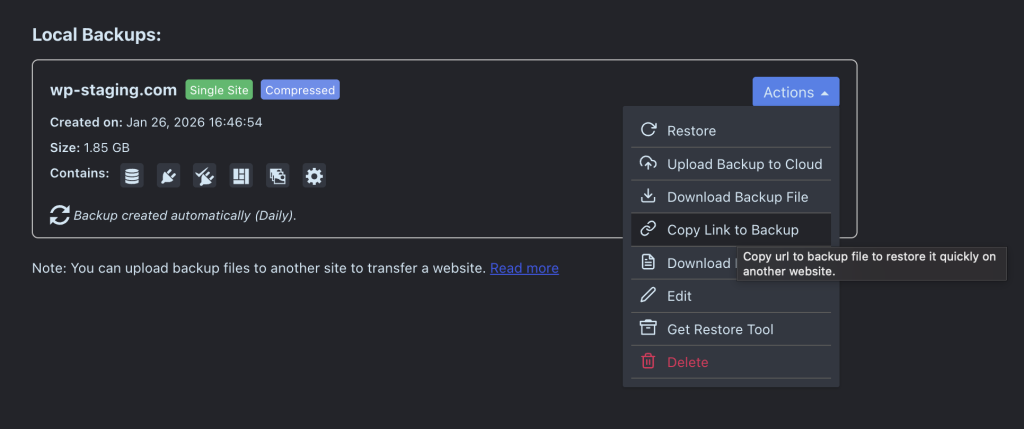
A fresh WordPress site will be ready in a few minutes at https://mysite.local
No compose files, no manual container setup.
You can add as many WordPress sites as you want. Just change the domain name to something else and repeat the command.
Optionally: Import and restore a backup to an existing site:
If you already have an existing WP Staging Docker Site you can use this command to download and restore a backup to that site:
From a back URL:
wpstaging restore site.local --from=https://example.com/backups/backup.wpstgFrom a local backup file path:
wpstaging restore site.local --from=./backup.wpstgIf you want to create a blank WordPress without the production data you can omit the --from flag and simplify the command to:
wpstaging add mysite.localAdditional Options
WP Staging CLI has many more options. For example you can clone a WordPress site with the exact same php and WordPress version as the production site.
wpstaging add mysite.local --php=8.4 --wp=6.2.1 --db-prefix=custom_Discover everything WP Staging CLI can do – There is so much more:
wpstaging --helpDocumentation
You can find the complete WP Staging CLI documentation here.
Legal note about Docker
WP Staging CLI is an independent tool and is not affiliated with, authorized, sponsored, or endorsed by Docker Inc. “Docker” and the Docker logo are trademarks or registered trademarks of Docker Inc.
We love Docker ❤️ but it’s not always easy, that’s why we created WP Staging CLI