

Have you seen the warning "Googlebot cannot access CSS and JS files" on your WordPress site’s Google Search Console? The message includes links to fix the issue, but they can be hard to follow.
If you’ve received a warning saying, “Googlebot cannot access CSS and JS files on https://example.com/,” here’s how to solve it. Let’s understand why this happens and how you can fix it.
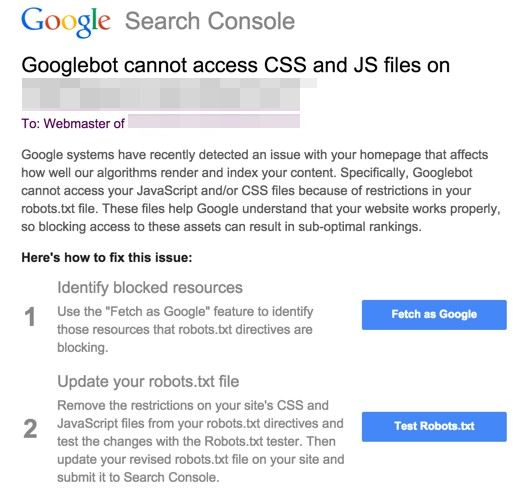
Here’s what my warning email from Google looked like:
Contents
Why Does Google Need Access to Your CSS and JS Files?
Google analyzes your website’s performance and user experience using CSS and JavaScript files, which help determine its ranking.
Googlebot also checks these files to see if your site is mobile-friendly. Blocking Googlebot from accessing these files can harm your SEO and lower your ranking.
WordPress doesn’t block search bots from accessing CSS or JS files by default. However, site owners might accidentally block them while adding security measures or using a plugin. Now, let’s see how to fix the “Googlebot cannot access CSS and JS files” error in WordPress.
Common Causes
- Robots.txt File Restrictions: Your robots.txt file might block Googlebot from accessing specific files.
- Server Configuration: Server settings might inadvertently restrict access to CSS and JS files.
- Plugin Interference: Some WordPress plugins might alter file permissions or block access.
Resolving the "Googlebot Cannot Access CSS and JS Files" Error
1. Identifying Files Blocking Googlebot Access to CSS and JS
- First, find out which files on your website can’t be accessed by Google’s bots. To do this, log into your Google Search Console. Click "Crawl" and "Fetch as Google" on the left side menu**.** This lets you see your website the way Google’s bots do.
- Next, select "Fetch and Render." After a few seconds, two screenshots will appear. One shows what visitors see, and the other shows what Google’s bots see on your site’s homepage.
If elements are missing in the Googlebot’s view compared to the user’s, the bots can’t access some CSS or JavaScript files on your site. Below the screenshots, you’ll find a list of these inaccessible CSS and JS elements.
- Next, you must modify your site’s robots.txt file, which dictates what parts of your site Google can see. To do this, connect to your website with an FTP client, and you’ll find the robots.txt file in your site’s root directory.
If you’re using the Rank Math SEO plugin for WordPress, you can easily edit the robots.txt file directly from your admin dashboard. Just navigate to the Rank Math section, select ‘General Settings’, and then click on the ‘Edit Robots.txt ‘ tab.
In your robots.txt file, you might find lines like these that block access to specific WordPress directories:
User-agent: *
Disallow: /wp-admin/
Disallow: /wp-includes/
Disallow: /wp-content/plugins/
Disallow: /wp-content/themes/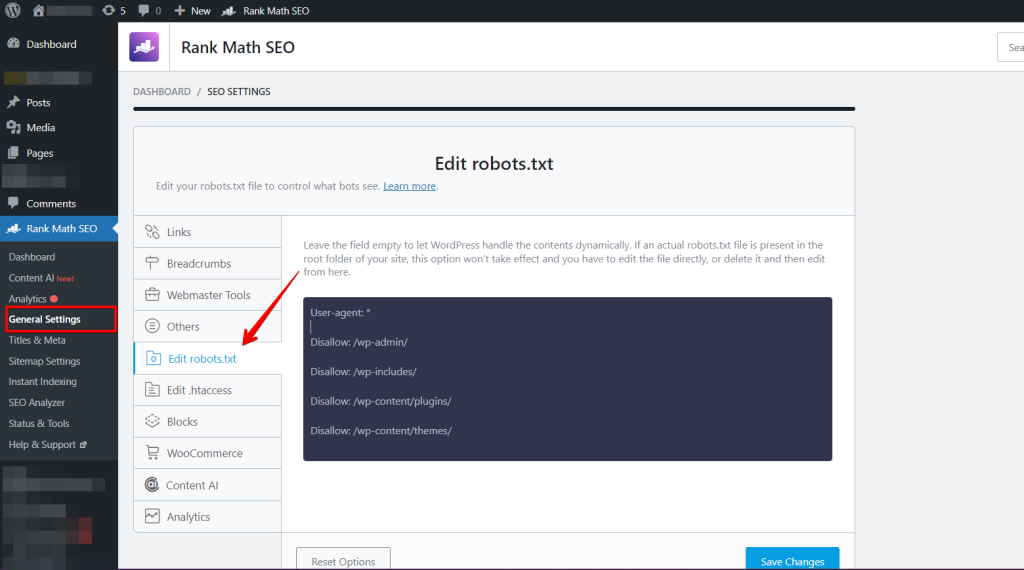
These lines prevent Google from accessing CSS and JS files on your site. If you see them, remove them to unblock Google’s access.
- Start by removing the line
Disallow: /wp-admin/From your robots.txt file, save the changes, and then use the Fetch and Render tool again in Google Search Console. The error has been resolved if the screenshots match, showing no missing elements.
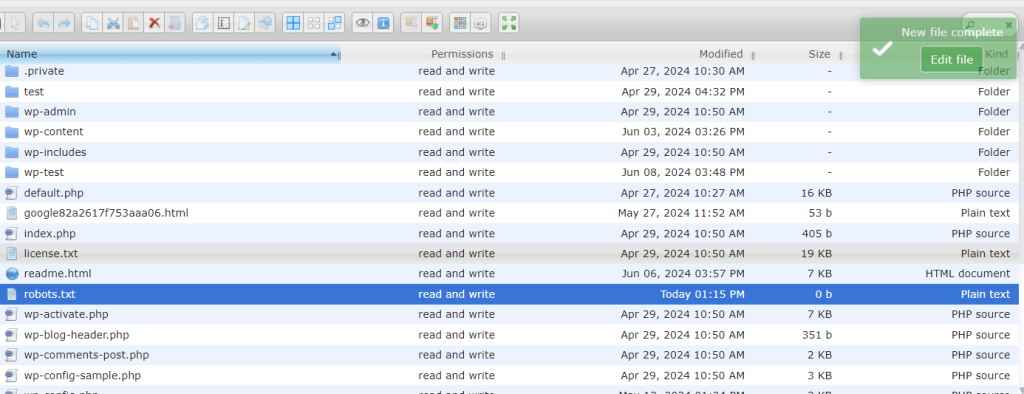
Add the following lines in it:
User-agent: *
Allow: /wp-includes/js/
Save this file and run Fetch and Render. If issues persist, add these lines:
Allow: /wp-content/plugins/
Allow: /wp-content/themes/
After saving your robots.txt file, head to the Fetch as Google tool and click the ‘Fetch and Render’ button. Check the results; you should notice that the issue with blocked resources has mostly been resolved.
Conclusion
Now, you’re ready to handle Googlebot issues effectively! Whether you edit your robots.txt file manually or use a plugin such as Rankmath, you’ve taken an essential step in improving your WordPress site’s search engine optimization. 🚀
Remember, it might take time for Google to re-scan your site and show the updates, so be patient if you don’t see instant changes.
Related Articles
- 5 Best WordPress eCommerce Plugins in 2024
- 5 Best Popup Plugins for Your WordPress Site
- How to Fix Your WordPress Site Not Working After a Migration
- WP Staging vs BackupBuddy: Which is the Best Choice?
- How To Fix the “Sidebar Not Appearing” WordPress Error