Spinning up a WordPress staging site used to be the painful part of the job. Set up a subdomain, copy the database, sync the files, fix the search-and-replace, pray nothing in wp-config.php blew up. WP Staging Pro collapsed all of that into a one-click clone, and for most agency workflows the staging problem is functionally solved.
The problem is that the staging workflow keeps getting heavier even when the staging plugin keeps getting faster. And the culprit is almost always the same folder: wp-content/uploads.
I work with a lot of agencies and plugin teams every week. The pattern is almost identical across the board. A site launches at a tidy 2GB. Eight years later it’s a 60GB monster with wp-content/uploads/2018/02/ subfolders nobody has touched since the day they were created. The staging plugin still works. The clone still finishes. It just takes a lot longer than it should, eats a chunk of disk, and quietly turns a one-click workflow into a coffee break.
That’s the hidden cost. And it’s worth fixing, because the fix is honestly pretty boring once you see it.
Why wp-content/uploads is the staging tax nobody talks about
Here’s what an average WordPress install actually looks like under the hood. Core is maybe 50MB. Plugins and themes together, even with a stacked agency build, rarely top 500MB. The database for a content-heavy site might be 200-400MB on the high end.
Then there’s wp-content/uploads. On a 5-year-old WooCommerce site, that folder can easily be 20-50GB. On a media-heavy publisher or membership site, 100GB+ is not unusual. I’ve seen client sites where uploads accounts for 98% of the entire WordPress footprint. The other 2% is everything that actually changes between deploys.
Staging plugins have to deal with all of it. Even when WP Staging Pro is doing its job perfectly, copying a database in seconds and skipping over excluded folders with surgical precision, the moment you tell it to clone a full site for client review, you are asking your server to duplicate every JPEG from 2019.
This shows up as four real costs:
- Disk space. A 60GB site cloned to a staging subdomain is now 120GB on disk. Two staging environments? 180GB. Most shared and even managed hosts charge A LOT for that.
- Clone time. Database copy is fast. File copy is bounded by your server’s I/O. A 60GB uploads folder is a 60GB I/O job no matter how good your plugin is.
- Backup weight. Every backup of every staging site re-archives every image you’ve ever uploaded. Stored in cloud destinations, that gets expensive.
- Cognitive overhead. "Don’t clone the staging site right now, I’m waiting on a backup to finish" is a sentence I have heard, in some form, in every agency I’ve worked with.
None of this is WP Staging Pro’s fault. It’s a media library problem wearing a staging mask.
What WP Staging Pro actually handles brilliantly
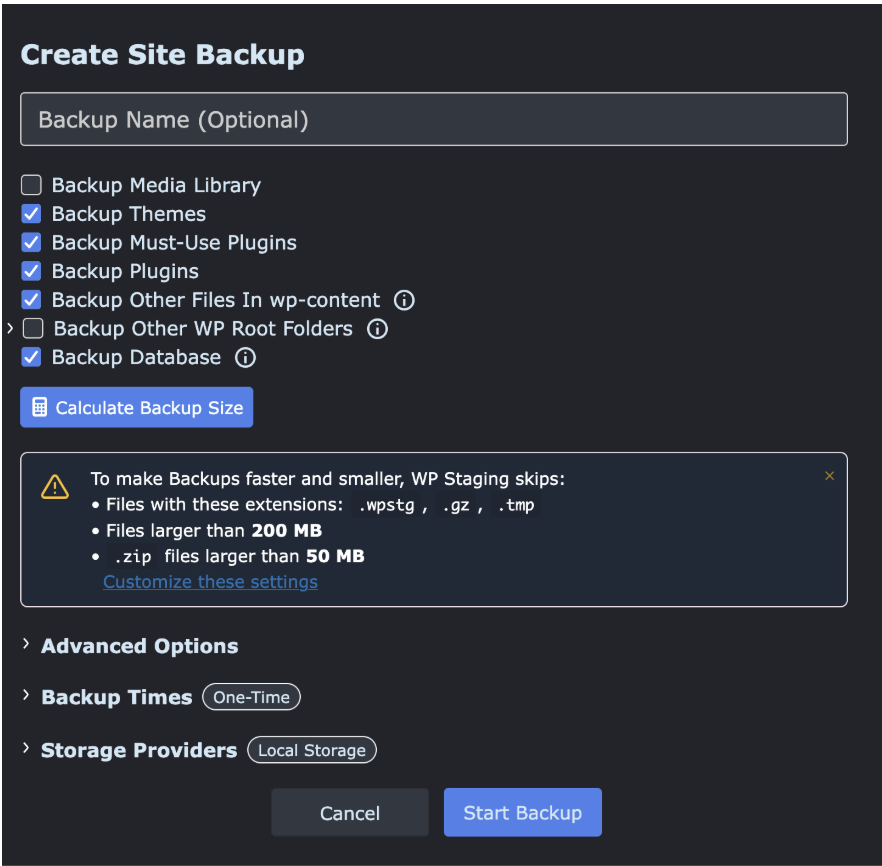
Before talking about the media side, it’s worth being honest about what WP Staging Pro is great at. Because the point of this post isn’t "staging plugins are slow" – they aren’t, the modern ones are remarkable. The point is that the parts that are slow have moved.
WP Staging Pro handles the hard parts of staging with very little drama:
- Database cloning with selective table support, which is honestly the part of staging that used to break everything. Tables get copied with proper prefix rewriting and serialized data is handled correctly.
- One-click site cloning to a subdirectory or subdomain, with user authentication so the staging copy isn’t accidentally indexed or accessed.
- Plugin and theme syncing between staging and production, so an agency can test a plugin update in isolation and push the working version back without nuking client edits.
- Backups with cloud destinations including Google Drive, Amazon S3, Dropbox, OneDrive, Wasabi, pCloud, DigitalOcean Spaces, generic S3-compatible storage, and SFTP. This is the part most people underestimate. A scheduled backup pipeline to S3 is genuinely an enterprise feature.
- Bulletproof restores, which is the feature you don’t appreciate until the day you need it. A backup is only worth what you can restore from it. WP Staging Pro restores cleanly even when WordPress itself is broken and you can’t log into wp-admin. There’s a standalone restore tool that runs independently of your WordPress install for exactly the situations where everything has gone sideways. If your site is down at 2am, this is the feature that gets you back online.
- Multisite support, which historically has been where every other staging tool quietly falls over.
- Site migration between hosts and domains, with search-and-replace handled automatically.
The plugin is built for sites of any size, including 50GB+ installs, and the architecture is genuinely impressive once you dig into how it chunks operations to avoid PHP timeouts. For everything inside the database, the plugin folder, and the themes folder, this is a solved problem.
The wp-content/uploads folder is where the conversation gets interesting.
Why "just exclude the uploads folder" isn’t a real answer
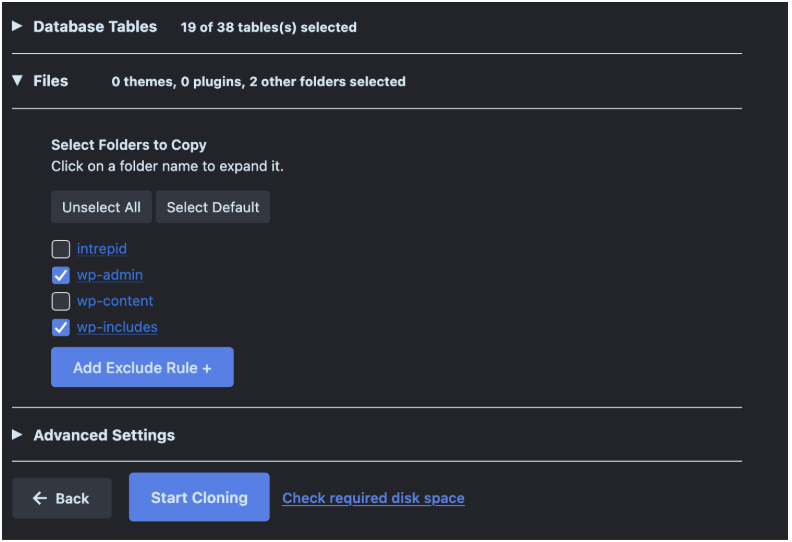
The obvious move is to tell WP Staging Pro to skip wp-content/uploads during cloning. The plugin lets you do this, and for some workflows it’s the right call.
For most workflows it isn’t. Here’s why.
If your staging site doesn’t have the production media, every page you preview looks broken. The hero image on the homepage is a placeholder. WooCommerce product galleries are 404s. Featured images don’t render. The whole point of staging is to see what production sees, and a media-less staging site doesn’t actually let you sign off on a change with confidence.
Some teams work around this with NFS mounts, symlinks, or rsync jobs that run alongside the staging clone. Those work. They’re also fragile, host-specific, and they re-introduce exactly the kind of manual config that staging plugins were built to eliminate.
There’s a cleaner answer that works regardless of how many staging copies you spin up, and it doesn’t require any host-level scripting.
Move the media out of WordPress entirely
The shift that actually fixes the problem is to stop treating WordPress media as part of the site. Move it to cloud object storage, serve it through a CDN, and let WordPress hold pointers instead of files.
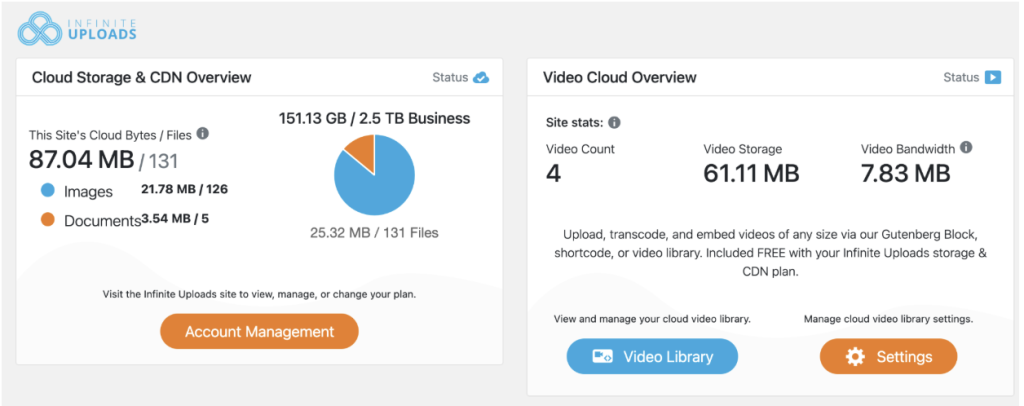
This is what Infinite Uploads does. It moves all the images, videos, and files in your Media Library off your hosting server and into the cloud, then makes sure your website still serves them up to visitors at lightning speed from servers all around the world. Think of it like moving your filing cabinets out of your office and into a warehouse that’s closer to your customers. The files are still yours. They’re just not living on your hosting server anymore, which means your website gets lighter, faster, and a whole lot cheaper to back up.
For day-to-day site operation, the result is that WordPress doesn’t change. Editors upload images the same way. The Media Library looks normal. URLs work. SEO doesn’t break, because the rewriting is handled at the database level and old URLs are preserved.
For staging workflows specifically, three things change in a useful way:
The staging clone gets weightless. When wp-content/uploads is 200MB of placeholders pointing to cloud storage instead of 60GB of actual JPEGs, WP Staging Pro has almost nothing to copy on the media side. The clone time drops from "go get coffee" to "wait, it’s done already?" because the plugin is now doing what it was built to do – copying the parts of the site that actually change.
Staging and production share the same media library. When you clone, the staging copy points to the same cloud storage as production. Every existing image, video, and PDF loads on staging without copying a single file. No sync job, no waiting for a 60GB transfer to finish, no half-broken preview where the hero image is missing. Infinite Uploads has tested this workflow specifically with WP Staging Pro and confirmed the connection survives both cloning and pushing changes back to production.
Backups stop being storage-heavy. A scheduled WP Staging Pro backup of the database, plugins, and themes is small enough to ship to Google Drive in seconds. The media is already backed up at the cloud storage layer and doesn’t need to be archived inside every WordPress snapshot. Storage costs come down. Restore times come down. Schedules can run hourly without anyone noticing.
The combined workflow in practice
What this looks like when you put the two plugins together is pretty straightforward.
Production runs WP Staging Pro for backups, migrations, and the occasional staging clone. The same site runs Infinite Uploads to keep the media library offloaded and CDN-served. Your editors don’t know either plugin exists. They upload images, hit publish, and everything works.
When you need a staging site to test a plugin update or preview a redesign, you click clone in WP Staging Pro. The plugin copies the database, the plugins folder, and the themes folder. The uploads folder is a thin shell of references, so it copies in seconds. The new staging site comes up pointing at the same cloud media as production, which means every page renders correctly without any of the disk weight.
When the work is done and you push changes back to production, WP Staging Pro handles the database and code merge. The media never had to move because it was never actually on either server.
When backups run on a schedule, they’re database-and-code snapshots, which means they’re small, fast, and cheap to store. The media has its own redundancy at the cloud storage layer, which is genuinely more reliable than zipping it all into a .wpstg archive once a day anyway.
This is the stack a modern WordPress agency should be running on every site over 5GB. WP Staging Pro for the database, plugins, themes, and migrations. Infinite Uploads for the media. Each plugin doing what it does best, neither one stepping on the other.
What changes when the stack is right
The metrics that matter for agency workflows shift in ways that are easy to measure.
Staging clones that used to take 20 minutes finish in under two. Disk usage on the origin server drops by 80-95% on media-heavy sites. Scheduled backups stop failing on memory limits because they’re no longer trying to archive a 50GB directory. Hosting bills come down on plans where storage is metered. Client preview environments can be spun up casually instead of being scheduled around server load.
And the part that’s harder to put a number on – the staging workflow stops being a project. It becomes the thing it was supposed to be all along, which is a routine click that lets you ship with confidence.
WP Staging Pro made staging approachable. Infinite Uploads keeps it that way as your sites grow.
Keep your stack honest. Don’t let the uploads folder eat the workflow.