

Broken links frustrate visitors and drag down your SEO. This guide shows you five reliable ways to find and fix broken links on a WordPress site, from a free plugin to Google Search Console.
Quick answer: To find broken links in WordPress, scan your site with a tool such as the free Broken Link Checker plugin, Google Search Console, or an external crawler like Semrush or Ahrefs. Then fix each result by correcting the URL, pointing it to the right page, or removing the link. Back up your site first so you can undo any change.
Contents
Why Fixing Broken Links Matters
Before we get to the "how," here is the "why." Broken links can:
- Frustrate users: Nothing kills a good experience like a link that leads nowhere.
- Damage your SEO: Search engines do not favor sites with broken links.
- Harm your credibility: Broken links make a site look neglected or outdated.
Which Method Should You Use?
All five methods below find and fix the same broken links, but they suit different situations. Use this table to pick one fast, then jump to that section.
| Method | Cost | Where it runs | Best for |
|---|---|---|---|
| Broken Link Checker plugin | Free | Inside WordPress | Ongoing, automatic scans without leaving your dashboard |
| W3C Link Checker | Free | Web-based, one page at a time | A quick, no-signup check of a single page |
| Semrush | Paid | External crawler | Teams already running a Semrush site audit |
| Ahrefs | Paid | External crawler | Teams already using Ahrefs for SEO data |
| Google Search Console | Free | Google index data | Seeing the broken URLs Google has already flagged |
Top 5 Methods to Find and Fix Broken Links in WordPress
- Using Broken Link Checker Plugin
- Using W3C Link Checker
- Using Semrush
- Using Ahrefs
- Using Google Search Console
Note: Back up your website before you make any changes. If something goes wrong, you can quickly restore your site to its previous state. You can use WP STAGING for easy automatic backups. Check out the backup and restore guide for more help.
1. Using the Broken Link Checker Plugin
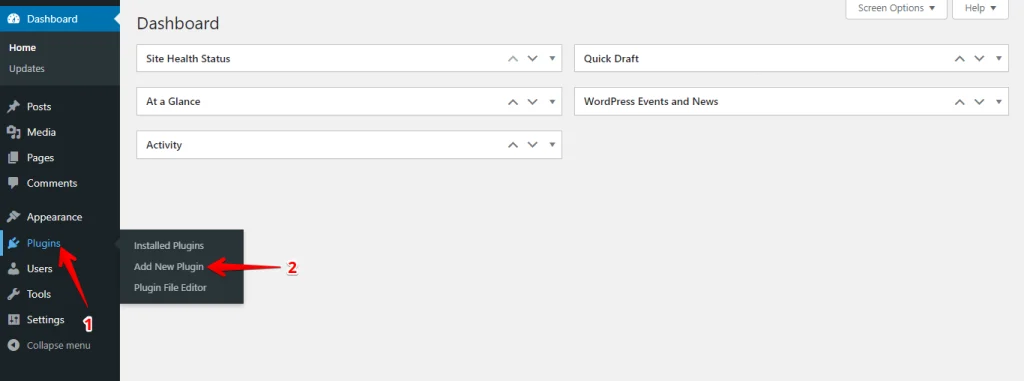
Best for ongoing, automatic scanning from inside WordPress. Log into your WordPress dashboard. In the left-hand menu, hover over "Plugins" and click "Add New Plugin."
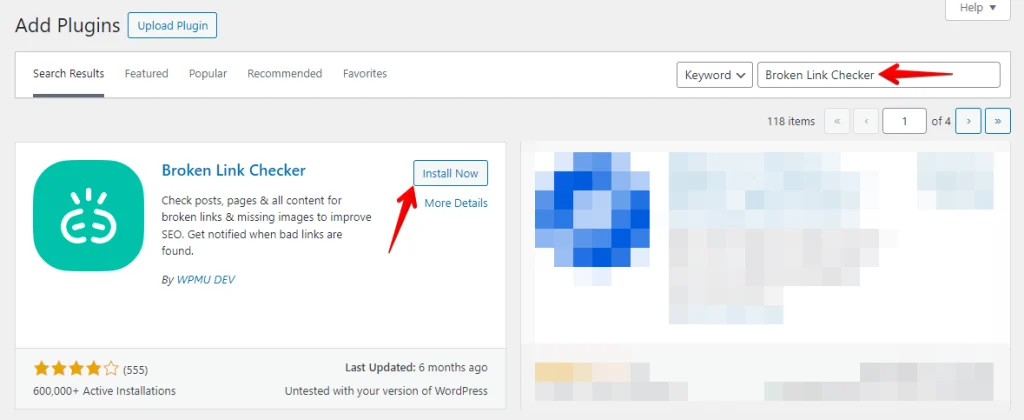
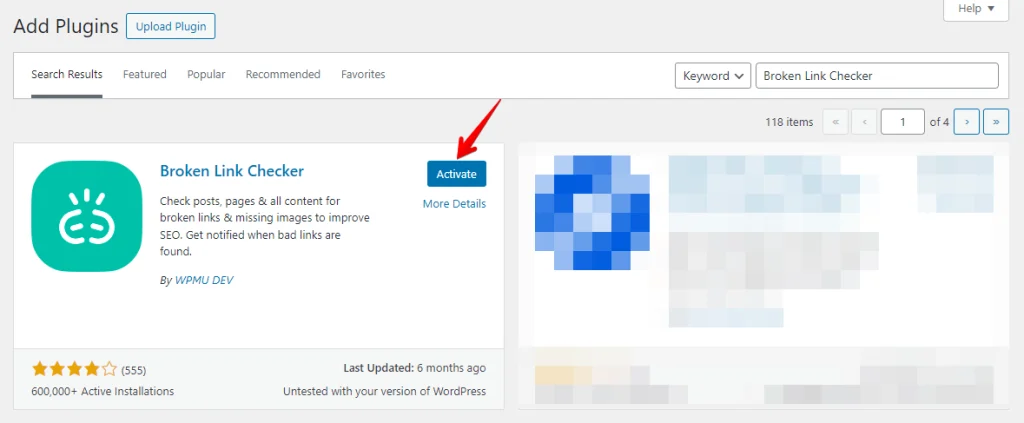
In the search bar at the top right, type "Broken Link Checker" and press Enter. Locate the "Broken Link Checker" plugin by WPMU DEV and click the "Install Now" button.
After installation, click "Activate" to start using the plugin.
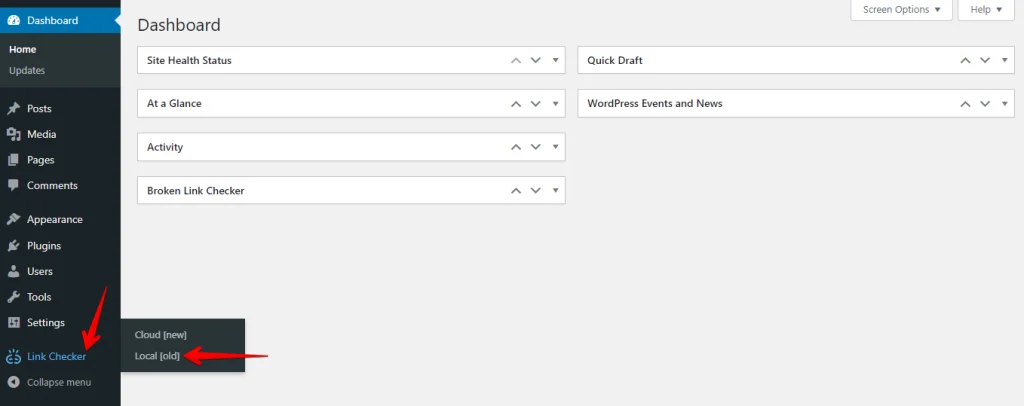
After activation, navigate to the "Link Checker" tab and click "Local."
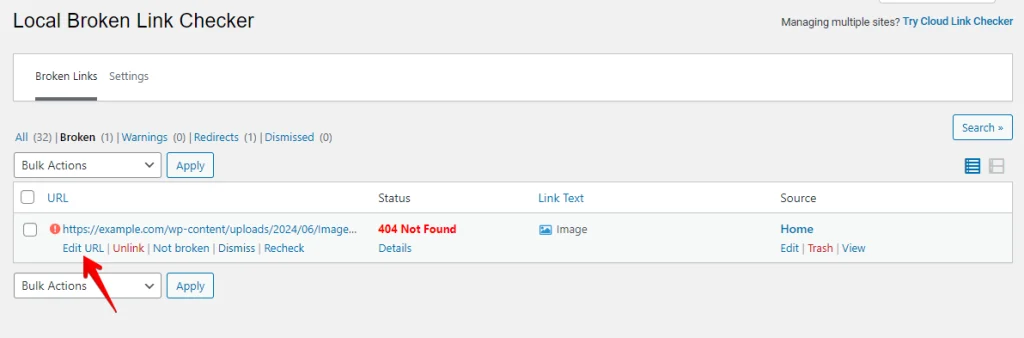
Now, you can see a list of broken links. Click on the "Edit URL" option located below each broken link.
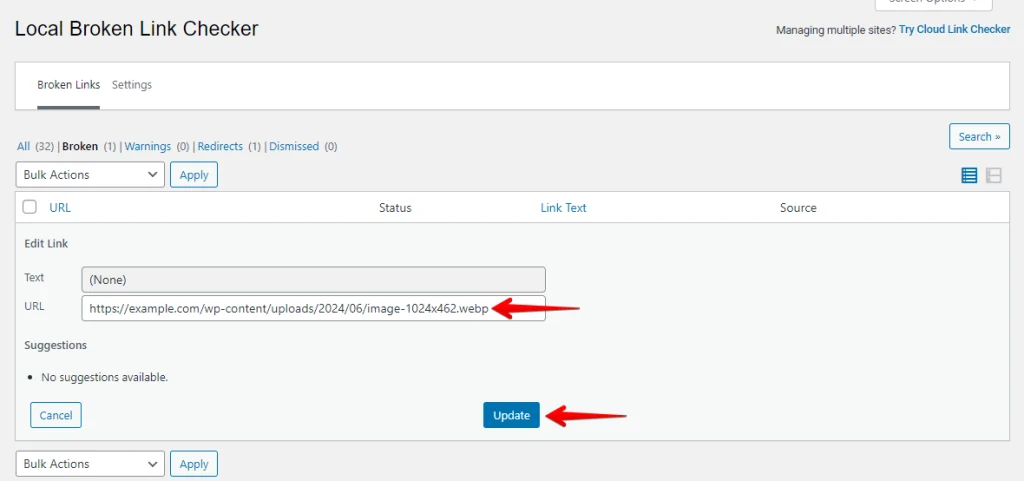
Update the URL and click on the "Update" button.
These steps keep your WordPress site healthy, maintain a smooth user experience, and support your SEO by fixing broken links.
2. Using W3C Link Checker
Best for a quick, no-signup check of a single page. The W3C Link Checker is a tool from the World Wide Web Consortium (W3C) that checks the validity of hyperlinks on a page. Here is how to use it step by step:
Go to the W3C Link Checker website at https://validator.w3.org/checklink.
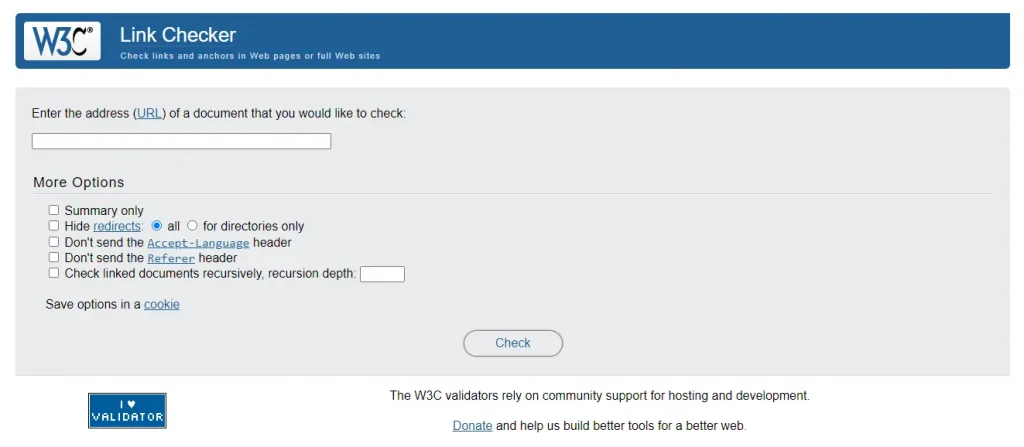
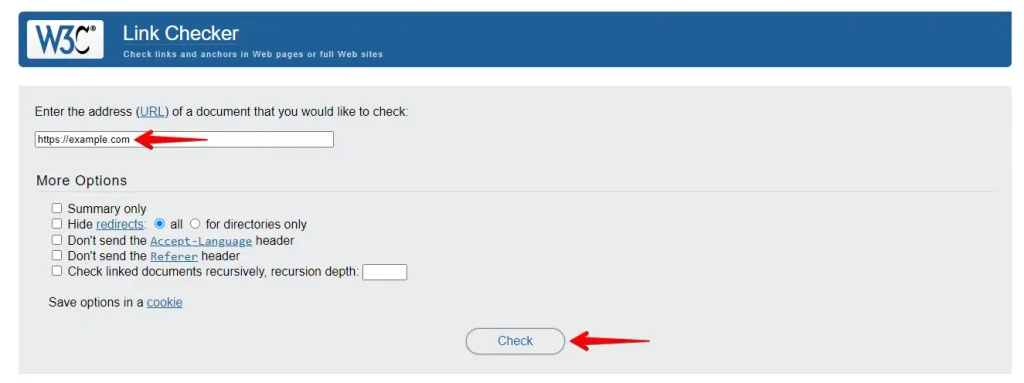
Input the webpage URL you want to check into the provided field. Adjust the settings to suit your needs, and click on the ‘Check’ button.
Examine the results displayed on the page, noting any broken links and their details. Correct, replace, or remove broken links based on the checker’s findings.
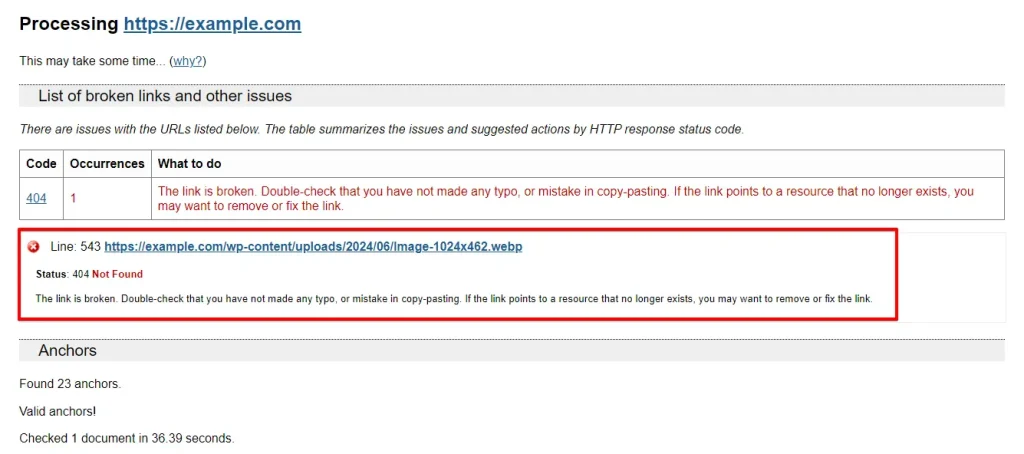
With these steps, the W3C Link Checker helps you identify and fix broken links on a single page, which keeps both the reader experience and your SEO ranking intact.
3. Using Semrush
Best for teams already running a Semrush site audit. Using Semrush to find broken links involves a few steps. Here is a clear guide to help you through the process:
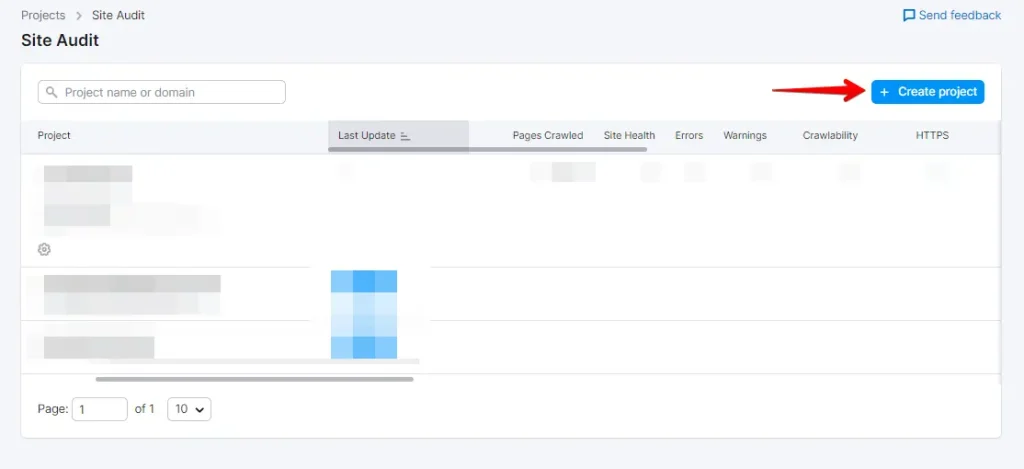
First, log in to your Semrush account and navigate to the Site Audit page.
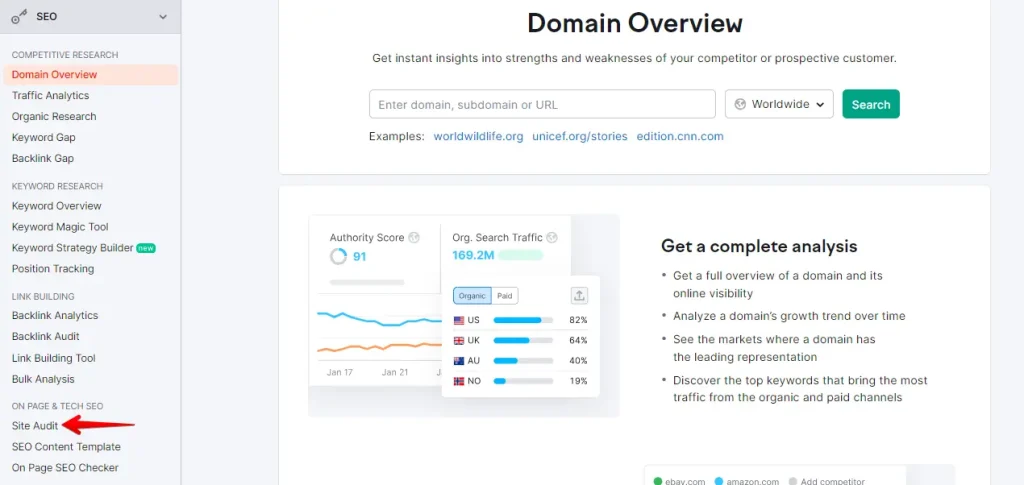
Click on the ‘Create Project’ button to get started.
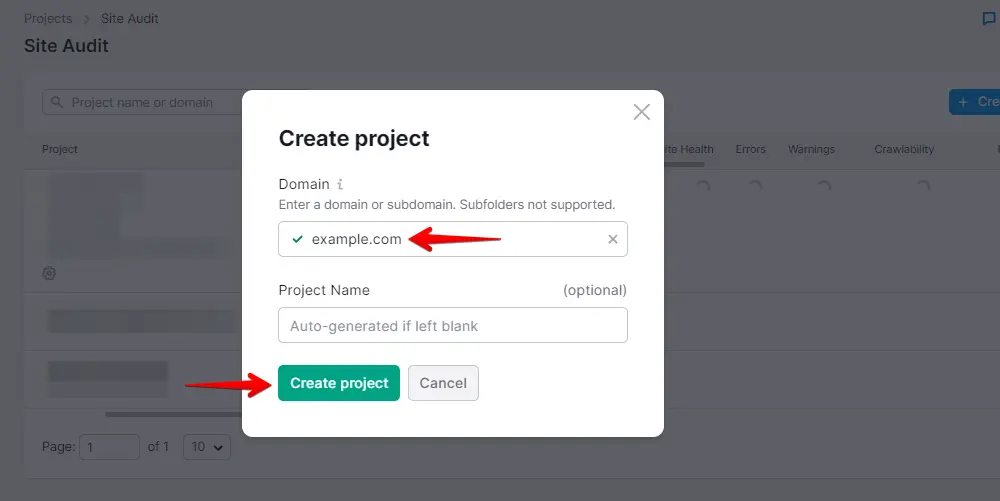
Enter your website’s domain, and click on ‘Create Project.’
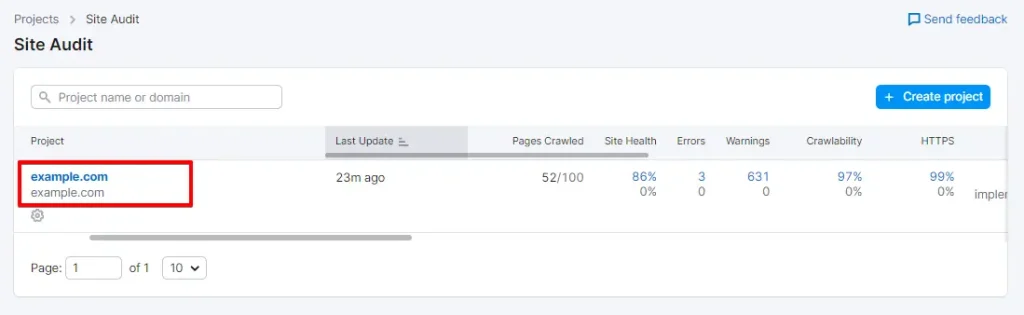
Locate and select your site within your project dashboard, then click on it.
Once the audit is complete, Semrush presents a report of your site’s health, highlighting errors, warnings, and notices. To find broken links:
Go to the Crawled Pages section and click on the number labeled "Broken."
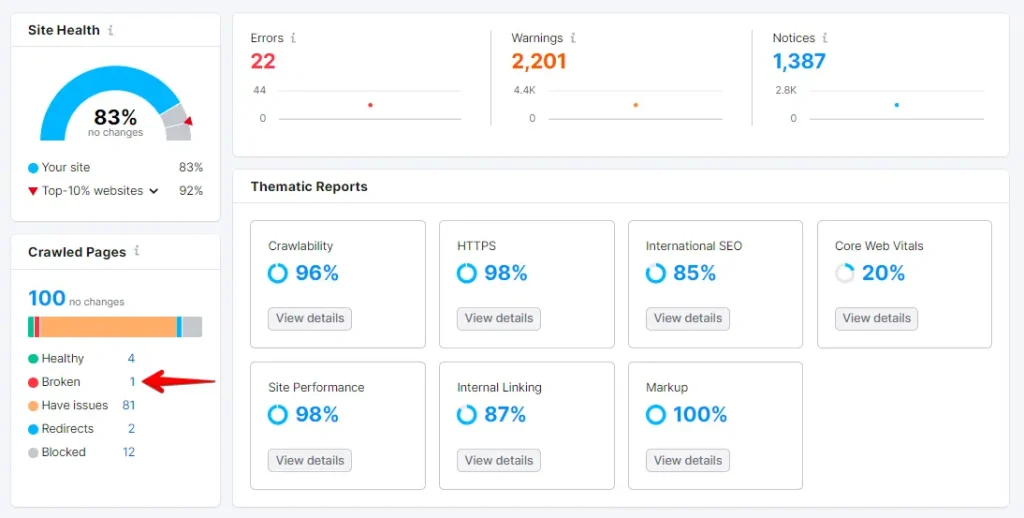
You will see a list of broken links on your domain. Click the ‘Export’ button at the top right corner to download your crawl report and fix the broken links.
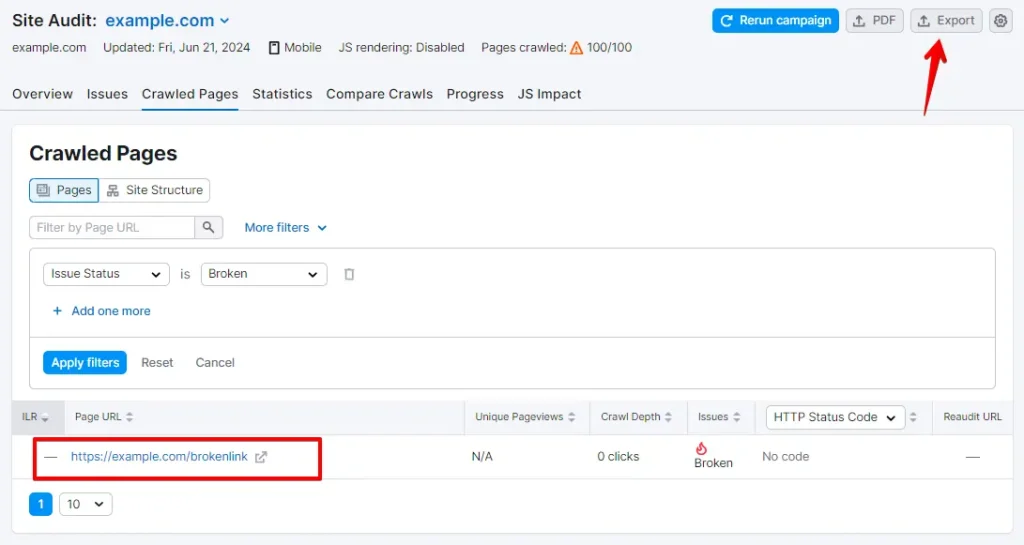
Following these steps in Semrush, you can identify and repair broken links across your site, improving user engagement and search rankings.
4. Using Ahrefs
Best for teams already using Ahrefs for SEO data. Using Ahrefs to find and fix broken links is straightforward and can improve your site’s SEO and user experience. Here is a step-by-step guide to get you started:
Log in to your Ahrefs account. Once in your Ahrefs dashboard, find the Site Explorer tab, click on it, and enter your domain name.
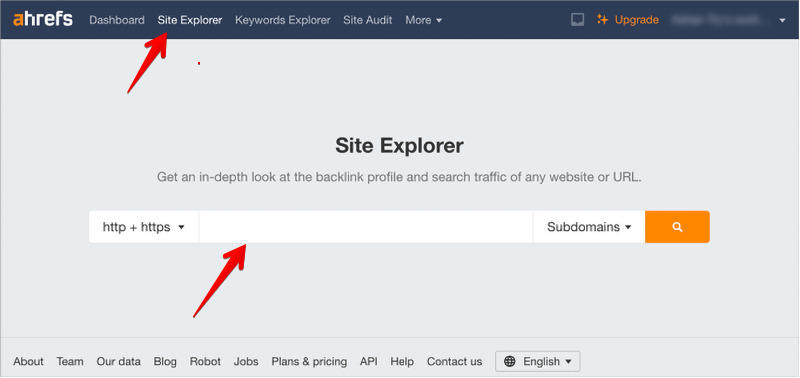
The Site Explorer tool crawls your website and generates reports. After it finishes, go to Pages » Best by links and sort by 404 status to view the results.
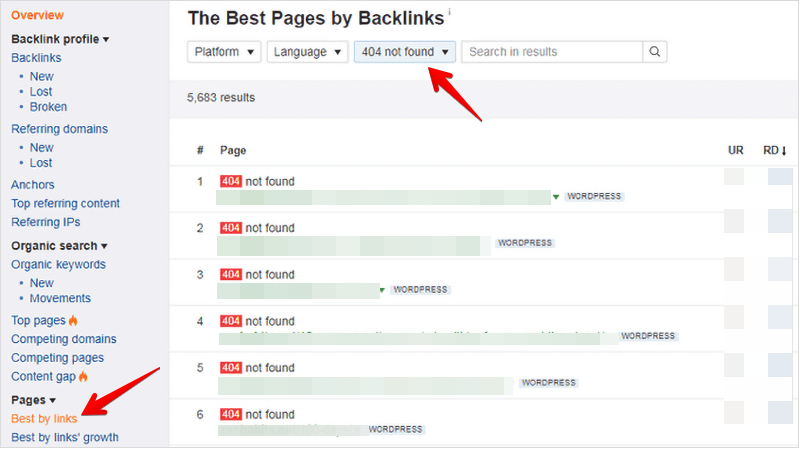
You can now download your report as a CSV file to identify and repair broken links on your WordPress website.
5. Using Google Search Console
Best for finding the broken URLs Google has already flagged on your live site. Google Search Console helps you find and fix broken links while improving site health and SEO. Here is a step-by-step guide:
First, you need to set up Google Search Console for your website.
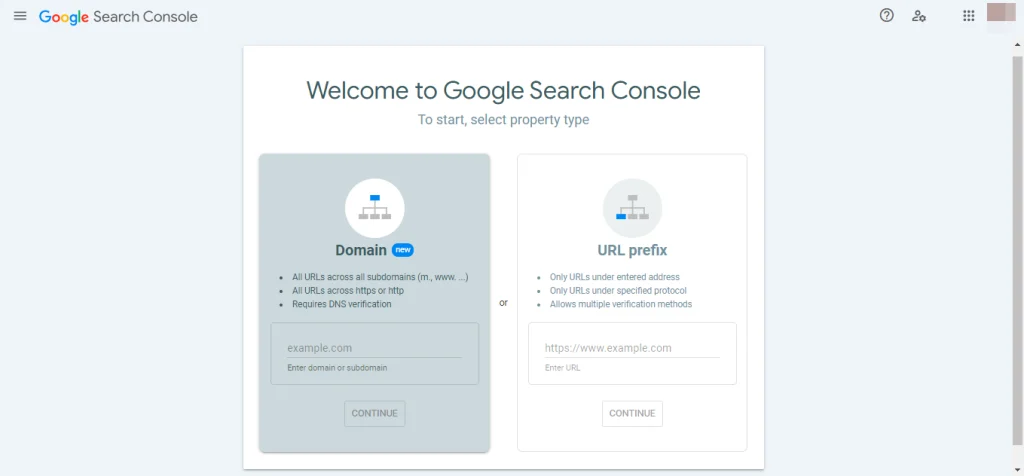
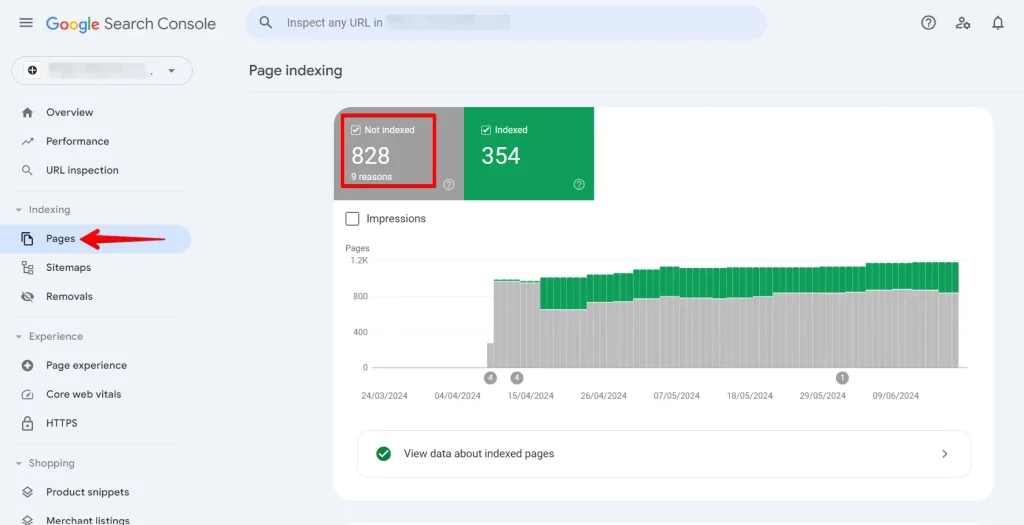
Once you have logged into your Google Search Console account, click on the ‘Pages’ link from the left-hand menu and ensure the box next to ‘Not indexed’ is checked.
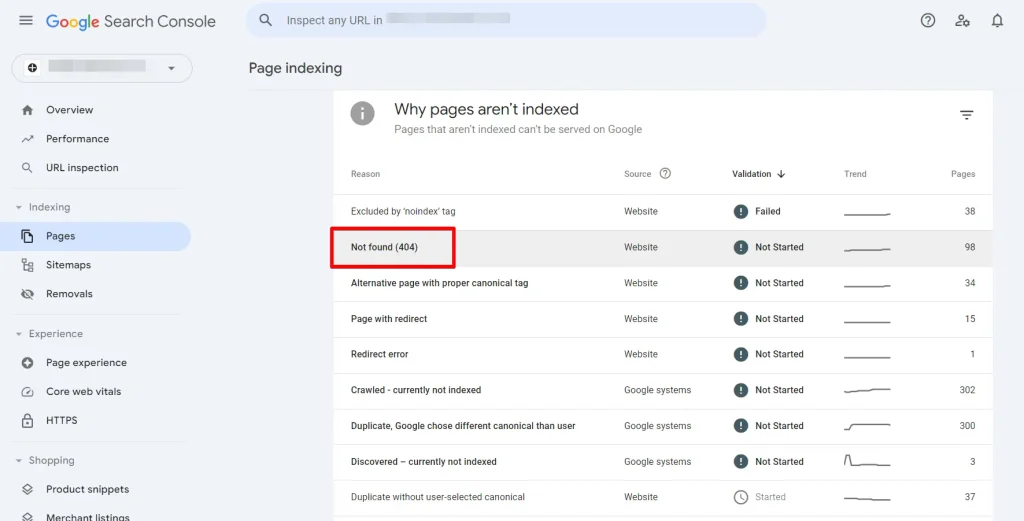
Now scroll down to the bottom, find the ‘Why pages aren’t indexed’ section, and click on the 404 errors option.
When you click on this option, you will see a list of all broken links that resulted in a 404 error.
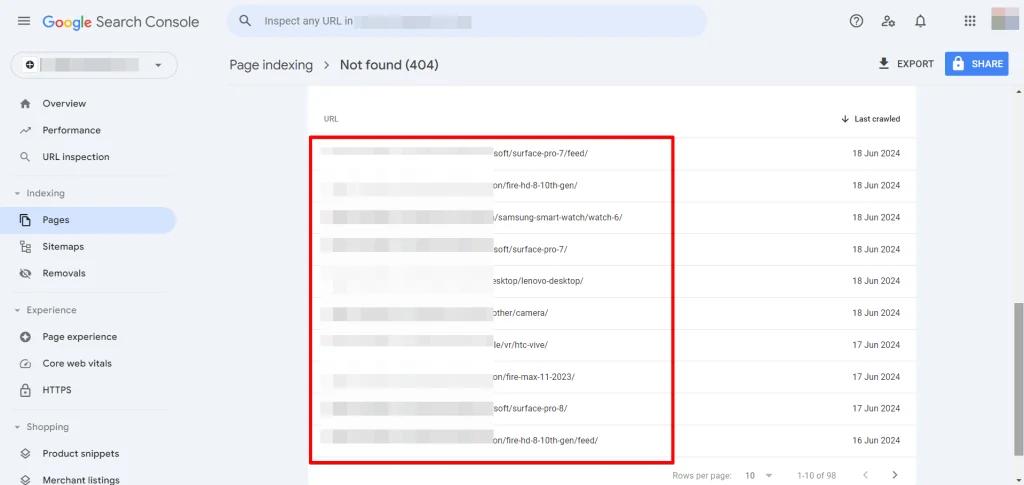
Check your site’s content or database to find the broken link. Update the link if the URL has changed, or remove it if the content no longer exists.
What to Do If Broken Links Keep Coming Back
Fixing a link once does not always keep it fixed. If the same broken links reappear, work through these checks:
- Re-scan after every batch of edits. A checker only reflects the state at scan time. Run it again after you correct a group of links to confirm the fixes registered and to catch any you missed.
- Set up 301 redirects for pages you removed. When you delete a post or change a permalink, point the old URL to the closest relevant page with a 301 redirect so inbound links and bookmarks still land somewhere useful.
- Check for links that broke during a migration. Moving to a new host or pushing a staging site to live can leave hardcoded old URLs in your content and database. From WP STAGING support tickets, these stale URLs are a common source of "new" broken links right after a migration. A search-and-replace pass on the database usually clears them.
- Clear your cache. Caching and CDN layers can keep serving an old page after you fix a link. Purge the cache so visitors and crawlers see the corrected version.
- Expect a few false positives. Automated checkers sometimes flag a working link as broken when a server is slow, rate-limits the checker, or blocks automated requests. Open the flagged URL in a browser before you change or remove it.
Conclusion
A healthy WordPress site stays free of broken links, which protects both the reader experience and your search rankings. This guide covered five methods: the Broken Link Checker plugin, W3C Link Checker, Semrush, Ahrefs, and Google Search Console.
Pick the method that fits your setup from the table above, back up your site, then scan and fix on a regular schedule. Doing this consistently keeps your links working and your pages ranking.
Related Articles