Quick fix: This error means WordPress cannot set a login cookie. Open
wp-config.phpand remove (or correct) anyCOOKIE_DOMAINandCOOKIEPATHconstants. If that does not resolve the issue, thefunctions.phpmethod below resets the cookie path directly.
Seeing the message "Cookies are blocked or not supported by your browser. You must enable cookies to use WordPress" when you try to log in? This article walks through the two most reliable fixes and covers what to try when neither works.
Diagnose first — pick the fix that matches your situation:
| Symptom | Most likely cause | Start with |
|---|---|---|
| Error appears only on your staging site | Leftover COOKIE_DOMAIN constant from a migration |
Method 1 (wp-config.php fix) |
| Error appears in private/incognito mode | Cookies disabled for that browser session | Switch to a normal browser window |
| Error appeared after moving to a new host | Old browser cookies conflict with the new server | Clear browser cookies and try again |
| Error appears on the live site too | Security or cache plugin interference | Temporarily disable plugins; then try Method 1 |
| Neither fix below resolves it | SSL mismatch or third-party cookie policy | See "What to do if neither fix works" section |
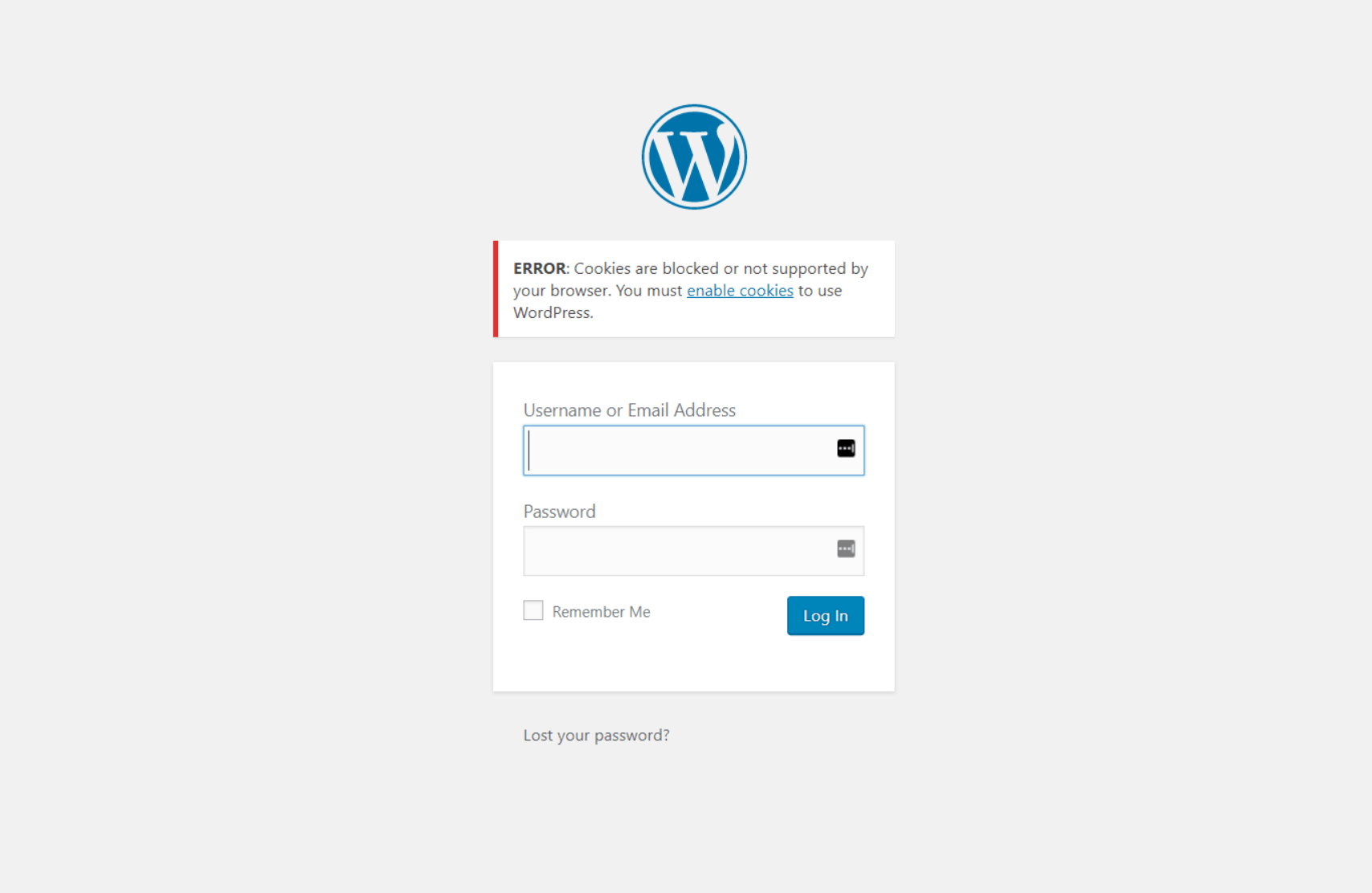
Contents
- Reasons for the Error: "Cookies Are Blocked or Not Supported by Your Browser"
- Why Cookies Are Especially Prone to Fail on Staging Sites
- Fix the "Cookies Blocked" Error by Editing wp-config.php
- Fix the error "Cookies are blocked or not Supported" by editing the file functions.php
- What to Do If Neither Fix Works
- Verifying the Fix: What You Should See After Clearing Cookies and Logging In
- Related Posts
Reasons for the Error: "Cookies Are Blocked or Not Supported by Your Browser"
Contrary to what the error message says, the root cause is rarely a browser setting. The message appears because WordPress cannot write its authentication cookie — most often because a constant in wp-config.php points to the wrong domain, or because a plugin is interfering with cookie handling.
In WP STAGING support tickets, the most common trigger is a leftover COOKIE_DOMAIN constant from a previous migration that no longer matches the site’s current domain.
Sometimes the error disappears by refreshing the browser. If it does not, work through the fixes below.
WordPress Login Error Caused by Security or Cache Plugin
Security or cache plugins can interfere with WordPress cookie and login handling, preventing the login cookie from being generated correctly. To isolate the cause, temporarily deactivate the security or cache plugin by renaming its folder via FTP or a file manager: rename /wp-content/plugins/plugin-name to something else, then try to log in.
If this resolves the issue, reinstall the plugin and contact its developer about the cookie conflict.
If you migrate your WordPress website to another server while keeping the same domain, your browser’s stored cookies may conflict with the new server’s session. Delete all browser cookies and try logging in again.
Why Cookies Are Especially Prone to Fail on Staging Sites
Staging sites hosted in a subdirectory (e.g., yoursite.com/staging/) share the parent domain with the live site. WordPress sets its authentication cookie using the COOKIE_DOMAIN and COOKIEPATH constants. If either constant in wp-config.php still points to the live site’s root or to a previous host’s domain, the staging site cannot write its login cookie.
This is the scenario WP STAGING users encounter most often: after pushing a staging site back to live, the old COOKIE_DOMAIN constant remains in wp-config.php on the staging copy. The fix in Method 1 below corrects this in one line.
Fix the "Cookies Blocked" Error by Editing wp-config.php
This is the most reliable fix for staging environments and post-migration setups. Open wp-config.php in your site’s root folder — accessible via FTP (e.g., FileZilla) or your host’s file manager.
Look for any line that defines COOKIE_DOMAIN or COOKIEPATH. If you find one, remove it or replace it with the line below. Paste it just above the comment that reads /* That's all, stop editing! Happy publishing. */:
define('COOKIE_DOMAIN', $_SERVER['HTTP_HOST'] );Save the file, clear your browser cookies, and reload the login page.
What this line does: Using $_SERVER['HTTP_HOST'] makes COOKIE_DOMAIN resolve to whatever domain the site is currently running on, instead of a hardcoded value from an earlier host or migration. This eliminates the mismatch between the stored cookie and the current domain.
Fix the error "Cookies are blocked or not Supported" by editing the file functions.php
If the wp-config.php fix did not resolve the issue, this alternative resets the cookie path at the WordPress level. From our testing, this approach resolves cases where SITECOOKIEPATH and COOKIEPATH have diverged — a less common but persistent source of the error.
Step 1: Open and edit the file functions.php
Access your theme’s functions.php via cPanel file manager or FTP. The file is at wp-content/themes/your-theme-name/functions.php.
Step 2: Add code to the file functions.php
Copy the code below and paste it at the bottom of functions.php:
if ( SITECOOKIEPATH != COOKIEPATH ) {
    setcookie(TEST_COOKIE, 'WP Cookie check', 0, SITECOOKIEPATH, COOKIE_DOMAIN);
}
Step 3: Save the file
Save the file and re-upload it to your server if you edited it locally. The error should no longer appear when you log in.
What to Do If Neither Fix Works
If both methods above have no effect, the cause is likely one of the following:
Browser blocking all cookies globally. Open your browser’s privacy settings and confirm that cookies are enabled. In Chrome: Settings → Privacy and Security → Cookies and other site data → "Allow all cookies." In Firefox: Settings → Privacy & Security → Custom → uncheck "Cookies." In Safari: Preferences → Privacy → uncheck "Block all cookies."
Third-party cookie restrictions in modern browsers. Chrome, Firefox, and Safari restrict third-party cookies by default. If your WordPress login endpoint is served from a different subdomain than the main site — common on staging setups — the browser may block the cookie. The COOKIE_DOMAIN fix in Method 1 addresses this for most subdirectory staging installs.
Staging subdirectory cookie-domain mismatch. If your staging site is at yoursite.com/staging/ and COOKIE_DOMAIN is set to yoursite.com without the subdirectory path, WordPress cannot match the cookie. Add define('COOKIEPATH', '/staging/'); to wp-config.php alongside the COOKIE_DOMAIN fix.
SSL/HTTPS misconfiguration. If your site has an SSL certificate but WordPress is still configured to use http:// in siteurl or home (in wp_options), the browser’s secure-cookie requirement may reject the authentication cookie. Confirm both values in wp-admin → Settings → General use https://.
Verifying the Fix: What You Should See After Clearing Cookies and Logging In
After applying either method:
- Clear all cookies for your site domain in your browser.
- Open a new browser tab and navigate to your WordPress login page.
- Enter your credentials. If the fix worked, you will land on the dashboard without seeing the cookies error.
- Test in an incognito or private window as well — this rules out any cached cookie state from your main session.
If the error reappears in private mode only, a browser extension (such as an ad blocker or privacy tool) is likely intercepting the cookie. Try disabling extensions one at a time to identify the conflict.
Looking for the most trusted backup, migration and staging WordPress plugin? Try out WP STAGING.
Related Posts
- How to Block Google From Accessing a Staging Website
- Fix the Error Cookies are Blocked due to Unexpected Output
- How to Troubleshoot WordPress Login Issues?
- How to Clear Browser Cache and Cookies?