


TL;DR: The SSL Handshake Failed error appears when a browser and server cannot agree on the security settings needed to open an encrypted connection. The most common causes are an expired SSL certificate, an incorrect device clock, an outdated browser, or a TLS protocol version mismatch. If the error appears on all HTTPS sites, start with Fix 1 (date and time). If it is limited to one site, start with Fix 2 (certificate check).
Contents
Common Reasons for the SSL Handshake Failed Error
The SSL/TLS handshake is a brief negotiation that happens before every HTTPS connection. Your browser and the server must agree on a protocol version, a cipher suite, and the validity of the server’s certificate. When any part of that negotiation breaks down, the connection cannot be established. The most common reasons include:
- Incorrect Date and Time Settings: SSL certificates are valid only within a fixed time window. If your device’s clock is wrong by even a few hours, the browser treats the certificate as expired or not yet valid, even if the certificate itself is fine.
- Outdated Browser: Browsers that do not support modern TLS versions or cipher suites cannot connect to servers that require them. Browser extensions that intercept traffic can cause the same result.
- Expired or Mismatched SSL Certificate: A certificate that has passed its expiry date, or one issued for the wrong domain, causes handshake failure immediately.
- Protocol Version Mismatch: The client and server must agree on a TLS version. Servers still running TLS 1.0 or 1.1 are rejected by all current browsers, which require at least TLS 1.2. From WP STAGING support tickets, outdated server TLS configurations are among the most frequent server-side causes we encounter.
- Cipher Suite Mismatch: Even when TLS versions align, the server must offer at least one cipher suite that the browser accepts. Older servers with a short or deprecated cipher list often hit this barrier without any obvious error on the server side.
- Firewall or Antivirus Interference: Some security software intercepts HTTPS connections and re-signs them with its own certificate. If that certificate is not trusted by the browser, or if the inspection process strips cipher suites, the handshake fails.
How to Diagnose the Problem
Matching your symptom to the most likely cause before applying fixes saves significant time:
| Symptom | Most Likely Cause | First Fix |
|---|---|---|
| Error on all HTTPS sites | Device clock wrong, or browser out of date | Fix 1 (date/time) or Fix 3 (browser update) |
| Error only on one specific site | Expired or misconfigured certificate on that server | Fix 2 (certificate check) |
| Error appeared after installing a browser extension | Extension intercepting SSL traffic | Fix 5 (disable extensions) |
| Error in one browser only, not others | Browser TLS setting or outdated version | Fix 3 (browser update) |
| Error after moving WordPress to HTTPS | WordPress not fully configured for HTTPS | WordPress-specific fixes below |
| Your visitors report the error on your site | Server-side TLS or certificate issue | Run an SSL server test |
For server-side issues, the Qualys SSL Labs Server Test scans your domain for free, grades your TLS configuration, and lists every certificate and cipher problem it finds. In our testing with WP STAGING, running this test is the fastest way to confirm whether the problem is on the server or the client side.
5 Easiest Ways to Fix the "SSL Handshake Failed" Error
- Check Your Date and Time Settings
- Verify that your SSL certificate is still valid
- Update your browser
- Check TLS/SSL protocol support
- Disable Browser Extensions
1. Check Your Date and Time Settings
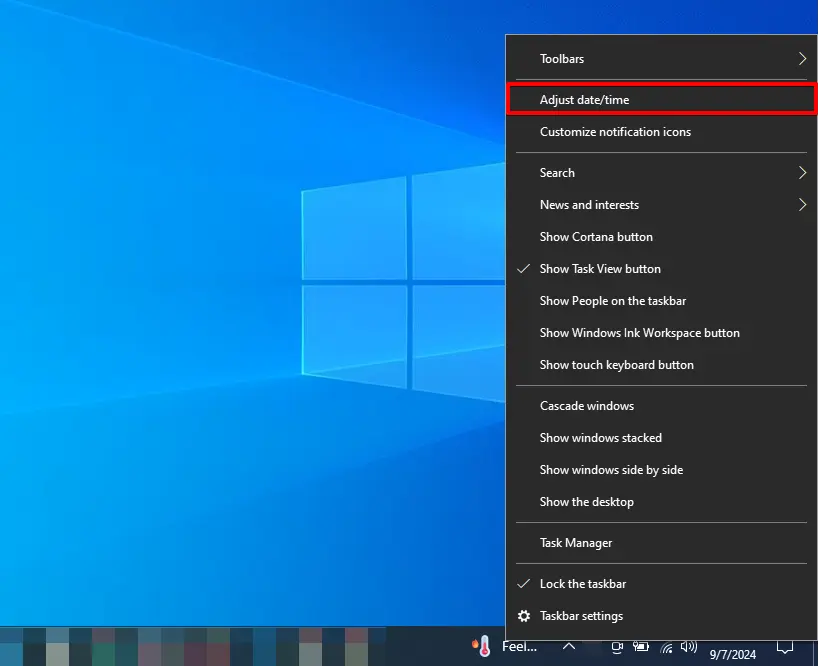
The "SSL Handshake Failed" error can often be due to incorrect date and time settings on your device. SSL certificates rely on accurate time, so an incorrect clock can disrupt the secure connection. Here’s how to fix it:
Right-click on the time and date on the taskbar and select "Adjust date/time."
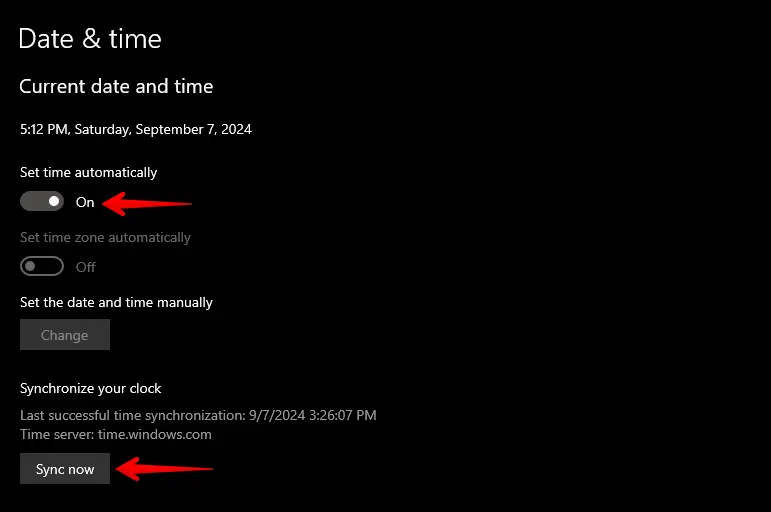
Enable this feature to allow Windows to set the time based on your time zone automatically. For manual synchronization, click "Sync now" under "Synchronize your clock."
2. Verify That Your SSL Certificate Is Still Valid
An expired or invalid SSL certificate is a direct cause of the "SSL Handshake Failed" error. To ensure a successful handshake, confirm that the certificate is valid and installed for the correct domain. Here’s how to check:
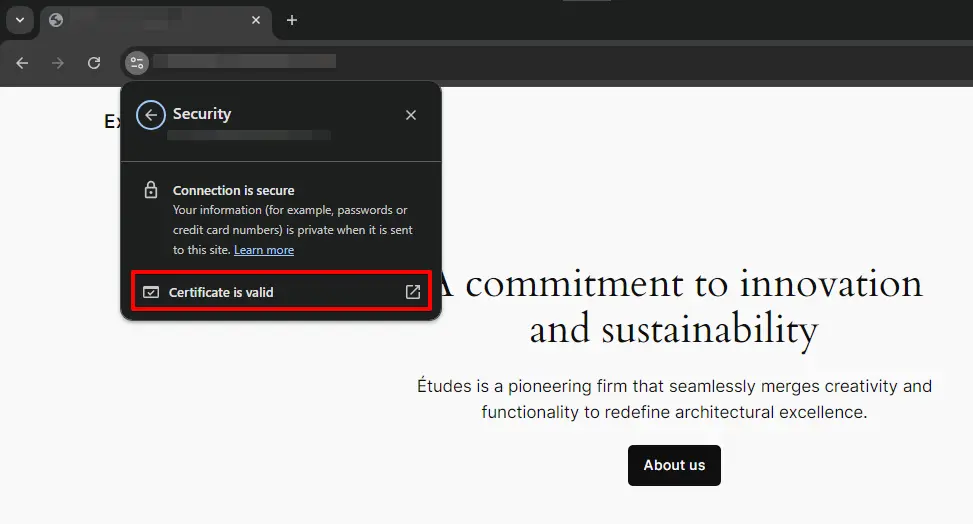
Navigate to the affected site in any browser, click the site info icon in the address bar, and select "Connection is secure."
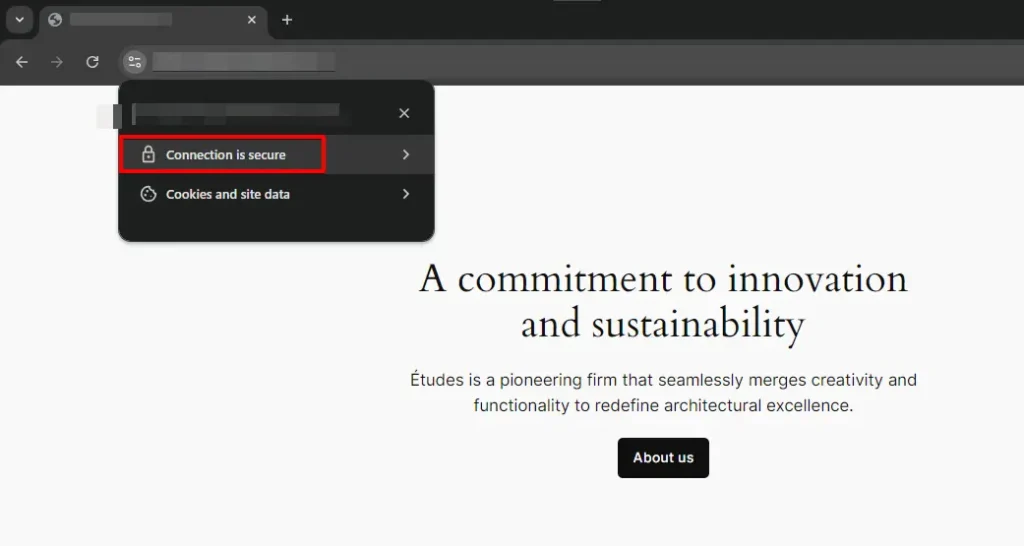
Next, click "Certificate is valid."
In the Certificate Viewer, find the "Validity period" section and check the expiration date.
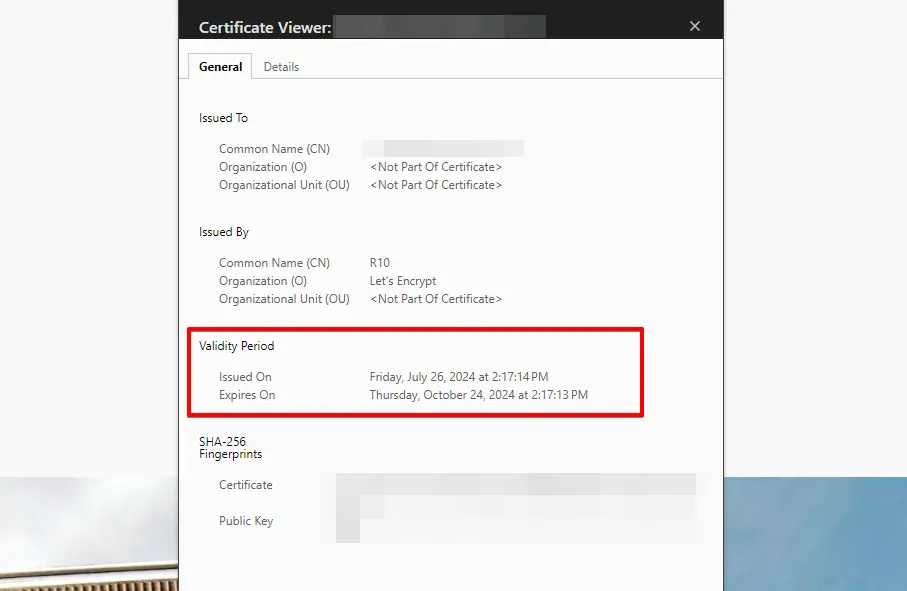
If the certificate has expired, renew it through your SSL certificate provider. If the domain name on the certificate does not match your site’s URL, the certificate needs to be reissued for the correct domain.
3. Update Your Browser
An outdated browser may not support current TLS versions or cipher suites, which causes handshake failures on servers that have deprecated older protocols. Open your browser’s settings, find the update option, install any available updates, and then restart the browser.
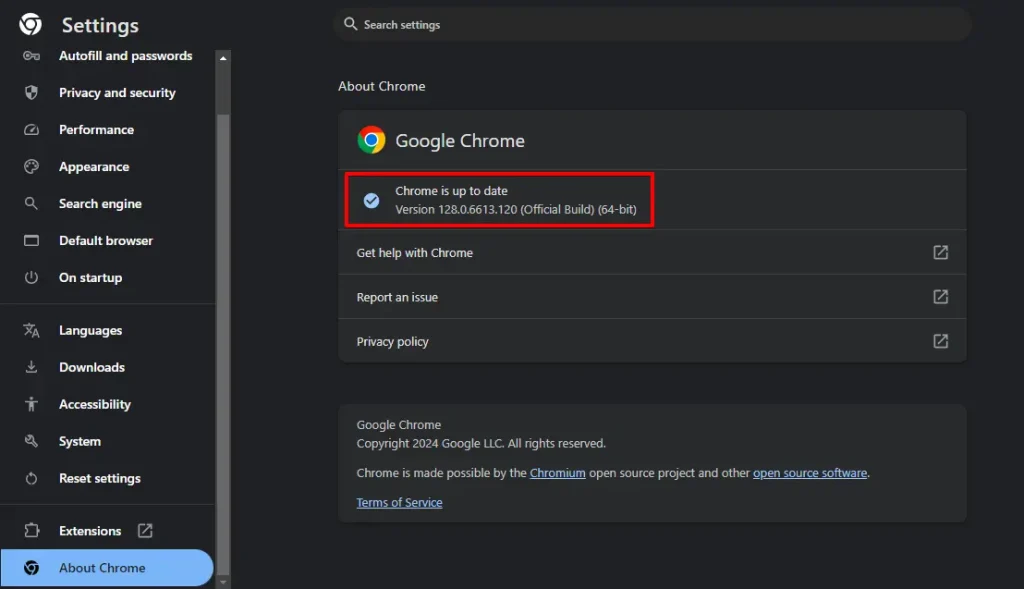
We have observed this fix resolve the error in cases where a server recently raised its minimum TLS requirement and the client browser had not been updated to match.
4. Check TLS/SSL Protocol Support
The "SSL Handshake Failed" error can occur if your browser or server is configured for an incompatible TLS version. TLS 1.2 and TLS 1.3 are the current standards, and most modern browsers support them automatically.
If you are on an older version of Firefox, type about:config in the address bar, search for security.tls.version.min, and confirm the value is 3 (which corresponds to TLS 1.2).
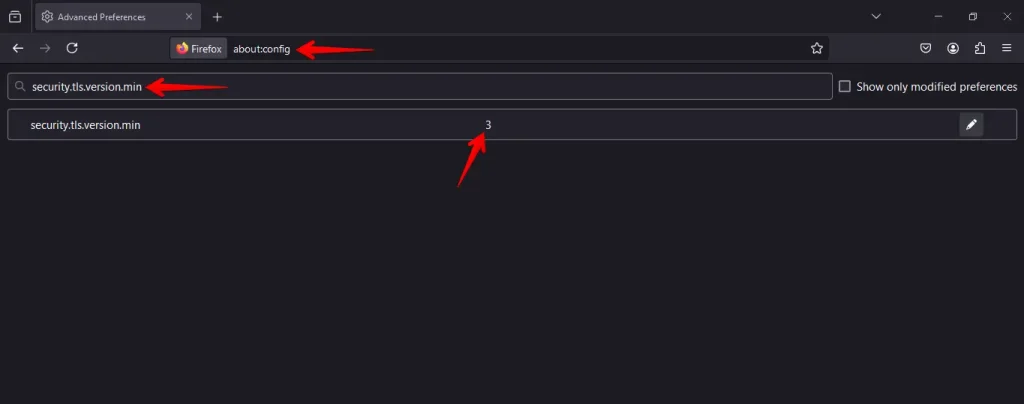
If you manage your own server, verify that TLS 1.2 and 1.3 are enabled in the SSL/TLS settings of your hosting control panel, and that TLS 1.0 and 1.1 are disabled. If you are unsure, ask your hosting provider.
5. Disable Browser Extensions
Browser extensions that handle security or privacy can interfere with SSL connections by intercepting or modifying encrypted traffic. To check whether an extension is causing the problem:
Go to your browser’s settings and navigate to the extensions or add-ons section.
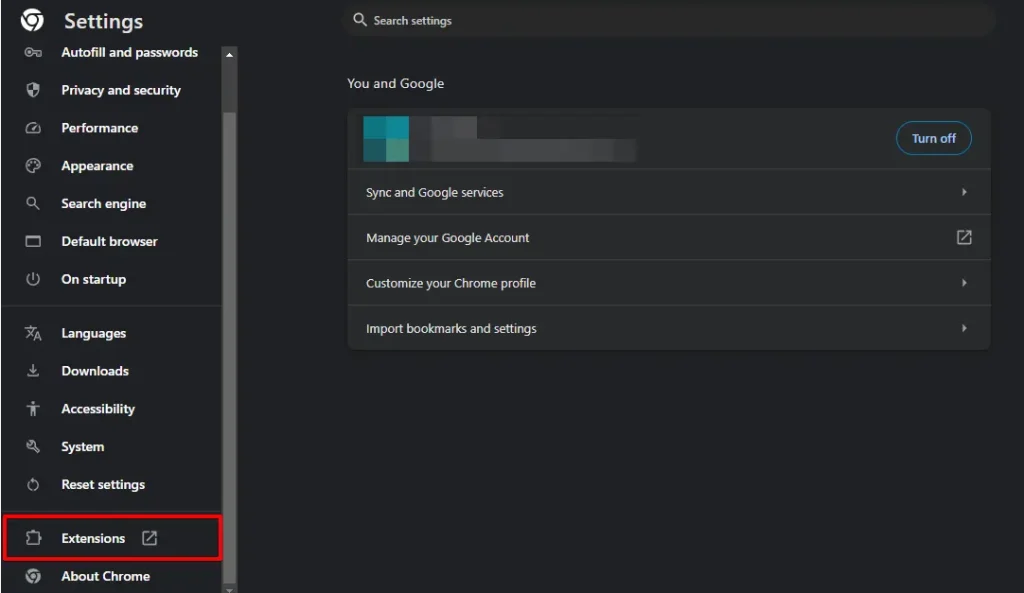
Temporarily disable all extensions by toggling them off.
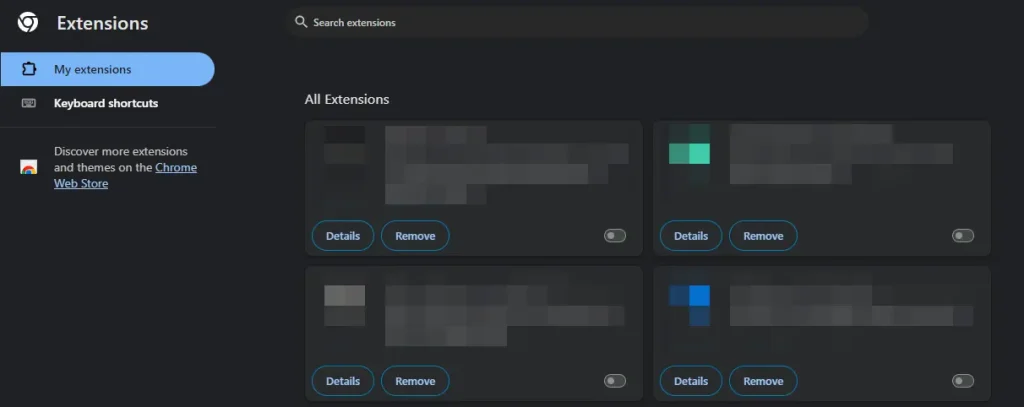
Visit the affected site. If the error clears, re-enable extensions one at a time, testing after each, to identify the conflicting one. VPN extensions and ad-blockers that perform HTTPS inspection are the most common culprits.
Server-Side SSL Configuration Issues
If you manage the server and the five client-side fixes did not resolve the error, the issue is likely in the server’s TLS configuration. The most common server-side causes:
Outdated TLS version support. Servers configured to accept only TLS 1.0 or 1.1 will be rejected by all current browsers. In Apache, enable modern protocols with SSLProtocol all -SSLv3 -TLSv1 -TLSv1.1. In Nginx, use ssl_protocols TLSv1.2 TLSv1.3;. Most managed hosting control panels have a graphical toggle for this under the SSL/TLS section.
Weak or incompatible cipher suites. If your server only offers deprecated cipher suites (RC4, 3DES, export-grade ciphers), the browser rejects the entire list and the handshake fails without a clear error. Update your server’s cipher suite configuration to prioritize current AEAD suites. Running the Qualys SSL Labs test on your domain gives you a specific list of what the server currently offers and which items to remove.
Incomplete certificate chain. Your SSL certificate must be served with all intermediate certificates in the correct order. If intermediates are missing, some browsers cannot verify the certificate and the handshake fails. Most certificate providers supply a bundle file that includes the full chain; install the bundle rather than the leaf certificate alone.
Redirect issues after migration. If you recently moved your site from HTTP to HTTPS, a stale redirect rule in .htaccess or your server config can produce a loop that the browser surfaces as a connection failure rather than a redirect error. Review your redirect rules after any HTTPS migration.
WordPress-Specific Fixes for SSL Handshake Failed
When the error appears specifically on a WordPress site, these steps address the most common WordPress-level causes:
Force HTTPS in wp-config.php. After installing an SSL certificate, WordPress may still serve the admin area and login page over HTTP. Add these lines to wp-config.php before the /* That's all, stop editing! */ comment:
define('FORCE_SSL_ADMIN', true);
define('FORCE_SSL_LOGIN', true);
Also update Settings > General so both the WordPress Address and Site Address use https://.
Resolve mixed content. A page served over HTTPS that loads images, scripts, or stylesheets over HTTP triggers browser warnings that can look like handshake errors. Use browser DevTools (Network tab, filter by HTTP) to find mixed-content resources, then update their URLs to use HTTPS.
Deactivate SSL-management plugins temporarily. Plugins that force HTTPS redirects can conflict with your hosting provider’s SSL configuration. Deactivate them one at a time and test after each.
Update the site URL in the database after a migration. If you migrated WordPress using WP STAGING and the database still contains the old HTTP address, redirect loops can follow. Use WP-CLI to update:
wp search-replace 'http://yoursite.com' 'https://yoursite.com' --skip-columns=guidIn our experience with WP STAGING, a forgotten http:// in the database is one of the most common sources of SSL-related errors right after a migration.
What to Do If None of the Fixes Work
If you have applied all of the fixes above and the error persists, work through this decision path:
Error on a server you control:
- Run the Qualys SSL Labs Server Test on your domain and review every flagged item in the report.
- Contact your hosting provider with the SSL Labs report. Most managed hosts can resolve TLS configuration issues on their end without requiring server access from you.
- If you have direct server access, search the web server error log for
SSL_do_handshakeorhandshake failureentries. These name the exact protocol version or cipher suite that could not be negotiated.
Error on a site you do not own:
- Try the site on a different network, such as switching from Wi-Fi to mobile data or disabling a VPN. A corporate firewall or intercepting proxy can strip or replace certificates, causing the handshake to fail on your side only.
- Flush your browser’s SSL state. In Chrome: Settings > Privacy and security > Security > Manage certificates > Clear SSL state.
- If the error is limited to your network, contact your network or IT administrator. A proxy or firewall is likely the cause.
- If none of the above resolves it, the site owner has a server-side configuration problem that only they can address. Providing them with your browser version, operating system version, and the full error message gives them what they need to reproduce it.
Conclusion
SSL handshake failures can have many causes: a device clock that is a few minutes off, a browser that has not been updated, an expired certificate, or a server that has not been configured for current TLS standards. Working through the diagnostic table at the top of this guide and then applying fixes in order resolves most cases without needing to contact anyone.
Always maintain backups, follow security best practices to prevent disruptions, and keep your WordPress site secure and accessible.
Related Articles