


To change your WordPress database table prefix, edit $table_prefix in wp-config.php, rename every database table to the new prefix, and update the prefixed keys inside wp_options and wp_usermeta. The plugin method is fastest and safest for most sites; SQL in phpMyAdmin or Adminer gives you full control on larger databases. Always back up your database first.
Changing the WordPress database table prefix is a simple but effective way to enhance your site’s security. By default, WordPress assigns the table prefix wp_, making it a common target for hackers attempting SQL injection attacks. Modifying this prefix can help protect your database from such threats.
Which method should you use?
| Method | Requires | Risk level | Best for |
|---|---|---|---|
| Plugin | wp-admin access, writable wp-config.php |
Low | Most sites; non-technical users |
| SQL with phpMyAdmin | cPanel / phpMyAdmin access | Medium | Hosts that ship phpMyAdmin |
| SQL with Adminer | Database access via Adminer | Medium | Single-file database admin |
All three change the same three things — the wp-config.php prefix, the table names, and the prefixed keys in wp_options and wp_usermeta. They differ only in the tool you use to do it.
Every action in a WordPress site is interlinked with the database:
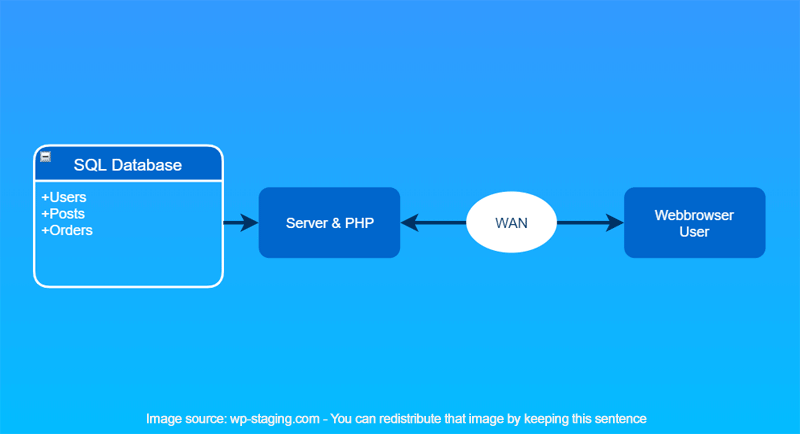
Why should you change the WordPress table prefix?
Changing the default wp_ table prefix helps:
- Reduce the risk of SQL injection attacks
- Make it harder for attackers to guess table names
- Add an extra layer of security to your WordPress site
It is a one-time hardening step. A custom prefix does not stop a determined attacker on its own, but it defeats the automated scripts that assume the default wp_ names — and those scripts are the bulk of what hits a WordPress database.
Back up your database before you start
Changing the WordPress database prefix can be a critical task, and it’s not always easy. You must ensure you don’t break your website by changing the WordPress table prefix.
Before changing the database prefix, we recommend doing it on a staging site. So you can check thoroughly if the update works and can safely push your staging site to the production site without any risk of data loss after changing the DB prefix.A staging site is a copy of your live site, so you can do different changes/testing and make those changes live with a single click.
You can create a free staging site with WP STAGING.
While installing WordPress, one of the most common mistakes is forgetting to change the database prefix, which leaves the door open to automated SQL injections. Taking preventive measures is crucial to protect your website from being hacked. A renamed prefix touches every table, so a current backup is your safety net if a step goes wrong — you can back up and restore your WordPress website in minutes before making any change.
How do you change the WordPress database prefix?
Follow this step-by-step guide to rename the WordPress database prefix safely. There are three options:
- Use a plugin to change the database table prefix.
- Rename the prefix with an SQL query in Adminer.
- Rename the prefix with an SQL query in phpMyAdmin.
Contents
Method 1: Change the table prefix with a plugin
A plugin is the fastest and lowest-risk option because it edits wp-config.php, renames the tables, and updates the prefixed option and usermeta keys for you. Here are the steps:
- Go to the WordPress dashboard.
- Go to the ‘Plugins’ tab and click ‘Add New.’
- Search Brozzme DB Prefix & Tools Add-ons in the WordPress plugin repository.
- Click the Install Now button to install Brozzme DB Prefix & Tools Add-on on your site.
- Click the activate button to activate this plugin.
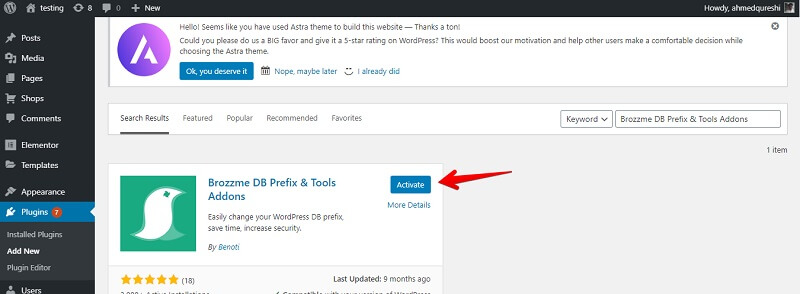
The plugin is activated, and we can start working on changing the WordPress database prefix right away.
- Go to Tools and click DB Prefix. You can see your database’s current prefix and change it to a new one.
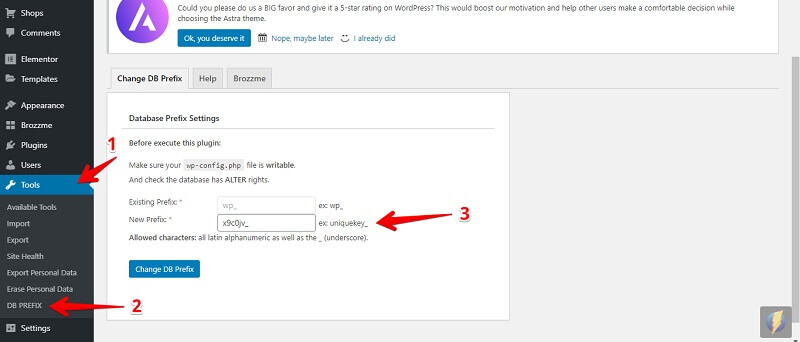
If your wp-config.php file is not writable, you will receive an error notice, because the plugin can’t change the database prefix in the wp-config.php file. Fix the file permissions (or edit wp-config.php manually, as shown in Method 2) and try again.
You’re done by clicking the "Change DB Prefix" button.
Method 2: Change the prefix with SQL in Adminer
Step 1: Change the table prefix in wp-config.php
Change the table prefix value in the wp-config.php file in the WordPress directory’s root folder.
To edit wp-config.php, log in via FTP or SFTP using FileZilla or any other FTP client. You can find your FTP details in cPanel (depending on your host — some use a customized panel instead of cPanel). See the WordPress guide to editing wp-config.php for the full reference.
Search for this line in the wp-config.php file:
$table_prefix = 'wp_testing123_';
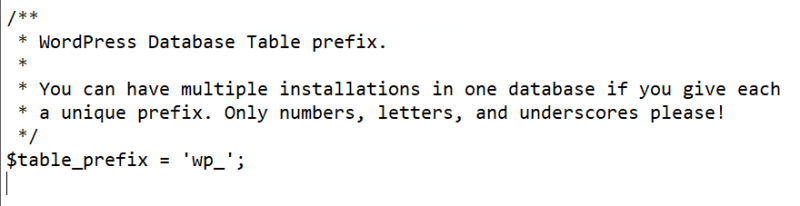
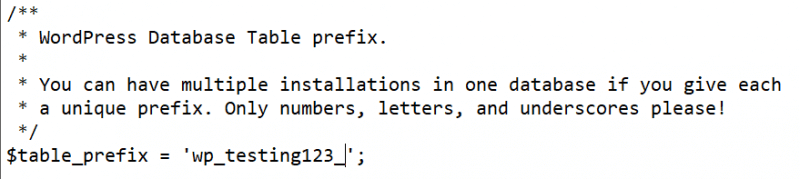
A prefix can contain only numbers, letters, and underscores. Once you have made the change in wp-config.php, save it.
Step 2: Rename the database tables
If you are using Adminer, find the SQL command button in the upper-left corner and select it.
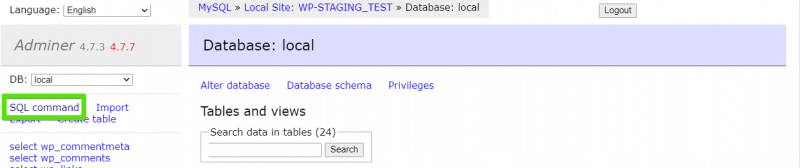
The SQL query below changes the WordPress table prefix on an existing site. Update the SET properties to your needs:
- database name
- oldprefix_
- newprefix_
That is the SQL query:
SET @database  = "<strong>databasename</strong>";
SET @oldprefix = "<strong>oldprefix_</strong>";
SET @newprefix = "<strong>newprefix_</strong>";

SELECT
    concat(
        "RENAME TABLE ",
        TABLE_NAME,
        " TO ",
        replace(TABLE_NAME, @oldprefix, @newprefix),
        ';'
    ) AS "SQL" FROM information_schema.TABLES WHERE TABLE_SCHEMA = @database;
After customizing the query, you’ll get something like this:
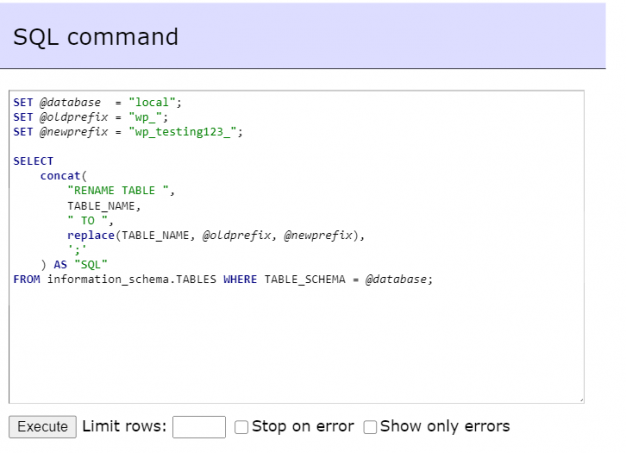
Execute that query. It generates a second set of RENAME statements, like this:
RENAME oldprefix_options to newprefix_options;
RENAME oldprefix_users to newprefix_users;
Copy those statements and execute them to rename the tables to their new names. (RENAME TABLE is standard MySQL — see the MySQL RENAME TABLE reference.)
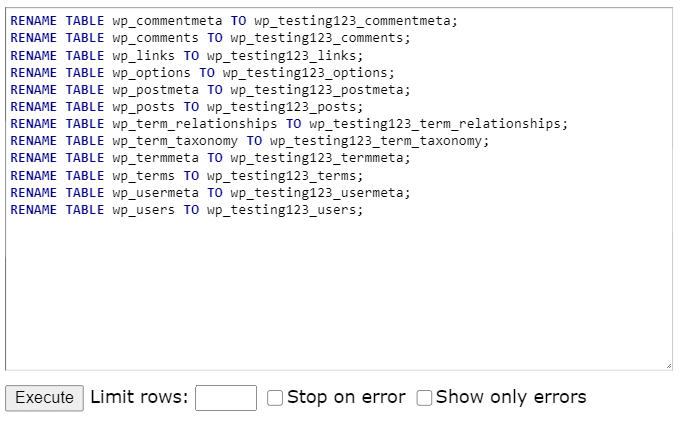
Step 3: Rename the prefix in the usermeta table
After renaming the tables, replace the prefixed values in *_usermeta and *_options with the queries below. Don’t forget to update the highlighted strings.
To replace the values in the *_usermeta table, use this query:
UPDATE `newprefix_usermeta`
SET meta_key = REPLACE(meta_key, 'oldprefix_', 'newprefix_')
WHERE meta_key LIKE 'oldprefix_%';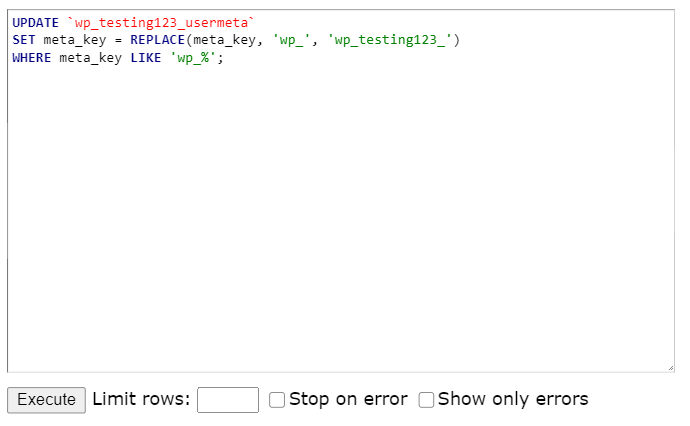
Step 4: Update the prefix in the wp_options table
The last step is to replace the values in the *_options table. Use this query:
UPDATE wp_options SET option_name = replace(option_name, 'wp_', 'new_') WHERE option_name LIKE 'wp_%';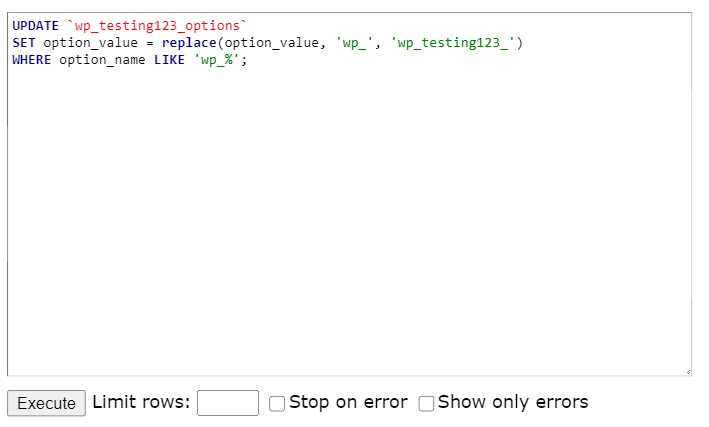
That’s all for the Adminer method.
Method 3: Change the prefix with SQL in phpMyAdmin
Step 1: Change the table prefix in wp-config.php
Change the table prefix in the wp-config.php file in the WordPress directory’s root folder.
To edit wp-config.php, log in via FTP or SFTP using FileZilla or any other FTP client. You can find your FTP details in cPanel (depending on your host — some use a customized panel instead of cPanel).
Find this line in the wp-config.php file:
$table_prefix = 'wp_testing123_';
A prefix can contain only numbers, letters, and underscores. Once you have made the change in wp-config.php, save it.
Step 2: Rename the database tables
If you are using cPanel, open phpMyAdmin. On the left side, you can see your databases. If you are not using cPanel, contact your host for access to your site’s database. The phpMyAdmin documentation covers access and login if you are new to it.
Select the database whose prefix you set in wp-config.php, then do the following:
- Select the database.
- Check the ‘Check all’ checkbox to select all tables.
- Open the drop-down and select ‘Replace table prefix.’
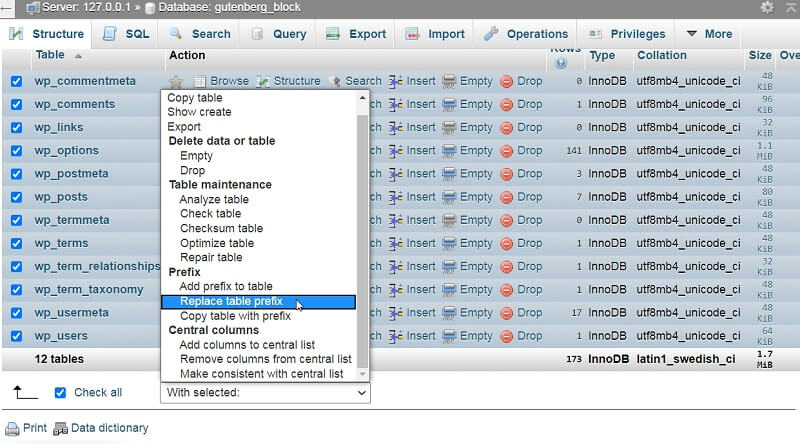
- Replace the old prefix with the new prefix.
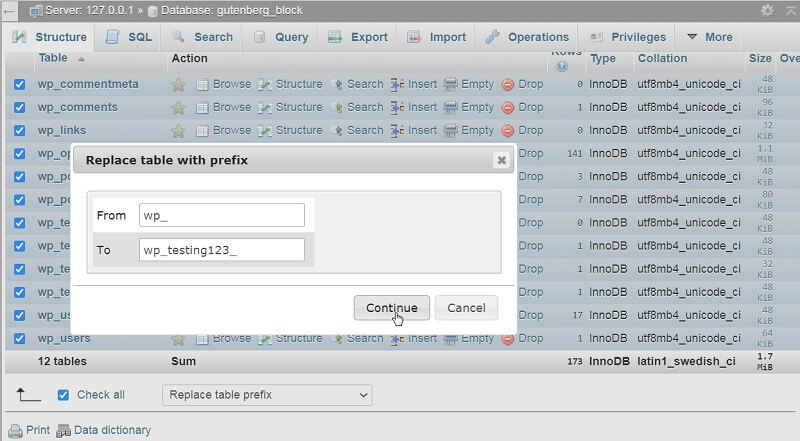
After entering the new prefix, click Continue to change the prefix on every table.
Step 3: Rename the prefix in the options table
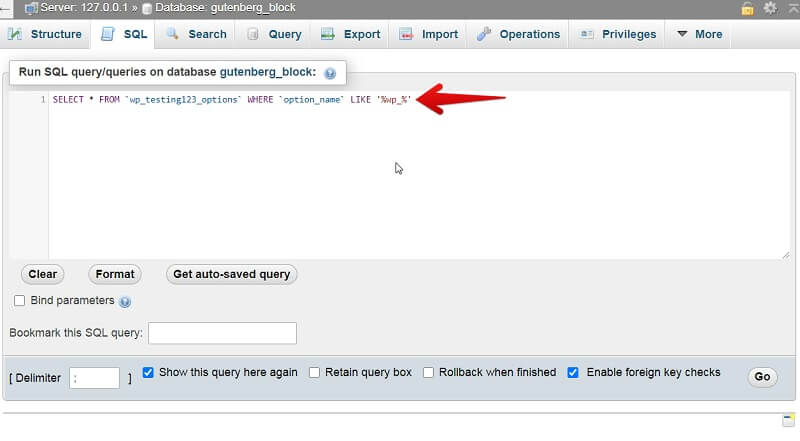
Search for the wp_ prefix in the options table using this query:
SELECT * FROM `wp_testing123_options` WHERE `option_name` LIKE '%wp_%'Replace every old prefix with the new prefix.
Step 4: Update the prefix in the usermeta table
Search for wp_ as a prefix in the usermeta table and replace it using this query:
SELECT * FROM `wp_testing123_usermeta` WHERE `meta_key` LIKE '%wp_%'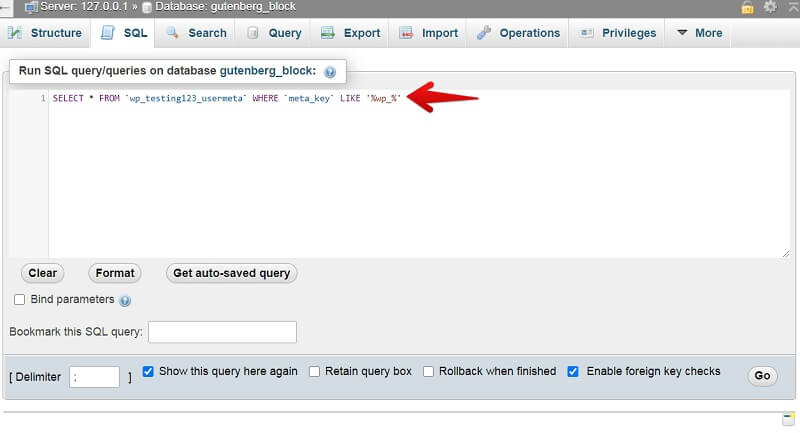
Alternatively, if you want to change the database prefix with a single database query, you can use this one query on an existing WordPress website:
SET @database = "database_name";
SET @old_prefix = "old_prefix_";
SET @new_prefix = "new_prefix_";

SELECT concat "RENAME TABLE ", TABLE_NAME, " TO", replace(TABLE_NAME, @old_prefix, @new_prefix),';') AS "SQL" FROM information_schema.TABLES WHERE TABLE_SCHEMA = @database;
This query creates a second query that renames all table prefixes to the new ones. After running it, you still need to replace the prefixed values in wp_usermeta and wp_options with the queries below:
UPDATE `wp_testing123_usermeta`
SET meta_key = REPLACE(meta_key, 'wp_', 'new_')
WHERE meta_key LIKE 'wp_%';

UPDATE wp_options SET option_name = replace(option_name, 'wp_', 'new_') WHERE option_name LIKE 'wp_%';
That’s all — that’s the manual method to change the database prefix.
Locked out of wp-admin after renaming the prefix?
This is the single most common failure when renaming the WordPress table prefix. In WP STAGING support tickets, it almost always comes down to one prefixed key that was renamed on the tables but missed inside the data. Work through this checklist in order:
- Did you update
wp-config.php? The$table_prefixvalue must match the new table names exactly. A mismatch here is the usual cause of "Error establishing a database connection" or a login loop. - Did you update the capabilities key in
wp_usermeta? The rowwp_capabilitiesmust be renamed tonewprefix_capabilities. If it still uses the old prefix, WordPress can’t read your roles and locks you out. - Did you update the user level key in
wp_usermeta? Renamewp_user_leveltonewprefix_user_levelfor the same reason. - Did you update the user roles key in
wp_options? Renamewp_user_rolestonewprefix_user_roles. WordPress reads role definitions from here at login.
The keys to verify, by table:
In the wp_options table:
wp_user_roles
In the wp_usermeta table:
wp_capabilitieswp_user_level
After renaming these keys to use the same prefix as your tables, you’ll be able to log in again. If you are still locked out, restore the backup you took at the start and retry the steps.
Frequently asked questions
Is it safe to change the WordPress database prefix on a live site?
It is safe if you back up the database first and update every place the prefix appears: wp-config.php, the table names, and the prefixed keys in wp_options and wp_usermeta. The plugin method handles all of these automatically, which is why it’s the lowest-risk option. Test on a staging copy first if you can.
Why am I getting "Error establishing a database connection" after the change?
The $table_prefix in wp-config.php no longer matches your table names. Open wp-config.php and confirm the prefix exactly matches the renamed tables, including the trailing underscore.
Do I have to change the prefix on an existing site, or only at install time?
You can do it at any time. Changing it at install is simplest because there is no data to migrate, but the three methods above work on an existing site too.
Can a custom prefix break plugins?
It can if a plugin hardcodes wp_ instead of reading WordPress’s configured prefix. Well-built plugins use the prefix WordPress reports, so they keep working. After the change, click through your key plugins to confirm.
Conclusion
Changing the WordPress table prefix is a simple yet effective security measure. Whether you use phpMyAdmin, a plugin, or SQL scripts, always back up your database before making changes. This minor tweak can go a long way in securing your WordPress site.
Related Articles
- How to Change WordPress Table Prefix of MySQL Database
- Update WordPress Core Manually if Automatic Update Does Not Work
- How to Create and Add Admin User With MySQL in WordPress
