


TL;DR: cURL Error 28 means WordPress timed out while connecting to a remote server — most commonly during plugin updates, theme installs, or HTTP API requests. Disable your security plugin’s firewall first; if that doesn’t fix it, work through the PHP memory limit and SSL checks below.
Dealing with "cURL error 28: Connection timed out" on your WordPress site can be frustrating. This error occurs when a request from your site takes too long to receive a response, resulting in a timeout. It can slow your website and negatively impact the user experience.
In support tickets we handle, the security plugin firewall — particularly Wordfence’s rate-limiting rules — blocks the outbound cURL call in a meaningful share of cases. This article clarifies cURL error 28, explains why it happens, and offers step-by-step fixes.
Contents
What is cURL Error 28?
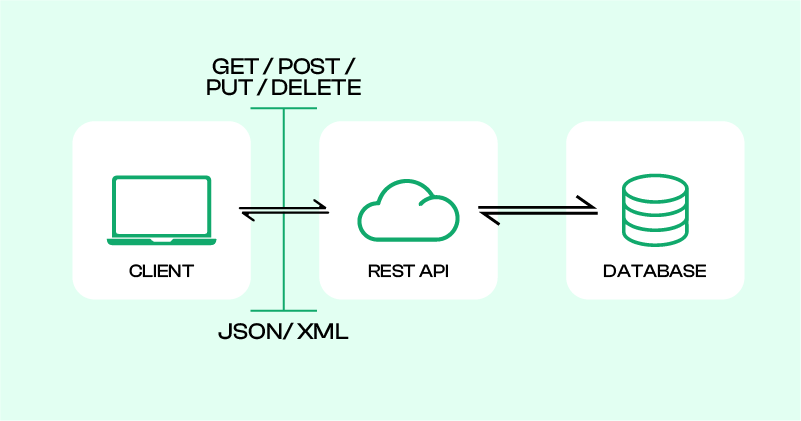
cURL is a software utility WordPress uses to transfer data using various protocols. The "cURL error 28: Connection timed out after X milliseconds" occurs when a cURL request fails to complete within the specified timeout period. This error indicates that the server couldn’t respond quickly enough, leading to a timeout.
Common Reasons for cURL Error 28
Different symptoms point to different root causes. Use the table below to identify your situation and jump to the right fix.
| Symptom | Root cause | Fix method |
|---|---|---|
| Error only on plugin updates or installs | Security plugin firewall blocking outbound requests | Method 1: Disable security plugin firewall |
| Error on all external calls, not just updates | Plugin or theme conflict interfering with HTTP API | Method 2: Deactivate conflicting plugins |
| Error on HTTPS requests; HTTP works | SSL misconfiguration or expired certificate | Method 3: Resolve SSL insecure content issues |
| Error persists after disabling all plugins | Outdated cURL version incompatible with PHP | Method 4: Check your cURL version |
| Error after heavy data operations or plugin installs | PHP memory limit too low for cURL requests | Method 5: Increase PHP memory limit |
| Error on a managed or shared host after all else fails | Server-level rate limiting or firewall rules | Method 6: Contact your web hosting provider |
6 Methods to Fix Curl Error 28: Connection Timed Out After X Milliseconds
- Disabling Security Plugin Firewall
- Deactivate Conflicting Plugins
- Resolve SSL Insecure Content Issues
- Check Your cURL Version
- Increase PHP Memory Limit
- Get Help from Your Web Hosting Provider
Note: It’s a good idea to back up your website before you make any changes. If something goes wrong, you can quickly restore your site to its previous state. You can use WP Staging for easy automatic backups. Check out the backup and restore guide for more help.
1. Disabling Security Plugin Firewall
A firewall plugin in WordPress adds an extra layer of security by blocking harmful traffic. However, it can sometimes be overly cautious and block legitimate cURL requests, leading to the "Operation Timed Out" error. In support tickets we handle, Wordfence’s rate-limiting rules are a frequent cause — checking the firewall first is almost always the fastest path to resolution.
To see if your security plugin is causing the issue:
- Disable the Firewall: Turn off the firewall feature in your security plugin or deactivate the plugin.
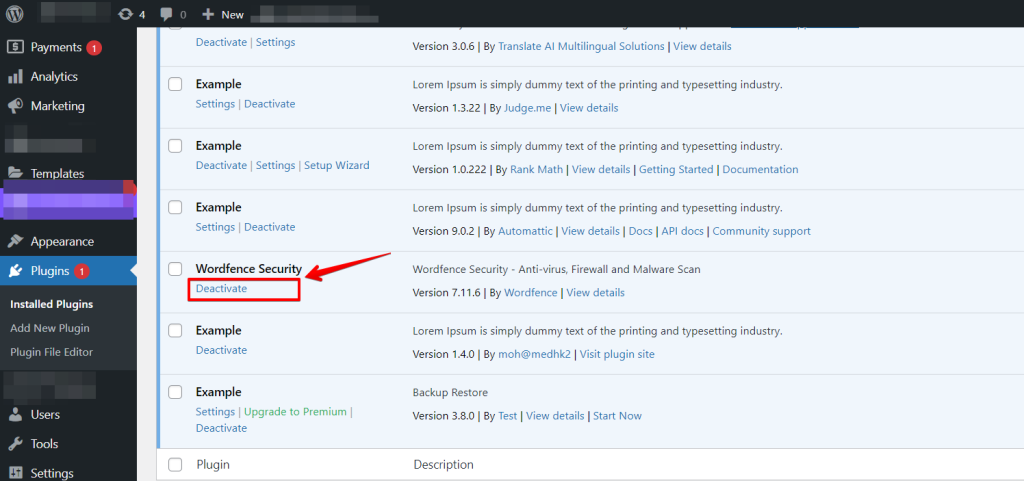
- Test the Site: Check if the error persists after turning off the firewall.
- Reactivate the Firewall: Turn the firewall back on after a short wait.
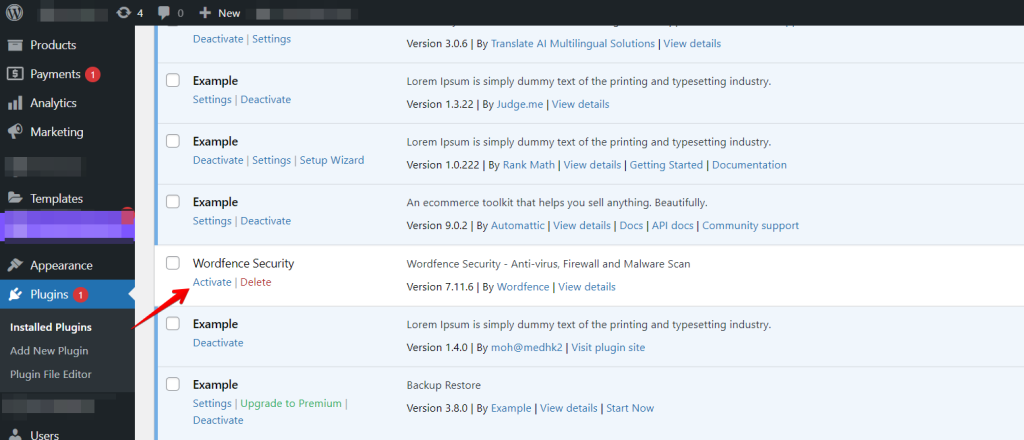
- Try a Different Security Plugin: If the error returns, consider using a different security plugin or contact the plugin’s support for help. Some plugins may require you to add their IP addresses to your allowlist to prevent legitimate requests from being blocked.
Following these steps, you can identify if your firewall is causing the cURL error and keep your site secure without blocking necessary data.
2. Deactivate Conflicting Plugins
When you experience issues or conflicts with specific plugins on your WordPress website, it may be necessary to disable them temporarily.
By deactivating all plugins, you can isolate and troubleshoot the problem without affecting your website’s overall functionality.
Here’s how to do it:
- Access your WordPress admin dashboard by logging in to your site.
- Go to "Plugins" from the sidebar menu and click on it. You will see a list of installed plugins.
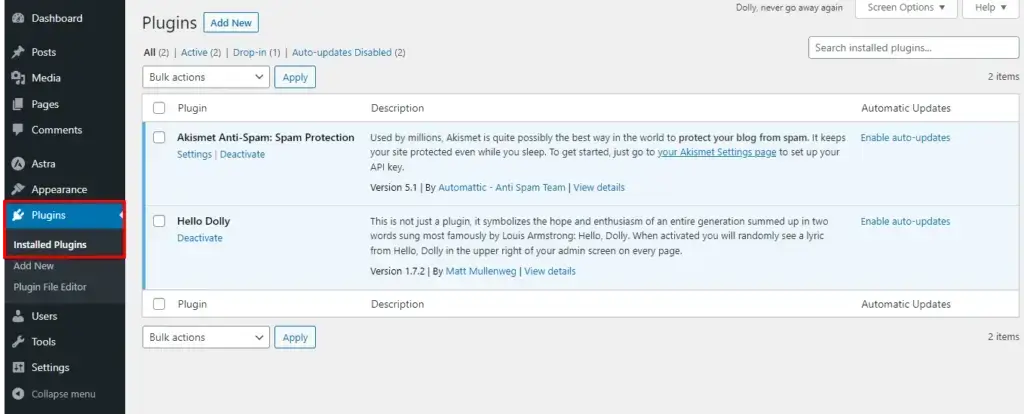
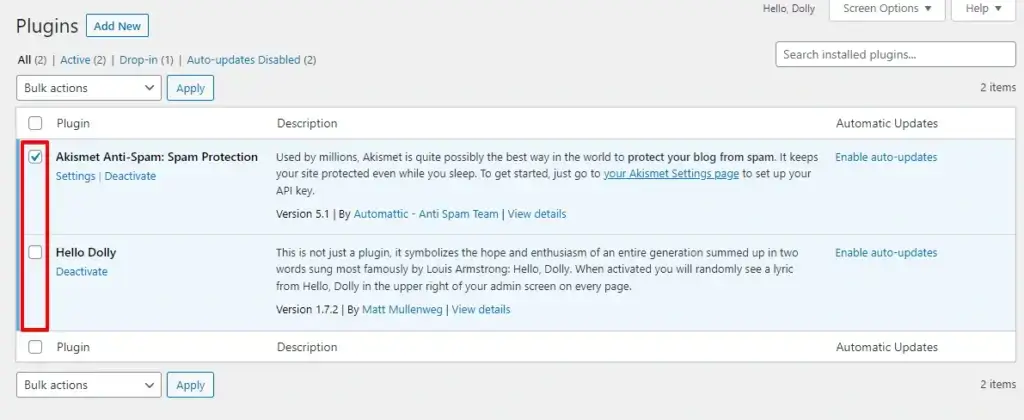
- Select the plugins you want to disable by clicking the checkboxes next to their names. You can choose multiple plugins at once.
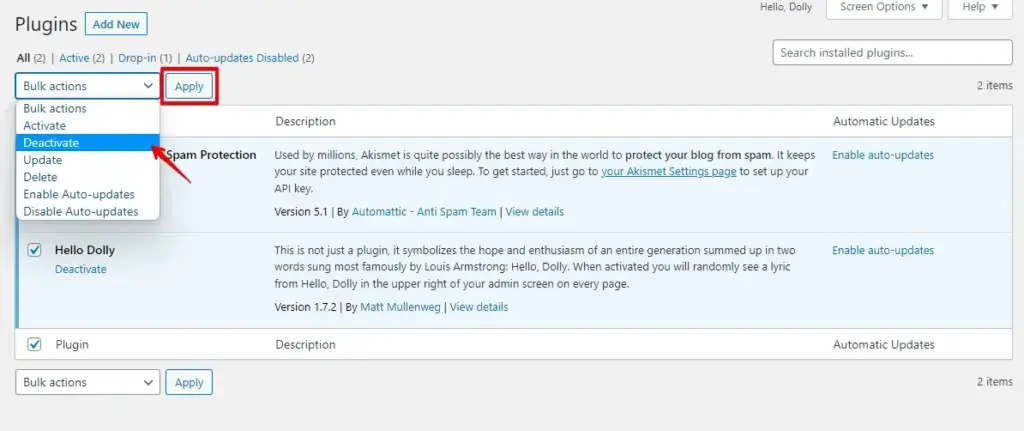
- Once you have selected the plugins, look for the "Bulk Actions" dropdown menu at the top of the list and select "Deactivate".
- Click the "Apply" button next to the dropdown menu.
After deactivating plugins, refresh your website to see if updates instantly appear. Then, reactivate plugins one by one, refreshing your site each time to pinpoint the problematic one.
Repeat this process until you find the culprit, and consider updating, replacing, or contacting the plugin developer for help.
3. Resolve SSL Insecure Content Issues
An SSL certificate (Secure Sockets Layer) is essential for securing data between your website and visitors. It ensures that all data transmitted is encrypted, preventing unauthorized access and boosting trust in your site.
Properly implementing SSL lets your website use the HTTPS protocol, safeguarding the connection between your server and users’ browsers.
Check SSL Status in Hostinger Provider Dashboard:
Log in to your hosting provider’s dashboard (e.g., Hostinger) to verify the status of your SSL certificate. Ensure it is active and correctly configured, as shown in the image below:
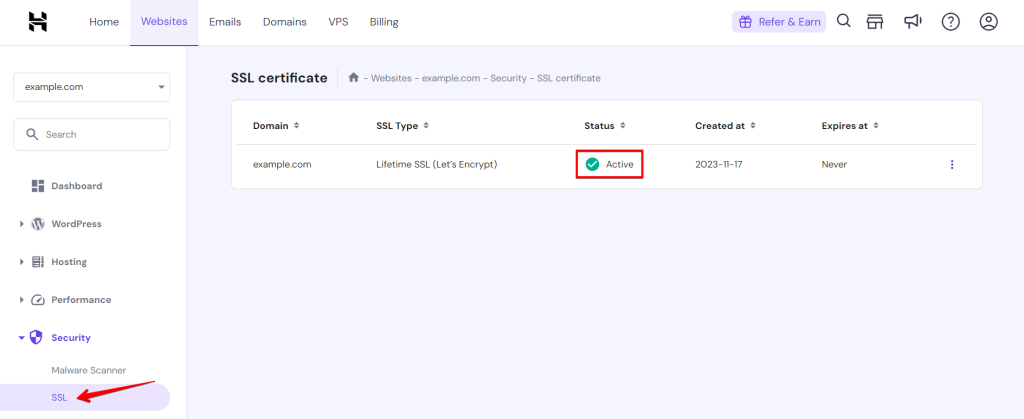
If the certificate shows as expired or invalid, renew it through your hosting control panel or contact your provider’s support. After renewal, clear your server and browser cache and re-run Tools → Site Health to confirm the SSL issue is resolved before testing cURL again.
4. Check Your cURL Version
- Navigate to the Site Health page on your WordPress dashboard.
- Select the ‘Info’ tab and find the ‘Server’ section.
- Look for the PHP and cURL version information listed there.
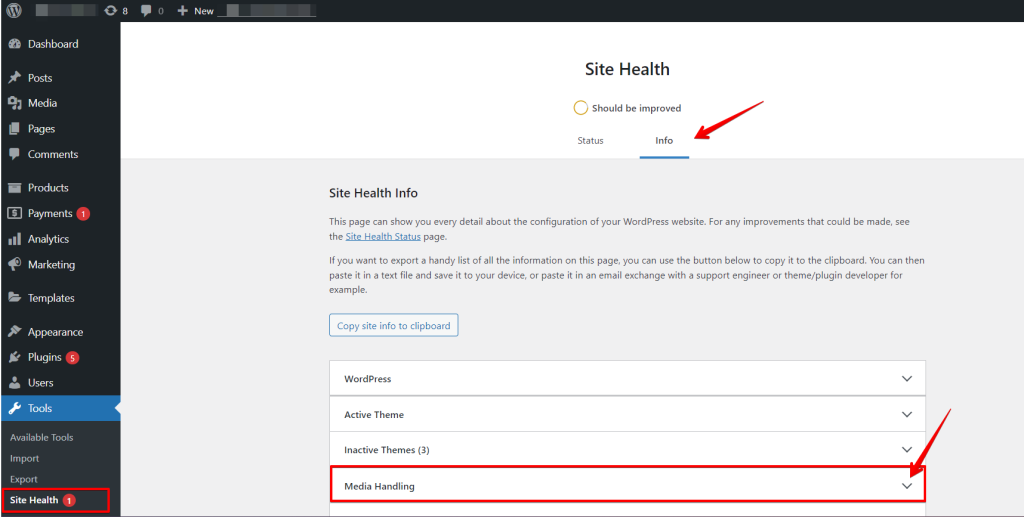
Match Your cURL and PHP Versions for Better Performance: To ensure smooth operation, make sure your cURL version matches the requirements for your PHP version.
For instance, if your site uses PHP 8.1, you should have at least cURL 7.2.
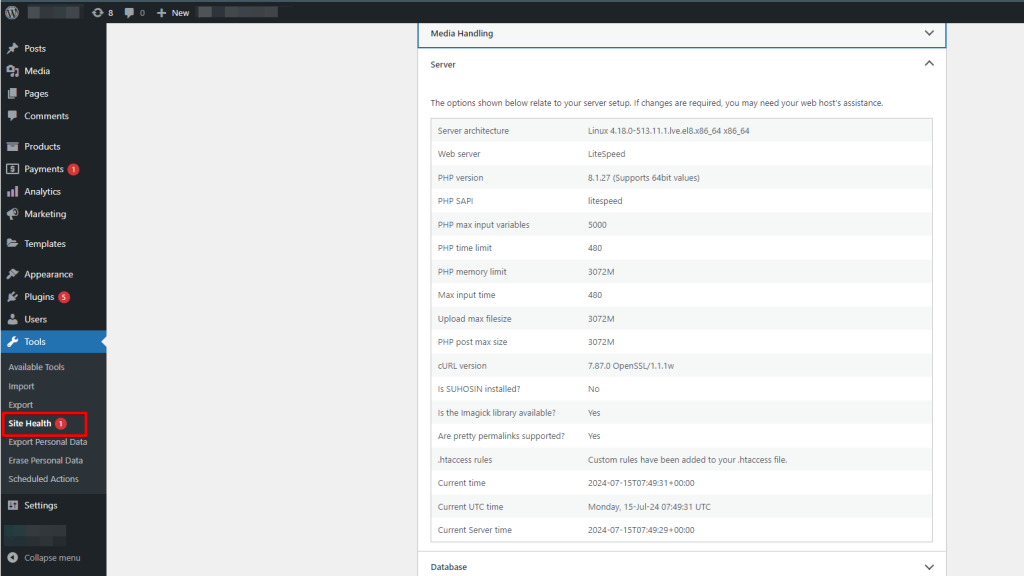
If your cURL version is outdated, contact your hosting provider and request an upgrade. Most managed WordPress hosts can update the server’s cURL library without downtime.
5. Increase PHP Memory Limit
WordPress plugins require cURL requests for many functions, which can consume a lot of memory, especially with extensive data or complex tasks. If the memory or time limits are too low, you might see errors like cURL error 28, indicating a timeout.
To prevent these issues, check and adjust your server’s PHP limits through the Site Health page. You can also increase these settings in the .htaccess or wp-config.php file to improve your site’s performance and avoid timeouts.
Use an FTP client like FileZilla or your web host’s file manager to access your WordPress root directory.
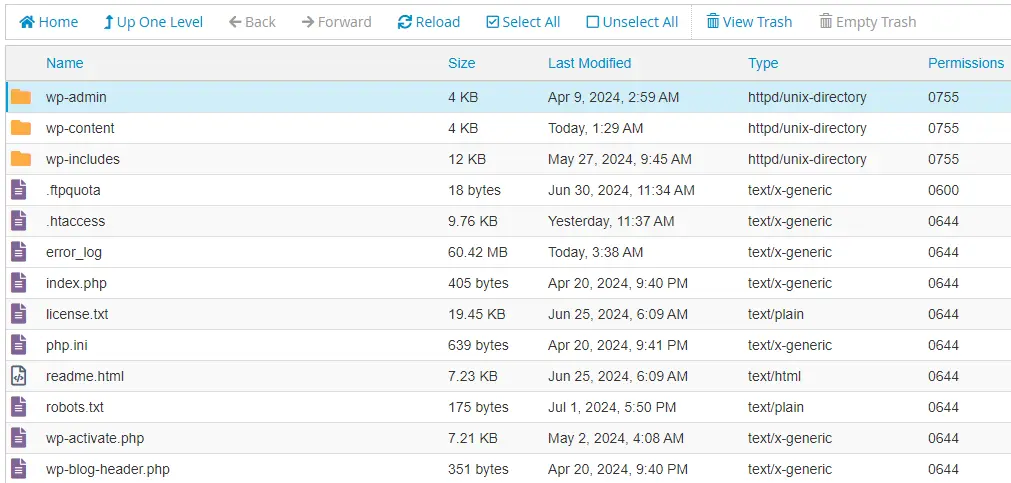
Locate the wp-config.php file, right-click, and choose the ‘Edit’ option.
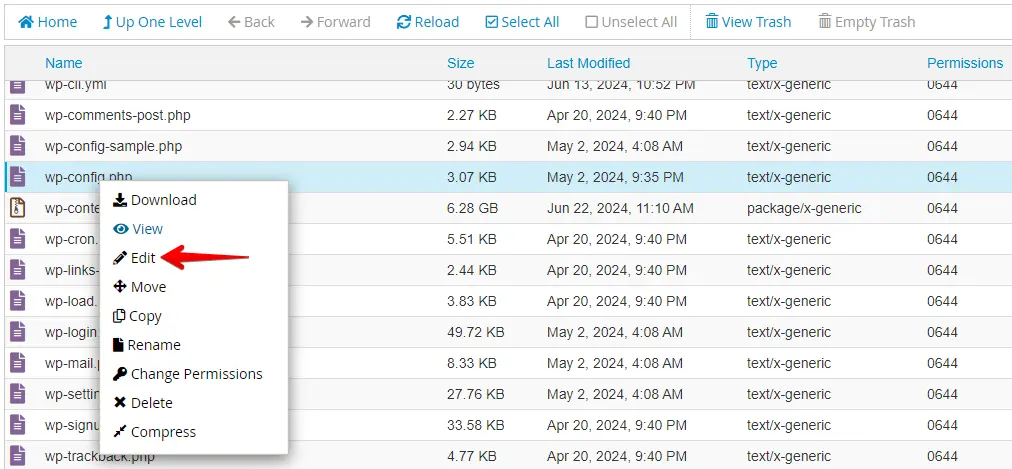
Add the following line of code before the line that says /* That's all, stop editing! Happy blogging. */, then click the ‘Save Changes’ button.
define('WP_MEMORY_LIMIT', '256M');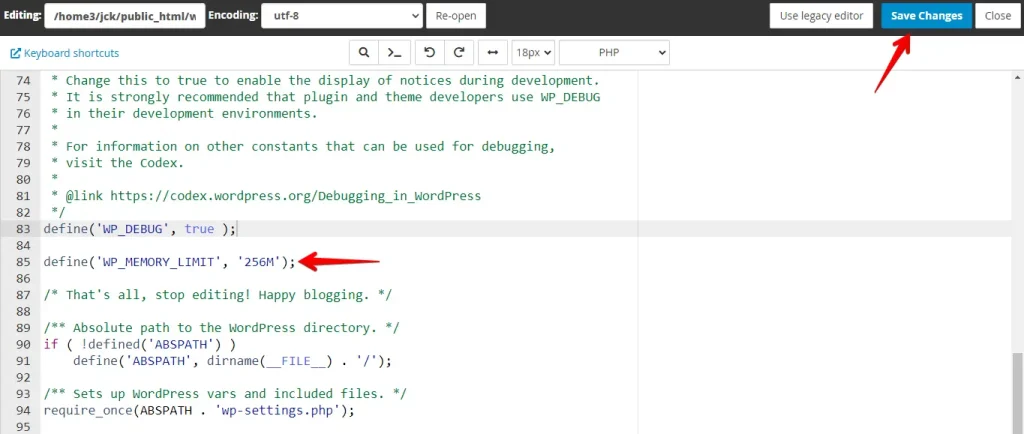
After saving, revisit Tools → Site Health → Info → Server to confirm the new PHP memory limit value is active before re-testing the failing operation.
6. Get Help from Your Web Hosting Provider
If you’ve tried everything and are still facing issues, it’s time to contact your hosting provider for help. They can investigate other potential causes, such as conflicts in security modules, server-level rate limiting, or firewall rules that block outbound connections.
When contacting support, include the exact error message, the WordPress and PHP version from your Site Health page, and the steps you’ve already tried. This helps them diagnose the issue faster.
Conclusion
The key steps for resolving cURL error 28 include temporarily turning off the WordPress firewall and deactivating plugins to check for conflicts. Additionally, it’s essential to review SSL configurations and ensure that server resource limits are sufficient.
Keeping WordPress and plugins updated is crucial for preventing such errors. If the issue persists, seek assistance from your web hosting provider.
Fix Didn’t Work? Advanced Troubleshooting
If none of the six methods above resolved the error, the steps below help identify the specific cause.
Enable WP_DEBUG Logging
Add the following lines to wp-config.php to capture the exact cURL error context:
define( 'WP_DEBUG', true );
define( 'WP_DEBUG_LOG', true );
define( 'WP_DEBUG_DISPLAY', false );
After saving, trigger the failing operation (for example, run a plugin update), then check wp-content/debug.log for lines containing cURL error 28. The log entry will show which URL timed out, helping you identify whether the problem is with a specific remote server or affects all outbound requests.
Error Returns After PHP Memory Increase
If increasing the PHP memory limit didn’t stop the error:
- Check your PHP
max_execution_timesetting inphp.inior viawp-config.php. A low value can cause the script to time out before the cURL connection timeout fires. Increase it and re-test. - Verify the new
WP_MEMORY_LIMITvalue is applied by navigating to Tools → Site Health → Info → Server and confirming the PHP memory limit shows the expected value.
SSL Clean but Error Persists
If your SSL certificate is valid but cURL still times out:
- Verify whether the remote server (for example,
api.wordpress.org) is temporarily unreachable by testing the connection from a different network. - Ask your hosting provider to confirm that outbound HTTPS connections are not blocked at the server firewall level. Some shared hosting environments restrict outbound connections by default.
Identifying the Specific Plugin Causing the cURL Block
To narrow down which plugin triggers the block without bulk-deactivating everything:
- Enable WP_DEBUG logging as shown above.
- Deactivate plugins one by one, starting with security and caching plugins.
- After each deactivation, check
wp-content/debug.logfor new cURL error 28 entries. - The plugin whose deactivation stops new log entries is the one initiating the blocked request.
Related Articles
- 5 Best WordPress eCommerce Plugins in 2024
- 5 Best Popup Plugins for Your WordPress Site
- How to Fix Your WordPress Site Not Working After a Migration
- WP Staging vs BackupBuddy: Which is the Best Choice?
- How To Fix the "Sidebar Not Appearing" WordPress Error
