


A 405 Method Not Allowed error means the web server understood your request but refused the HTTP method you used. A GET request hit an endpoint that only accepts POST; a security plugin blocked PUT calls from the block editor; an .htaccess rule stripped DELETE. The server knows what you want but will not process it that way.
Quick answer: In WordPress, the most common cause of a 405 error is a security plugin blocking PUT or DELETE calls from the Gutenberg editor, or a
LimitExceptdirective in.htaccess. The fastest first fix is Settings > Permalinks > Save Changes to regenerate.htaccess. If that does not help, deactivate security plugins one at a time to isolate the blocker. In our testing, resetting.htaccessvia Settings > Permalinks > Save resolves the error in most cases where no security plugin is installed.
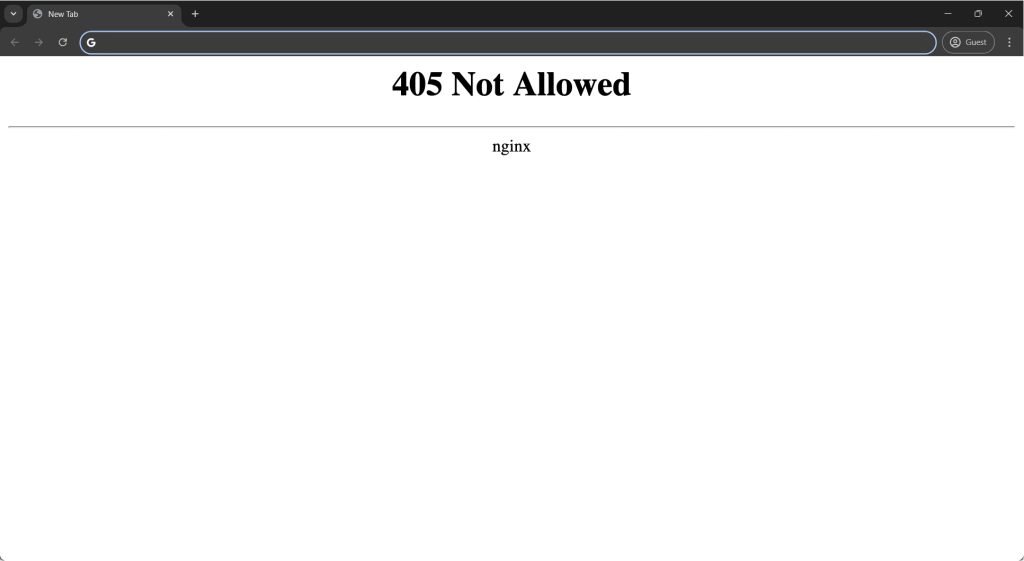
Where Does the 405 Appear?
Use this table to jump to the most likely cause before working through every step.
| Where the error shows up | Most likely cause |
|---|---|
| Block editor fails to save a post | Security plugin blocking PUT or DELETE |
| Front-end contact or checkout form | Form plugin sending the wrong HTTP method |
| REST API endpoint or WP-CLI command | .htaccess LimitExcept rule |
| Whole site or specific admin areas | Server-level Nginx or Apache directive |
Before making any changes, back up your website so you can revert quickly if something goes wrong. WP Staging offers automatic backups with one-click restores. See the backup and restore guide for setup instructions.
.htaccess LimitExcept Misconfiguration
A LimitExcept directive in .htaccess limits which HTTP methods the server accepts on a given path. A common example:
<LimitExcept GET POST>
  Deny from all
</LimitExcept>
This blocks PUT, DELETE, and PATCH, which the WordPress REST API and Gutenberg use for updates and bulk operations. An .htaccess that a security plugin or manual edit added this directive to is often the culprit when the 405 first appears after a plugin install or a cPanel configuration change.
Diagnosis: Check your server error log for lines containing 405 (Method Not Allowed) on REST API paths (/wp-json/...). If you see them there, a LimitExcept rule is almost certainly the cause.
Fix: Reset the .htaccess file
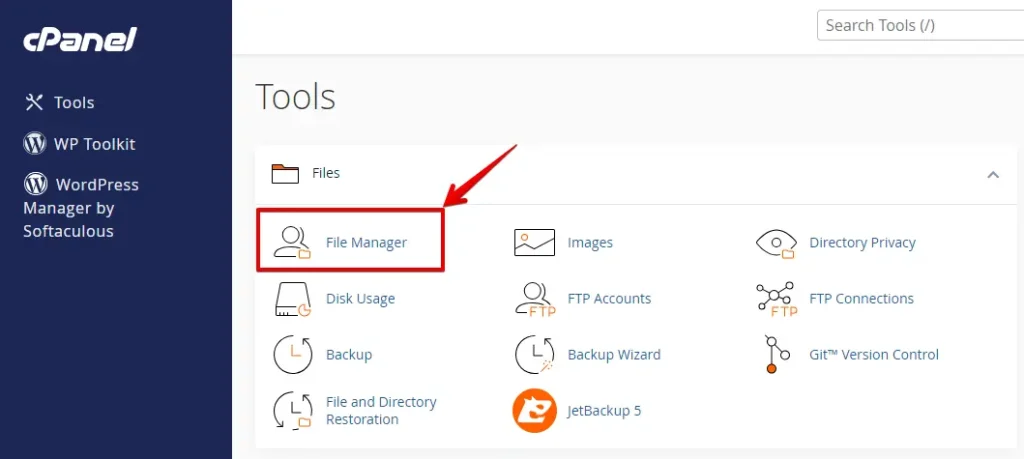
Log in to your hosting cPanel and open File Manager.
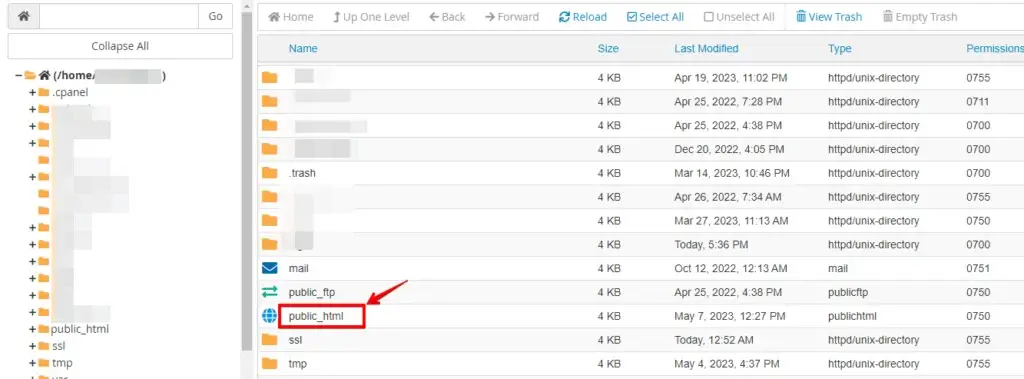
Navigate to the root directory of your WordPress installation, usually public_html or www.
Find the .htaccess file in the root directory.
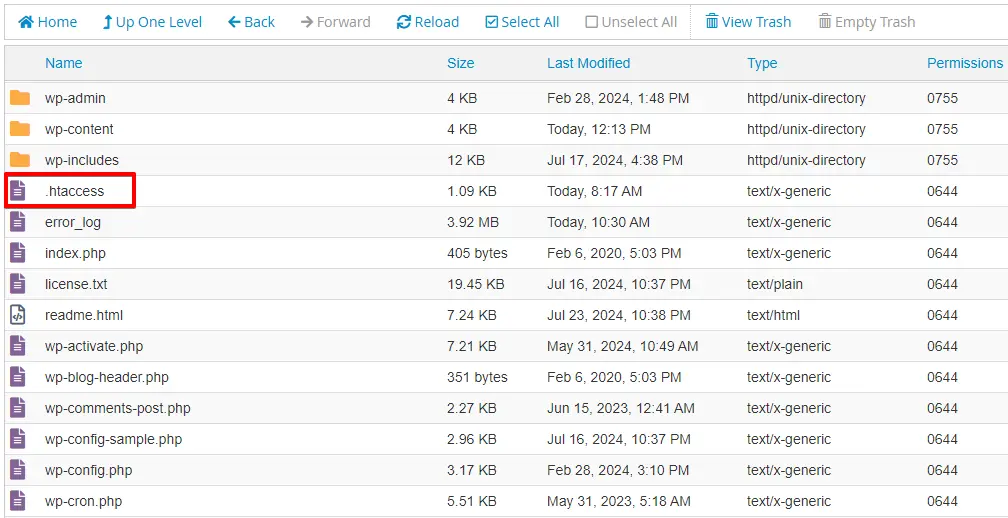
Right-click the .htaccess file and select Download to save a backup to your computer.
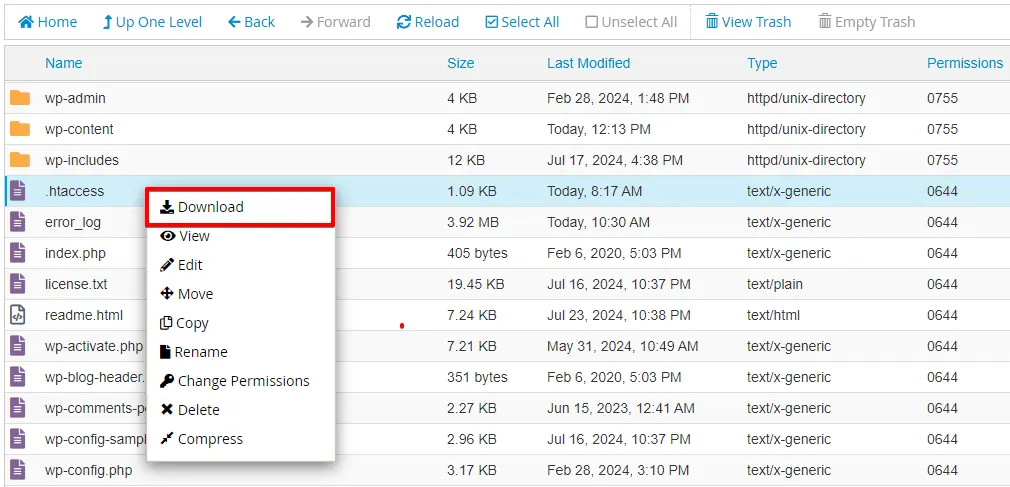
Right-click the file again, choose Rename, and rename it to .htaccess.bak. This disables it temporarily without deleting it.
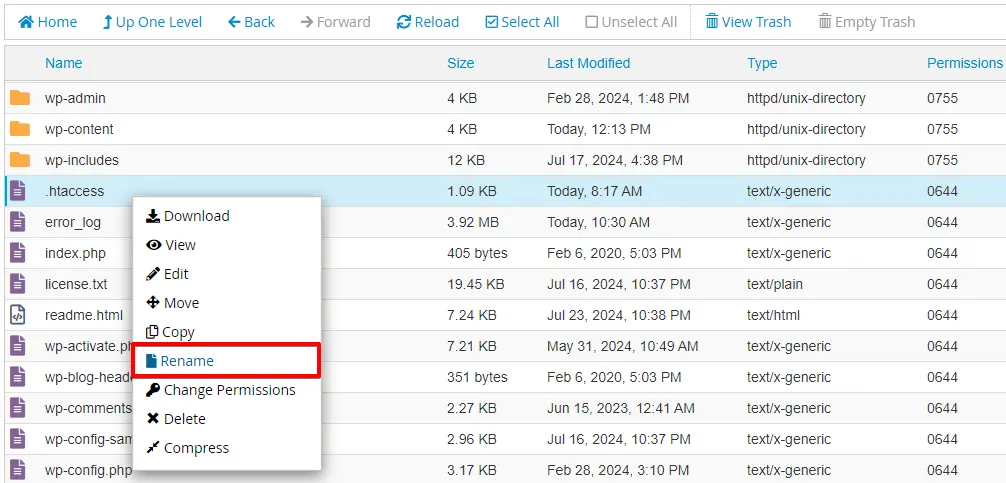
With the old .htaccess disabled, go to Settings > Permalinks in your WordPress dashboard and click Save Changes. WordPress regenerates a clean .htaccess without any offending rules.
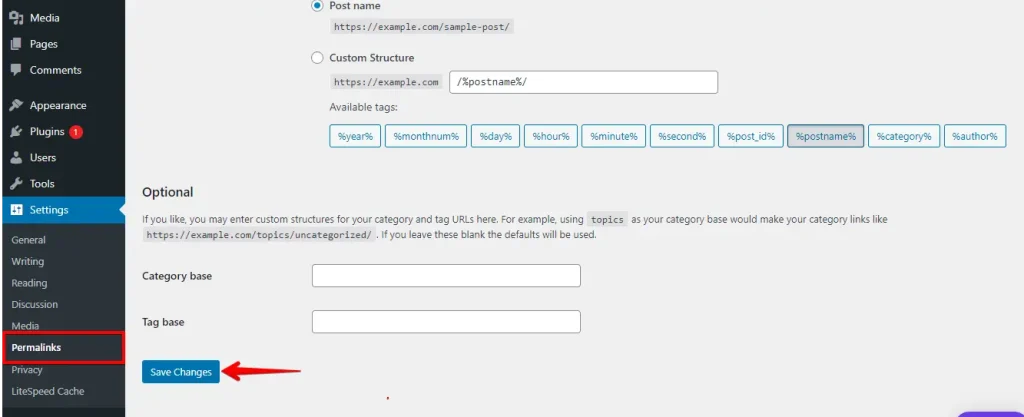
Check your site. If the 405 error is gone, open the old .htaccess.bak and compare it line by line with the new file to find the LimitExcept directive. Remove it from the backup and rename it back to .htaccess, or keep the regenerated version.
If you are on Nginx, .htaccess has no effect. Check nginx.conf for equivalent limit_except or deny directives in the server or location block for your site.
Security Plugin Blocking HTTP Methods
From WP STAGING support tickets, the most common 405 trigger in a working WordPress install is a security plugin’s firewall blocking PUT or DELETE requests from the block editor. Plugins like Wordfence and Sucuri let you restrict which HTTP methods the server accepts. When they block PUT or DELETE, Gutenberg save requests fail with a 405 and the editor shows a generic save error.
Diagnosis: Temporarily deactivate your security plugin and try to save the post again. If the 405 disappears, the plugin is the cause.
Fix: Identify the blocking plugin
Log in to your WordPress dashboard and go to Plugins.
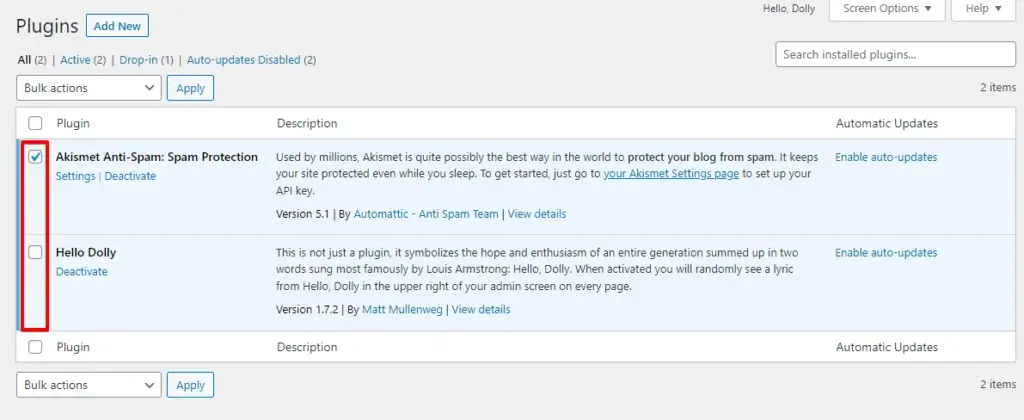
Select all active plugins, open the Bulk Actions dropdown at the top, choose Deactivate, and click Apply.
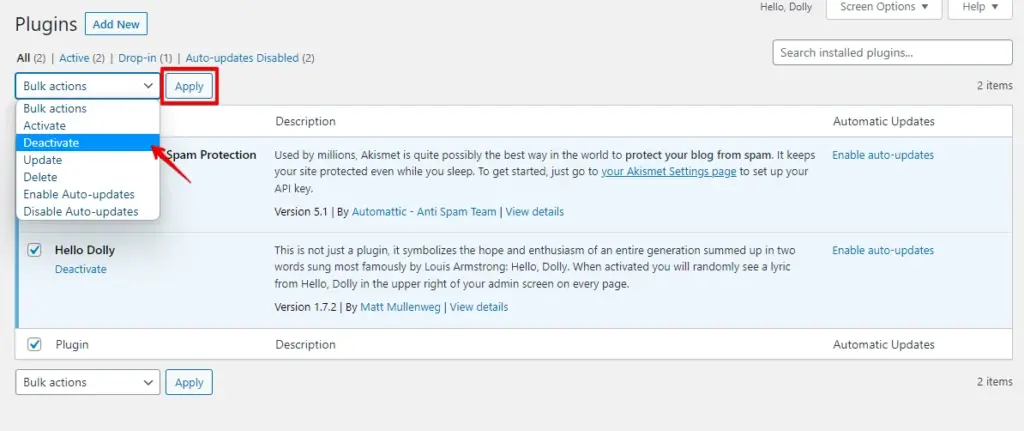
After deactivating all plugins, check whether the 405 error is gone. If it is, reactivate each plugin one by one, testing your site after each, until the error returns. That is the plugin blocking the request.
Once you identify it, check the plugin’s firewall or HTTP method settings. For Wordfence, look under Firewall > All Firewall Options for allowed HTTP methods and confirm PUT and DELETE are included. For Sucuri, look under Hardening settings for any HTTP method restrictions.
Server Configuration (Nginx and Apache)
A 405 that persists after resetting .htaccess and deactivating plugins usually points to the web server configuration. On Apache, Limit and LimitExcept directives inside a virtual host config file can block methods site-wide. On Nginx, a limit_except GET POST {} block in the server or location block has the same effect.
Diagnosis: Check your server logs
Access logs record every request with the HTTP status code. Error logs capture why the server rejected the request. Look for lines containing 405 or method not allowed near the path that returned the error.
Most shared hosting control panels expose logs under a Logs or Metrics section. On a VPS or dedicated server, check /var/log/apache2/error.log or /var/log/nginx/error.log.
Fix: Update the server config
For Apache, locate the virtual host config file for your site (typically under /etc/apache2/sites-enabled/) and search for <Limit> or <LimitExcept> blocks. Add the required HTTP methods or remove the restriction.
For Nginx, find the limit_except block inside the server block for your site and add the missing methods, or remove the block if your setup does not require it.
After editing the config, reload the server:
# Apache
sudo systemctl reload apache2

# Nginx
sudo systemctl reload nginx
On shared hosting, you cannot edit the global server config directly. Contact your host’s support and describe the blocked HTTP methods and the specific URL path returning 405.
WordPress REST API Method Restrictions
WordPress uses the REST API for Gutenberg saves, plugin sync operations, and WP-CLI commands. If the REST API is disabled, or a plugin or theme hook is rejecting specific HTTP methods, you will see 405 errors on paths starting with /wp-json/.
In our testing, REST API method errors in the block editor are most often caused by a combination of a REST authentication filter in a plugin or theme and a security plugin’s method allowlist. Enabling debug mode shows which component is rejecting the request.
Fix: Enable WordPress debug mode to trace the error
Open wp-config.php, change define('WP_DEBUG', false) to define('WP_DEBUG', true), and also add define('WP_DEBUG_LOG', true) to write errors to wp-content/debug.log. Save the file.
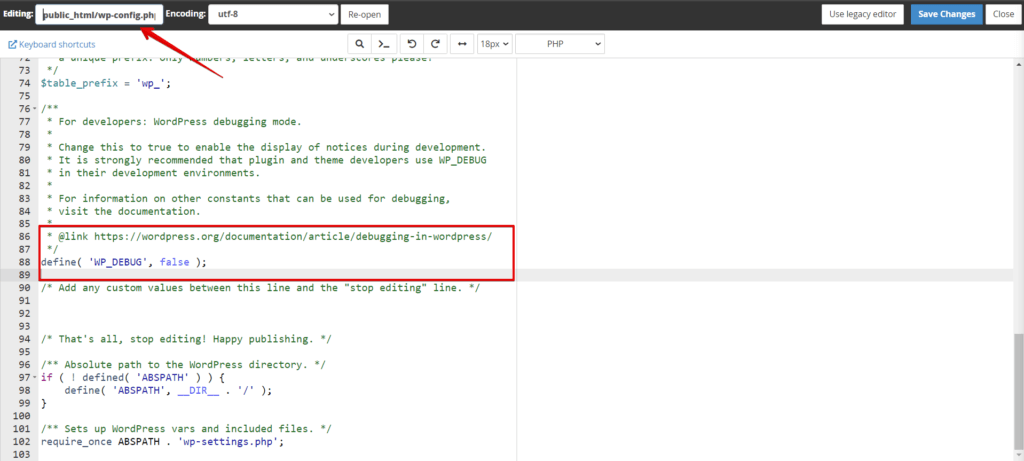
Reproduce the 405 error, then open wp-content/debug.log and look for REST API authentication errors or filter conflicts. When you find the hook or plugin responsible, update its settings or contact the plugin author.
Restore WP_DEBUG to false after troubleshooting.
For setup instructions, see how to activate the WordPress debug log.
Contact Form Plugin Sending the Wrong HTTP Method
Some contact form and checkout plugins submit data via a GET request to an endpoint that only accepts POST, or use a non-standard method the server will not accept. This produces a 405 on the front end rather than in the admin.
From WP STAGING support, this pattern appears when a plugin upgrade changes the submission endpoint URL without updating the form’s method attribute. The plugin starts sending requests to the new endpoint using the old method, and the server returns 405.
Diagnosis: Open browser DevTools (F12), go to the Network tab, and submit the form. Find the request that returns 405. Check the Method column: if it shows GET for a form that should POST, or any other unexpected method, the plugin is misconfigured.
Fix: Update the plugin to its latest version first. If the error persists, check the plugin’s settings for a form method or submission URL option and verify it matches what the server accepts. If the plugin has no such setting, contact the plugin author with the request method and URL from the Network tab.
General Troubleshooting
If none of the cause-specific fixes above resolved the error, work through these steps in order.
Reload the Page
A transient server glitch or stale browser cache can produce a one-time 405. Hard-reload with Ctrl + Shift + R on Windows or Command + Shift + R on macOS to force a fresh request.
Check for URL Errors
Double-check the URL for typos, extra slashes, or misplaced characters. A malformed URL can route to an endpoint that does not accept the method you sent.
Revert Any Recent Changes
If the 405 appeared after a plugin, theme, or WordPress core update, roll back that change. For plugins, WP Rollback can restore a previous version. Test your site after each rollback to confirm which update introduced the error.
Inspect Recent Database Modifications
A plugin or theme that writes to the database can occasionally disrupt request routing. To check for unexpected changes:
- Log in to cPanel and open phpMyAdmin.
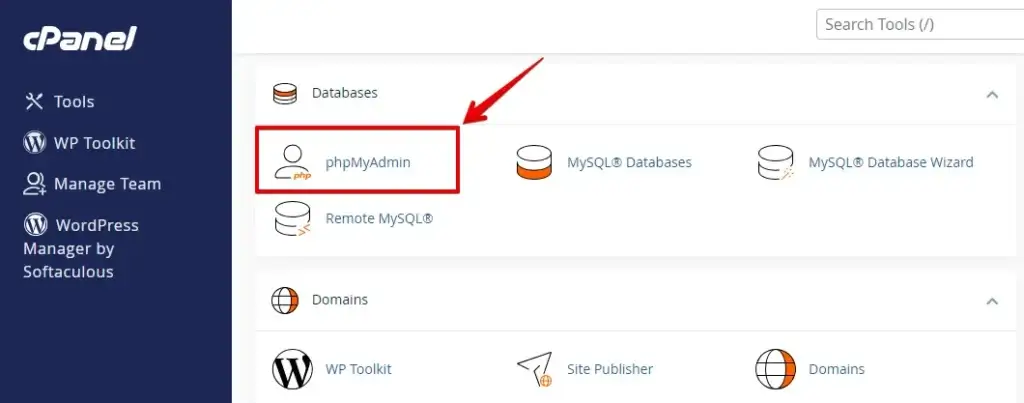
- Select the database associated with your WordPress installation from the left-hand sidebar.
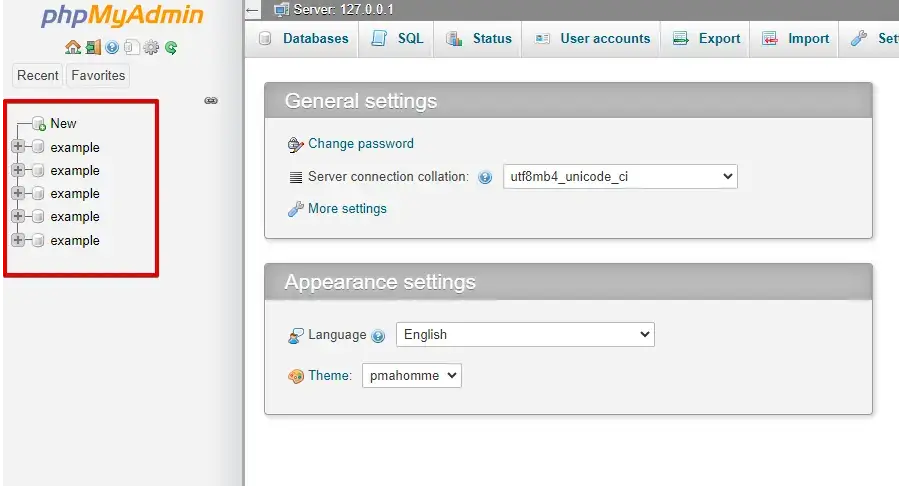
Look for orphaned tables from recently uninstalled plugins in wp_options and wp_usermeta. Remove any leftover rows and check whether the 405 clears.
Switch to a Default Theme
A theme that registers a REST API route incorrectly can produce a 405 on those paths. Switching to a bundled default theme rules this out.
Go to Appearance > Themes in your dashboard and activate a default WordPress theme.
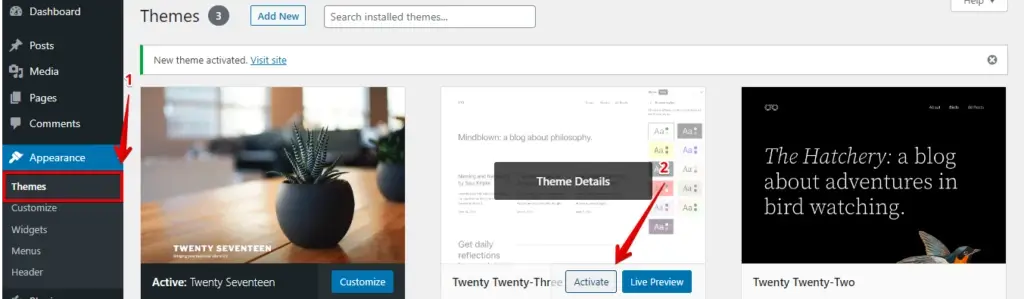
If the 405 disappears with the default theme active, the problem is in your original theme. Review any custom register_rest_route calls in the theme’s functions.php, or contact the theme author.
What to Do If the Fix Does Not Work
If the 405 persists after working through all the sections above, a CDN or reverse proxy sitting between the visitor’s browser and your server may be stripping or rewriting the HTTP method before the request reaches WordPress.
Check for a CDN or WAF layer. Your hosting control panel or DNS provider’s dashboard usually shows whether a CDN or Web Application Firewall is active. If one is, check its firewall rules for any HTTP method allowlists. CDN services often have rules that only permit GET and POST, which will return 405 for PUT, DELETE, or PATCH before the request reaches WordPress.
Review load balancer settings. If your site runs behind a load balancer, verify that the listener or backend config is not rejecting non-standard HTTP methods.
Temporarily bypass the proxy to isolate the source. If you can route a test request directly to your origin server and the 405 disappears, the proxy is filtering the method. Work with your CDN provider or system administrator to adjust the method allowlist.
Conclusion
A 405 Method Not Allowed error in WordPress has a small set of root causes: a LimitExcept directive in .htaccess, a security plugin blocking REST API methods, a server-level config rule, a plugin sending the wrong HTTP method, or a CDN filtering requests upstream. Working through each cause in order, starting with the .htaccess reset, resolves the issue in most cases.
If you need to roll back after a failed change, the WP Staging backup and restore guide walks through recovery in a few clicks.
Related Articles
- How to Fix 429 Too Many Requests Error in WordPress?
- How to Fix the HTTP Error During Image Upload on WordPress
- How to fix the "Sorry, You Are Not Allowed to Access This Page" Error in WordPress?
- How to Fix WordPress Login Page Refreshing & Redirecting Issues?
- Reduce HTTP Requests for a WordPress Site
