


TL;DR: WooCommerce stores all products as custom post types in
wp_posts, with attributes and meta (price, SKU, stock) inwp_postmeta. Categories, tags, and product attributes live in thewp_termsfamily of tables. Visibility and product type flags are stored as post meta keys.
Sometimes you add new WooCommerce products on your staging site and just want to add those new products to the live site without affecting other data like orders and transactions. Understanding which database tables WooCommerce uses makes that transfer safe and predictable — you copy only the rows that hold product data and leave order rows untouched.
This article maps every table that holds WooCommerce product data, explains the columns that matter day-to-day, and includes copy-paste SQL for the most common lookups. If you have ever wondered why a product change on staging did not carry over after a partial push, the answer is almost always a missed table.
Why Knowing Product Storage Locations Matters
Understanding where WooCommerce products are stored is useful in several practical situations:
- Custom Queries: Retrieving product data using SQL queries for reporting or custom functionality.
- Database Optimization: Cleaning up unnecessary data to improve performance.
- Troubleshooting Issues: Resolving problems with missing or incorrect product details.
- Data Migration: Moving products between different WordPress installations without touching order or customer data.
- Debugging missing attributes: When a product’s color or size does not appear on the front end, knowing which taxonomy table to inspect saves significant debugging time.
Key Tables Storing WooCommerce Product Data
WooCommerce primarily stores product data in two tables:
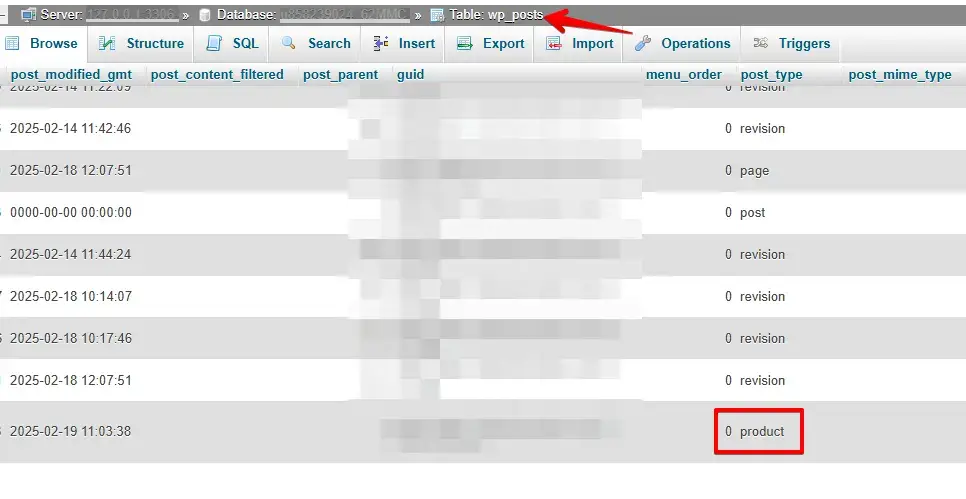
wp_posts– Contains product entries with a post type ofproductorproduct_variation.
wp_postmeta– Stores additional metadata for each product, linked viapost_id(product ID).
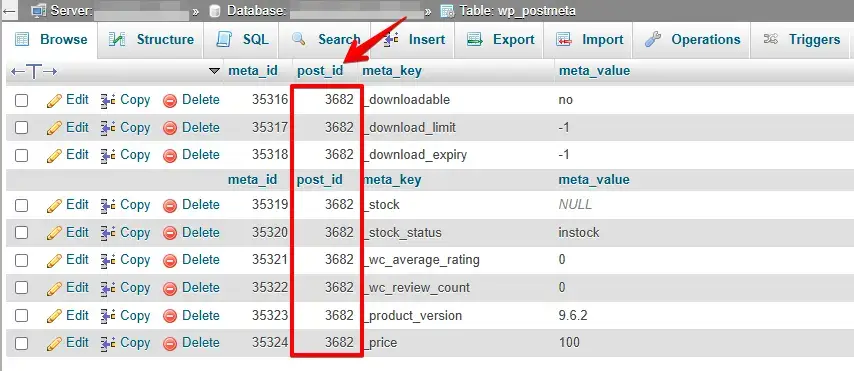
Table overview
The following table maps each core storage area to what it holds and the columns most often needed in queries or migrations:
| Table | What it stores | Key columns |
|---|---|---|
wp_posts |
Every product and variation as a row | ID, post_title, post_type = 'product', post_status, post_modified |
wp_postmeta |
Price, SKU, stock, weight, dimensions — one row per key per product | post_id, meta_key, meta_value |
wp_terms |
Category and tag names, attribute labels | term_id, name, slug |
wp_term_taxonomy |
Declares whether a term is a category, tag, or attribute | term_taxonomy_id, taxonomy, description |
wp_term_relationships |
Links each product (object_id) to its terms |
object_id, term_taxonomy_id |
wp_termmeta |
Extra metadata attached to terms | term_id, meta_key, meta_value |
wp_woocommerce_attribute_taxonomies |
Global attribute definitions (e.g., Color, Size) | attribute_id, attribute_name, attribute_type |
Worked example: retrieve a product with its price and stock level
The query below joins wp_posts to wp_postmeta to pull the price and stock status for a single product. Replace 12345 with the product’s ID value from wp_posts:
SELECT
  p.ID,
  p.post_title,
  MAX(CASE WHEN pm.meta_key = '_price'        THEN pm.meta_value END) AS price,
  MAX(CASE WHEN pm.meta_key = '_stock_status' THEN pm.meta_value END) AS stock_status
FROM wp_posts p
JOIN wp_postmeta pm ON pm.post_id = p.ID
WHERE p.ID = 12345
  AND p.post_type = 'product'
GROUP BY p.ID, p.post_title;
In our testing with WooCommerce 9.x, the _price meta key is always populated even when the product has no explicit sale price — it mirrors the regular price. From WP STAGING support experience, the most common source of confusion is the assumption that WooCommerce uses its own entirely separate tables for products. It does not: it extends wp_posts through the custom post type system, so every product is a post row with a post_type value of product.
Quick Reference: Find What You Need
Use this table to go directly to the right table and column without reading the full schema documentation:
| I want to … | Table | Filter |
|---|---|---|
| List all products | wp_posts |
post_type = 'product' |
| Find a product’s price | wp_postmeta |
meta_key = '_price' |
| Find a product’s sale price | wp_postmeta |
meta_key = '_sale_price' |
| Check stock status | wp_postmeta |
meta_key = '_stock_status' |
| Find a product’s SKU | wp_postmeta |
meta_key = '_sku' |
| List product categories for a product | wp_term_relationships → wp_term_taxonomy → wp_terms |
taxonomy = 'product_cat' |
| Check if a product is featured | wp_term_relationships |
term slug featured in product_visibility |
| Find all variations of a product | wp_posts |
post_type = 'product_variation' and post_parent = <product ID> |
Tables Storing Product Categories, Tags, and Attributes
In addition to the core product tables, WooCommerce uses several taxonomy-related tables to manage product types, categories, subcategories, tags, and attributes:
wp_terms– Stores product categories and tags.wp_termmeta– Stores metadata for product terms.wp_term_taxonomy– Defines the taxonomy type (e.g., category, tag, attribute).wp_term_relationships– Links products to their categories and attributes.wp_woocommerce_termmeta– Stores additional WooCommerce-specific term data.wp_woocommerce_attribute_taxonomies– Manages product attributes specifically.
When a product attribute does not appear correctly on the front end, check both wp_term_relationships (to confirm the product is linked to the right term) and wp_term_taxonomy (to confirm the taxonomy column matches the expected attribute slug).
WooCommerce Product Types and Visibility
WooCommerce handles different product types using the product_type taxonomy, which includes the following default options:
simple– A standard product with no variations.grouped– A collection of related products.variable– A product with multiple variations.external– A product sold on an external website.
Since WooCommerce 3+, a new taxonomy called product_visibility manages:
- Search and catalog visibility – Uses terms like
exclude-from-searchandexclude-from-catalog. - Featured products – Identified using the term
featured. - Stock status – Uses
outofstockto indicate unavailable products. - Ratings – Terms like
rated-1torated-5categorize product reviews.
Each product attribute is stored as a custom taxonomy, making it easy to categorize and filter products dynamically.
Common Operations
Bulk-deleting products safely by post type
To remove all products from a test or seeded database, target wp_posts by post type and clean up the related postmeta rows in the same operation:
-- Remove postmeta first (avoids orphaned rows)
DELETE pm
FROM wp_postmeta pm
JOIN wp_posts p ON p.ID = pm.post_id
WHERE p.post_type IN ('product', 'product_variation');

-- Then remove the product and variation rows
DELETE FROM wp_posts
WHERE post_type IN ('product', 'product_variation');
⚠️ Always run this against a staging database first. This permanently deletes all product rows and their meta. It does not touch order tables.
Migrating WooCommerce products from staging to live
When pushing only products — not orders — from a staging environment, the minimum set of tables to include is:
wp_posts— rows wherepost_type IN ('product', 'product_variation')wp_postmeta— rows wherepost_idbelongs to a product or variationwp_terms,wp_termmeta,wp_term_taxonomy,wp_term_relationships— rows tied toproduct_cat,product_tag, and custom attribute taxonomieswp_woocommerce_attribute_taxonomies— if you have custom global attribute definitions on the source environment
Leave all wp_woocommerce_order* and wp_wc_order* tables out of the push — including them would overwrite live customer orders with staging data.
Resetting test product data
After seeding a staging store with test products, reset to a clean state by deleting rows where post_type = 'product' using the query above. WP STAGING’s selective push also lets you define which post types to include or exclude, so you can push real products from staging to live without writing raw SQL.
Best Practices for Copying Product Data to a Live Site
When moving new products from a staging site to a live site, protect orders and customer data by following these steps:
- Back up the live database. Export a full snapshot before any push so you can restore immediately if something goes wrong.
- Copy only relevant tables. Focus on
wp_posts,wp_postmeta, and taxonomy-related tables. - Exclude order-related tables. Avoid tables prefixed with
wp_woocommerce_unless you specifically intend to migrate order data. - Use a migration tool. Plugins like WP STAGING handle selective table pushes automatically, including serialised-data search-and-replace for URL differences between environments.
- Verify on staging first. Run a read-only query against the staging database to confirm the expected product row counts before initiating the push.
Conclusion
WooCommerce products are stored mainly in wp_posts and wp_postmeta, while categories, attributes, and visibility settings are managed in related taxonomy tables. Understanding this structure helps in safely migrating product data without affecting live store operations.
References:
- Normal tables: WordPress database description
- Specific tables: Woocommerce database description
Related Articles
