
If you update your website frequently, install new plugins, or delete unused ones, a MySQL database can contain no longer required orphan data, making accessing the database slow and resulting in worse website loading times.
Cleaning up your database will free up disk space, move data to an optimized location, and ensure that data can be accessed quickly. This will improve the performance of your database and speed up your website.
Contents
What is Database Optimization?
Database optimization involves reorganizing the data within your database to reduce space and improve data retrieval efficiency. This process can help speed up queries, free up storage space, and enhance your database’s performance.
MySQL database optimization involves a series of practices and techniques to improve a MySQL database’s performance and efficiency. Optimization can be critical for ensuring that database queries are executed quickly, resources are used efficiently, and the overall performance of the database system is improved.
What Happens When You Click "Optimize" in MySQL?
When you click on "Optimize" in MySQL, typically through a database management tool like phpMyAdmin or MySQL Workbench, the following operations are performed on the selected table(s):
- Defragmentation:
- The OPTIMIZE TABLE command reorganizes the physical storage of table data and associated index data to reduce fragmentation. This can help improve access times and query performance.
- Reclaiming Unused Space:
- During normal operations (especially after many insert, update, and delete operations), tables can become fragmented, and unused space can accumulate. The optimization process reclaims this unused space.
- Updating Statistics:
- Statistics about the distribution of key values are updated. The MySQL query optimizer uses these statistics to make better decisions about the execution plan for queries.
- Repairing the Table:
- If any table is marked as needing repair, the optimization process includes repairing the table.
Example of the OPTIMIZE TABLE Command
Here’s an example of how you can manually optimize a table using SQL:
OPTIMIZE TABLE table_name;Overview of PHPMyAdmin
PHPMyAdmin is a popular tool for simplifying database management. Its user interface makes it accessible even to non-database experts, allowing you to execute the OPTIMIZE command even without running the manual SQL query. This guide will help you optimize your MySQL database using PHPMyAdmin.
Optimizing MySQL Databases
Access the Database Through PHPMyAdmin
PhpMyAdmin is a free tool in your web hosting package that allows you to manage your MariaDB databases. It allows you to import, export, optimize, or delete tables.
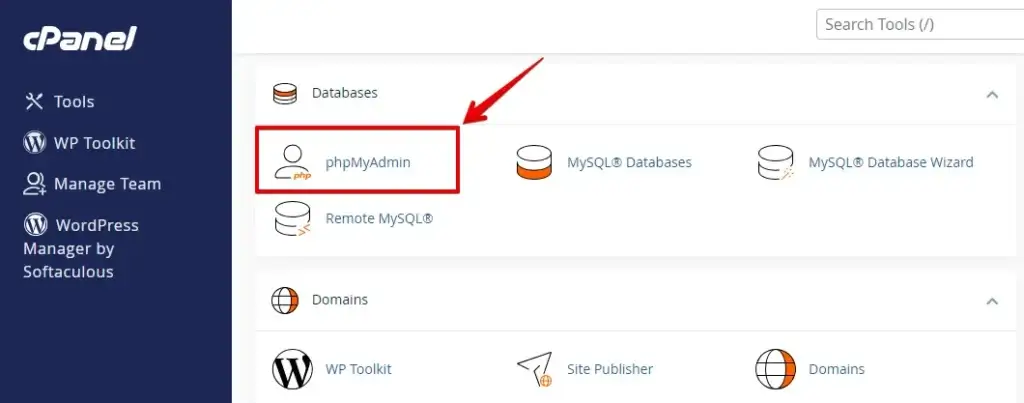
- Log in to your web hosting cPanel and navigate to phpMyAdmin.
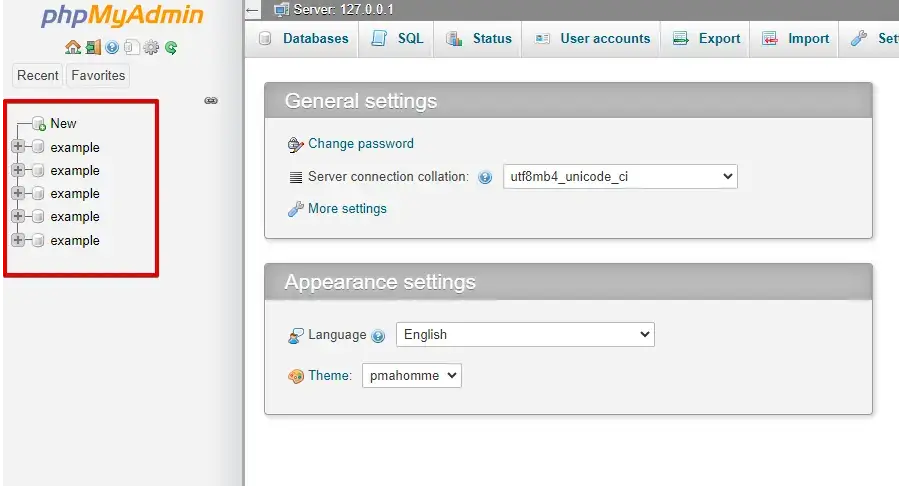
- In phpMyAdmin, locate and select the database associated with your WordPress site from the left-hand sidebar.
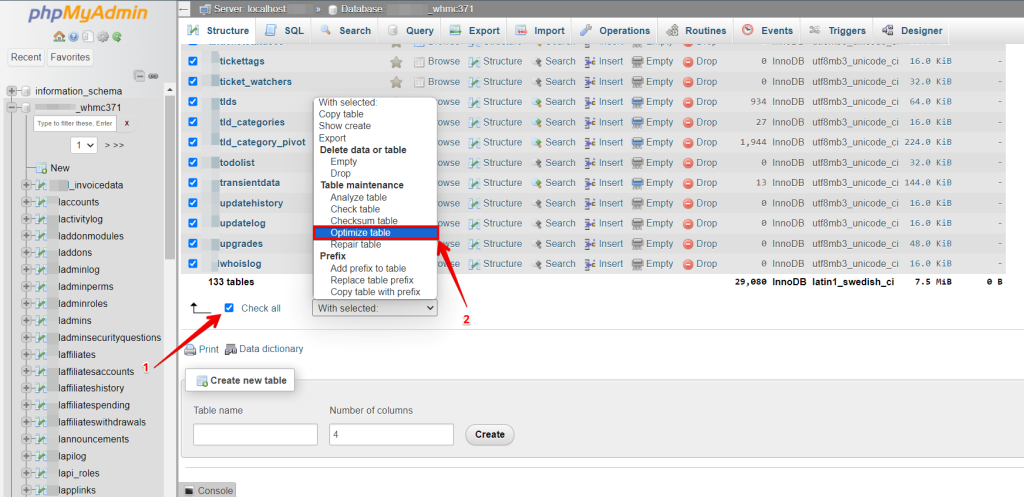
- Select Tables: Click ‘Check all’ to select all tables or check individual boxes for specific tables you wish to optimize.
- Optimize: From the ‘With selected’ drop-down menu, choose ‘Optimize table’.
- Finished! Your database optimization is complete.
- All Set: Your database should now run more smoothly and quickly.
Final Thoughts
To keep your MySQL database working well and without problems, it’s essential to regularly fix and tidy up your database tables. PhpMyAdmin makes it easy to manage your MySQL databases and has tools for fixing and tidying up tables.
Following this article, you can quickly fix and tidy up your tables with PhpMyAdmin. Doing this regularly will help make sure your database stays reliable and works fast.
Related Articles