



When WordPress overwrites your .htaccess file, custom redirect rules, security headers, and caching configuration disappear without warning. The fix depends on your hosting environment and how much control you need.
TL;DR — three methods stop WordPress from overwriting
.htaccessreliably. Set file permissions to read-only (444) for a hard lock that blocks WordPress, plugins, and server processes alike. Adddefine('DISALLOW_FILE_MODS', true);towp-config.phpto disable all admin-level file modifications at once. Or use custom section markers (# BEGIN MyCustomRules … # END MyCustomRules) to keep your rules in a zone WordPress ignores on every permalink flush.
Contents
What is the .htaccess File in WordPress?
The .htaccess (Hypertext Access) file is a configuration file on Apache servers that controls directories and files. WordPress uses it primarily to manage URL permalinks, making it an essential part of your website’s structure.
Custom changes to this file may be lost when WordPress or certain plugins update, as they tend to rewrite this file to ensure default WordPress configurations are applied.
Common uses of .htaccess in WordPress include:
- Configuring SEO-friendly URLs
- Setting up 301 redirects
- Limiting IP access for security
- Defining custom error pages
- Implementing caching rules for performance
Why Does WordPress Overwrite the .htaccess File?
WordPress overwrites .htaccess when changes are made to:
- Permalink structure: Changing the URL structure from the Settings menu in WordPress.
- Specific plugins: Some plugins automatically adjust the
.htaccessfile to add custom rules for SEO, caching, or security purposes. - Automatic updates: Updates to WordPress may modify
.htaccessto ensure compatibility or security.
From WP STAGING support tickets, the most common cause is a security plugin flushing the rewrite rules on save — often triggered silently in the background during unrelated updates.
Which Method Is Right for You?
| Your situation | Recommended method |
|---|---|
| Shared hosting (cPanel), no SSH access | Step 1 (read-only file permissions via File Manager) |
| VPS or dedicated server with SSH | Step 1 (chmod via command line) |
| You want to block all plugin and theme file edits from the WP admin | Step 2 (DISALLOW_FILE_MODS) |
| Permalink customisation active, or plugin-generated rules to isolate | Step 3 (custom markers) |
| Need fine-grained control without blocking plugin updates | Step 4 (got_rewrite filter) |
| About to apply any of the above on a live site | Step 5 (test on staging first) |
5 Methods to Stop WordPress from Overwriting .htaccess
Step 1: Make .htaccess Read-Only (File Permissions)
Setting .htaccess to read-only (permission mode 444) is the most direct way to block WordPress, plugins, and other server processes from modifying it.
Before making any changes, back up your website. WP Staging offers a simple solution for setting up automatic backups. For rollback steps, see the backup and restore guide.
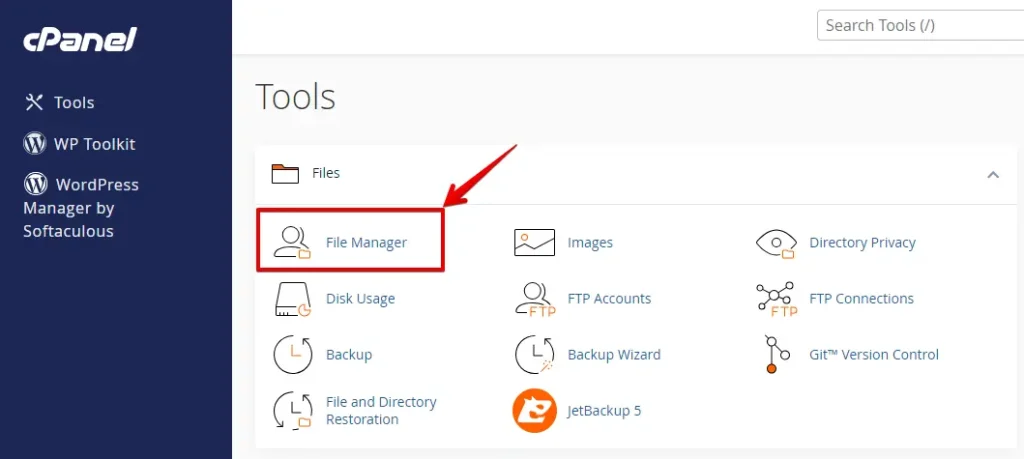
Login to your hosting account and find the File Manager under the Files section.
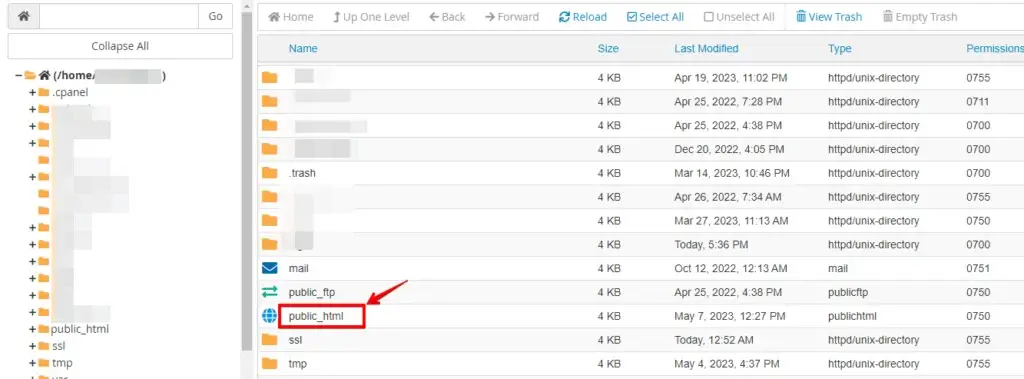
Navigate to the root directory of your WordPress installation (usually public_html).
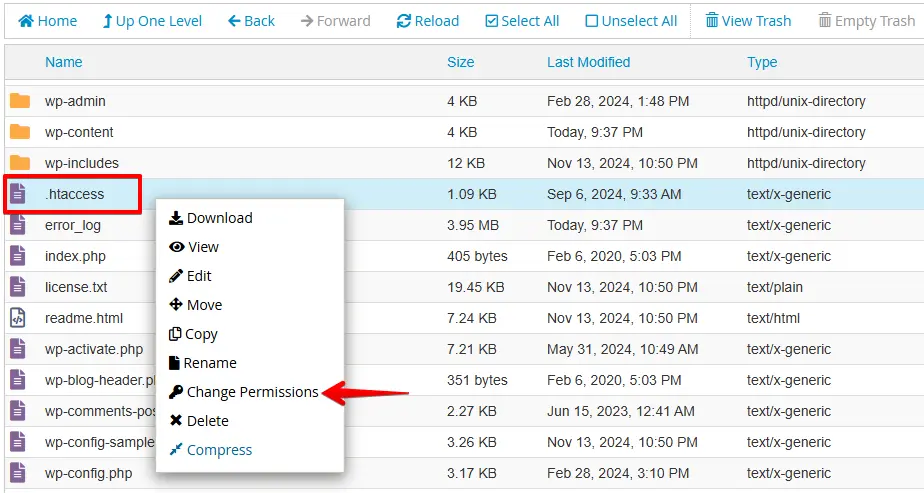
Locate your .htaccess file, right-click on it, and choose Change Permissions from the menu.
A dialog box will appear showing the current permissions. Set the permissions to 444, then click Change Permissions to save.
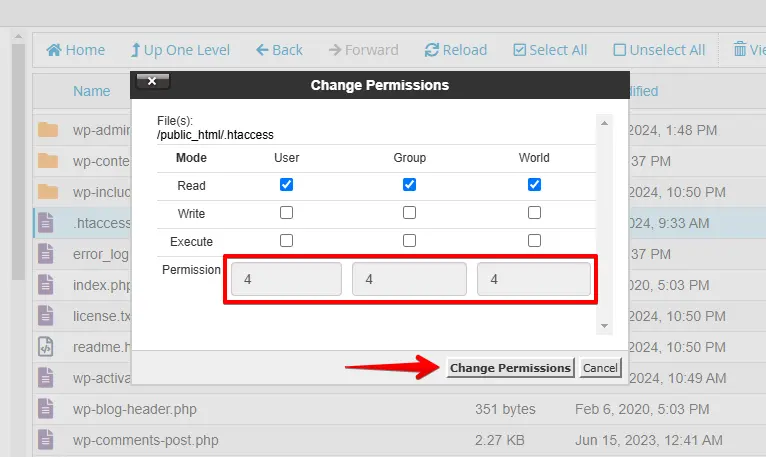
Setting .htaccess to read-only stops WordPress from modifying it and protects your custom rules. In our testing on shared cPanel hosts, setting permissions to 444 blocks WordPress from updating .htaccess even when flushing permalinks — WordPress writes a silent failure to the debug log rather than reverting permissions.
Important: After setting permissions to 444, change them back to 644 any time you need to add rules intentionally (for example, after installing a caching plugin). Use the PHP chmod function or your host’s File Manager to toggle between 444 and 644.
On Nginx-only hosts: .htaccess has no effect. Nginx reads its own configuration files and does not process .htaccess directives. Contact your host to modify server-level rewrite rules directly in the Nginx configuration.
Step 2: Use DISALLOW_FILE_MODS in wp-config.php
The DISALLOW_FILE_MODS constant tells WordPress to block all file modifications from the admin — including plugin and theme updates, the built-in file editor, and automatic .htaccess rewrites triggered by permalink changes.
Add this line to wp-config.php, just before /* That's all, stop editing! Happy publishing. */:
define( 'DISALLOW_FILE_MODS', true );See the WordPress developer documentation on DISALLOW_FILE_MODS for the full scope of what this constant blocks.
Trade-off: With DISALLOW_FILE_MODS active, automatic plugin and theme updates via the WordPress dashboard are also disabled. This is a hard lock best suited to production sites where deployments happen through a staging workflow or version control rather than via the WP admin.
Step 3: Use Custom Markers to Protect Your Rules
WordPress and plugins only rewrite the sections of .htaccess they own, identified by # BEGIN WordPress … # END WordPress and # BEGIN PluginName … # END PluginName markers. Rules you place outside these regions are left untouched on every permalink flush.
Avoid editing inside WordPress markers:
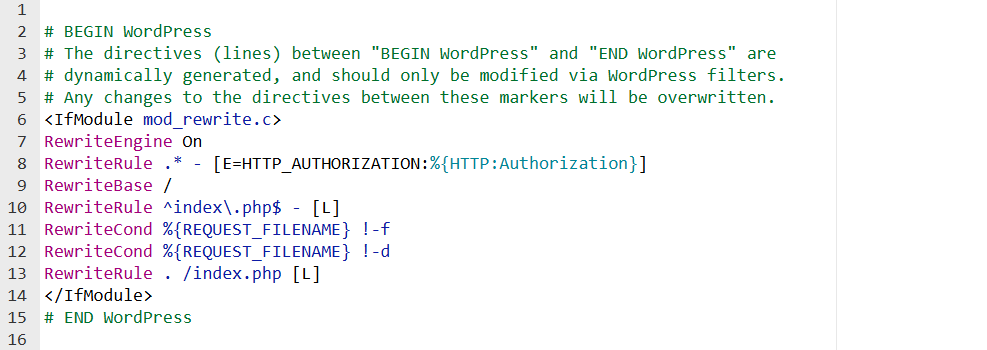
Avoid edits within the # BEGIN WordPress and # END WordPress tags. WordPress controls this section and updates it automatically when you save permalink settings.
Avoid editing inside plugin-owned markers:
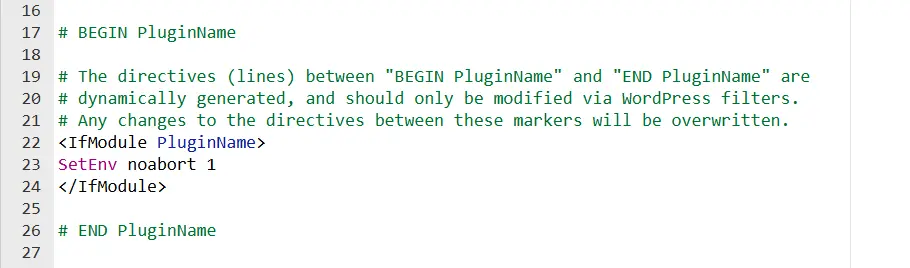
Avoid changes to sections that plugins add, marked by comments like # BEGIN PluginName and # END PluginName. The plugin controls these areas and overwrites them during updates.
Create your own protected section:
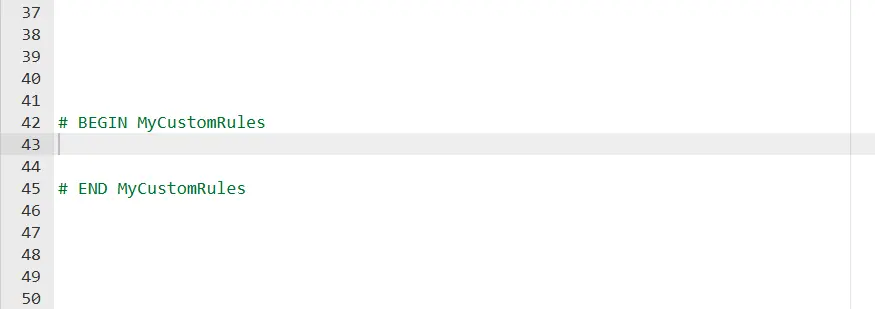
Add your custom rules using unique markers like # BEGIN MyCustomRules … # END MyCustomRules. Any section using markers that no WordPress core code or plugin recognises will be left alone on every rewrite. This is the lowest-friction method when active permalink customisation needs to keep working alongside your custom rules.
Step 4: Prevent WordPress from Rewriting Rules via a wp-config.php Filter
The got_rewrite WordPress filter controls whether WordPress attempts to write to .htaccess at all. Returning false from this filter stops the rewrite entirely — WordPress behaves as if mod_rewrite is unavailable and skips the file-update step.
Access your WordPress root directory, locate the wp-config.php file, right-click on it, and select Edit from the menu.
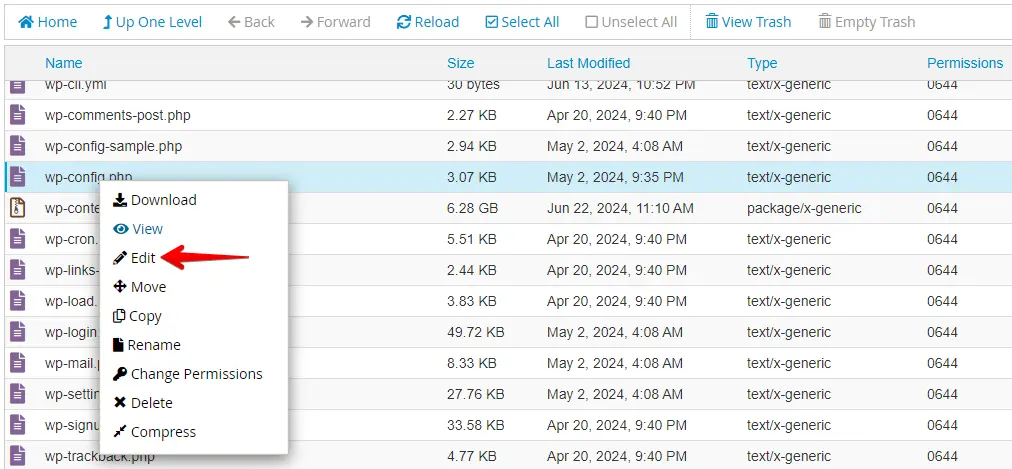
Add the following line just before /* That's all, stop editing! Happy publishing. */:
add_filter('got_rewrite', '__return_false');Save the file.
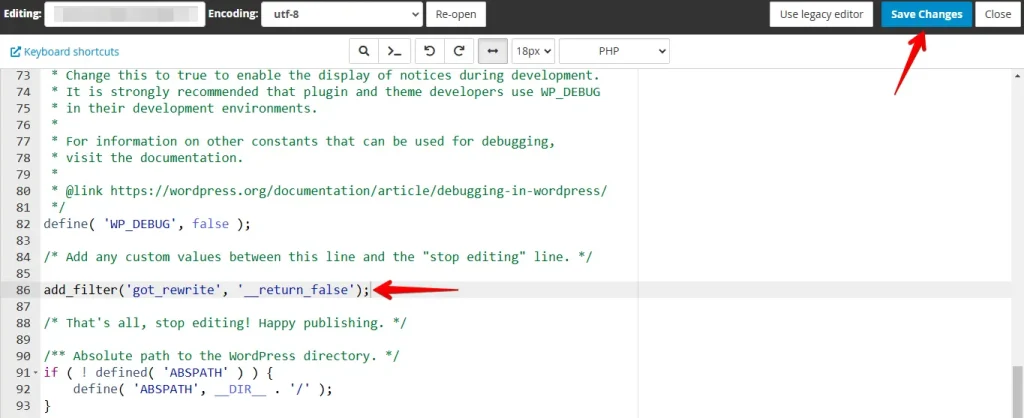
Adding add_filter('got_rewrite', '__return_false') to wp-config.php stops WordPress from rewriting .htaccess, keeping your custom rules safe. This method pairs well with file permissions (Step 1) as a second layer of protection.
Difference from DISALLOW_FILE_MODS: The got_rewrite filter only stops .htaccess rewrites. Plugin and theme updates via the dashboard continue to work normally, making it a less disruptive option than DISALLOW_FILE_MODS.
Step 5: Test Your Changes on a Staging Site First
A misconfigured .htaccess or wp-config.php change can take a live site offline. Before applying any of the steps above to production, verify them on an identical copy of your site where errors have no visitor impact.
Use WP Staging to create a staging environment that mirrors your production database, plugins, and theme. Test the method that matches your situation, confirm the site functions correctly — permalink structure, cached pages, security rules — then apply the change to production with confidence.
What to Do If WordPress Keeps Resetting Permissions
If you applied Step 1 and WordPress continues to overwrite .htaccess, the cause is usually the hosting environment or a plugin running in the background:
| Hosting type | Why permissions reset | Fix |
|---|---|---|
| Shared cPanel | A security plugin (Wordfence, iThemes Security) triggers a rewrite flush on save | Disable the plugin’s .htaccess-write option in its settings, then re-apply 444 permissions |
| Kinsta / WP Engine (managed hosting) | Host-level deploy processes reset file permissions | Use Step 3 (custom markers) instead; contact host support for permission exceptions |
| VPS with WP-CLI cron | A scheduled wp rewrite flush command resets the file |
Audit cron jobs with crontab -l; remove or update the flush command |
| Nginx-only host | .htaccess has no effect on this server type |
Review the Nginx server {} block for equivalent rewrite directives |
Apache with AllowOverride None |
Apache ignores .htaccess for the directory entirely |
Set AllowOverride All in the virtual host config; see the Apache AllowOverride documentation |
If none of the above applies, enable WordPress debug logging (define('WP_DEBUG_LOG', true); in wp-config.php) and reproduce the overwrite. The debug log will identify which plugin or core routine called flush_rewrite_rules() and triggered the .htaccess update.
Conclusion
To protect your .htaccess file from WordPress rewrites, choose the method that fits your hosting setup: set permissions to read-only (Step 1) for a hard lock, use DISALLOW_FILE_MODS (Step 2) to disable all file edits from the admin, use custom markers (Step 3) to keep rules in a zone WordPress ignores, or add the got_rewrite filter (Step 4) to stop rewrites at the API level. Always test on a staging site first (Step 5) before applying changes to production.
Related Articles
- How to Fix "ERR_EMPTY_RESPONSE" Errors Quickly and Easily
- How to Fix ‘Too Many Redirects’ Error in WordPress
- How to Fix the WordPress 404 Not Found Error
- How to fix the "Sorry, You Are Not Allowed to Access This Page" Error in WordPress?
- Fixing the 405 Method Not Allowed HTTP Error
