


Are you facing a WordPress RSS feed error? The fix usually takes minutes: validate the feed first to pinpoint the exact error, then work through plugin conflicts, theme issues, functions.php, and permalink resets until the feed clears.
TL;DR — Fix WordPress RSS feed errors:
- Validate — paste your feed URL into the W3C Feed Validation Service to see the exact error line.
- Plugins — deactivate all plugins, confirm the feed clears, then reactivate one by one to find the offender.
- Theme — switch to a default WordPress theme (Twenty Twenty-Four) to rule out theme-side output.
- functions.php — check your theme’s
functions.phpfor syntax errors or code that prints output before the XML declaration.- Permalinks — go to Settings → Permalinks and click Save Changes to flush rewrite rules.
Contents
- What Is a WordPress RSS Feed Error?
- Common Causes of WordPress RSS Feed Errors
- How to Validate Your WordPress RSS Feed
- How to Fix RSS Feed Errors Caused by Plugin Conflicts
- How to Fix RSS Feed Errors Caused by Theme Issues
- How to Fix RSS Feed Errors via functions.php
- How to Fix RSS Feed Errors by Resetting Permalinks
- What to Do If None of the Fixes Work
- Conclusion
- Related Articles
What Is a WordPress RSS Feed Error?
WordPress generates a feed at yourwebsite.com/feed in RSS 2.0 XML format. Feed readers, podcast apps, and search engine crawlers request this URL to receive a structured list of your latest posts. When WordPress, a plugin, or a theme outputs stray whitespace, a PHP notice, or malformed HTML before the <?xml declaration, the XML document becomes invalid — any consumer of the feed reports a parse error.
The most visible symptoms are a browser showing "This page contains the following errors — not well-formed (invalid token)", a blank /feed page, or a 500 Internal Server Error on /feed. Feed aggregators may also silently drop your updates without any warning.
The root cause in every case is that something on the WordPress stack injected unexpected output before or inside the XML response. The five methods below isolate and remove that output.
Common Causes of WordPress RSS Feed Errors
RSS feed errors usually occur due to issues with the formatting or structure of your feed. These errors can prevent feed readers from parsing your content correctly. Common causes include:
- Improper formatting — A single misplaced character or stray space before
<?phpin any loaded file can break the entire feed. - Plugin conflicts — A plugin that hooks into
the_content,wp_head, orinitmay inject HTML without checking whether the current request is a feed. - Theme issues — Custom code in
functions.phpor a template file that echoes output unconditionally on every request. - Server problems — Server settings or configurations might hinder feed access or inject unexpected output.
In our testing with WP STAGING staging clones, the most common source of malformed XML is a plugin that hooks into the_content and injects HTML without checking whether the current request is a feed.
Quick diagnosis
Not sure which fix to start with? Use this table to match your symptom to the most likely cause:
Symptom on /feed |
Most likely cause | Start with |
|---|---|---|
| "not well-formed" XML error in browser | Plugin or theme injecting HTML | Method 2 — plugin conflict |
| Blank white page | PHP fatal error or output buffering | Method 4 — functions.php |
| 500 Internal Server Error | Server config or corrupted rewrite rules | Method 5 — permalink reset |
| Feed validates in browser but fails in reader | Encoding issue or wrong MIME type | Method 1 — validator |
| Error appeared right after installing a plugin | New plugin conflict | Method 2 — plugin conflict |
Note: It’s a good idea to back up your website before changing anything. If something goes wrong, you can quickly restore your site to its previous state. You can use WP Staging for easy automatic backups. Check out the backup and restore guide if you need more help.
How to Validate Your WordPress RSS Feed
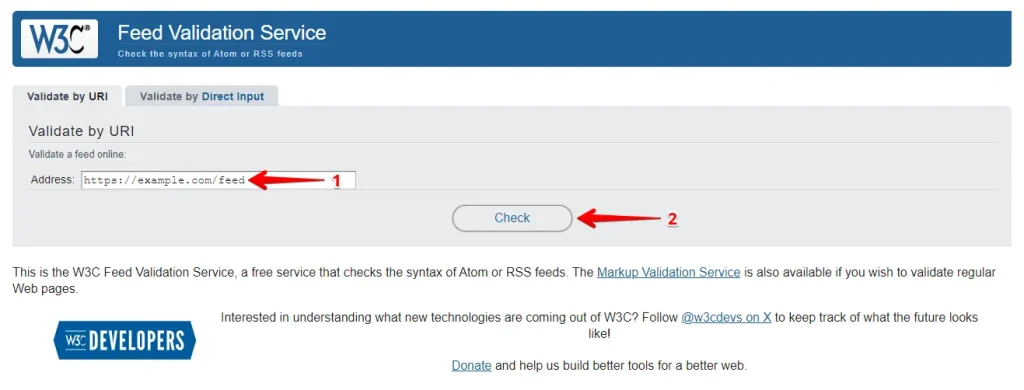
Before changing any code, use the W3C Feed Validation Service to confirm exactly what the error is. The validator parses your feed and reports the exact line and character where invalid markup starts — often pointing directly at the offending plugin or theme output.
Paste your WordPress RSS feed URL (e.g., https://yourwebsite.com/feed/) into the validation tool and click Check to start the validation process.
The validator lists any errors or warnings it finds. While some warnings are not a cause for concern, errors must be addressed. The error description identifies the problem location, which you can trace back to a specific plugin or theme file. Run the validator again after each fix below to confirm progress.
How to Fix RSS Feed Errors Caused by Plugin Conflicts
A plugin conflict is the most frequent cause of RSS feed errors in WordPress. The test works by deactivating all plugins at once, confirming the feed clears, then reactivating them one by one until the error returns.
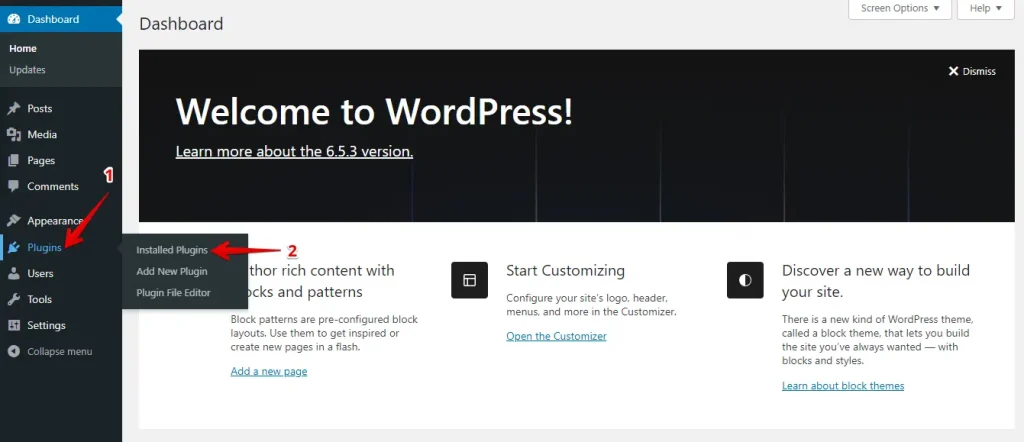
Log in to your WordPress admin dashboard and navigate to Plugins → Installed Plugins.
Select all plugins by checking the box at the top of the list.
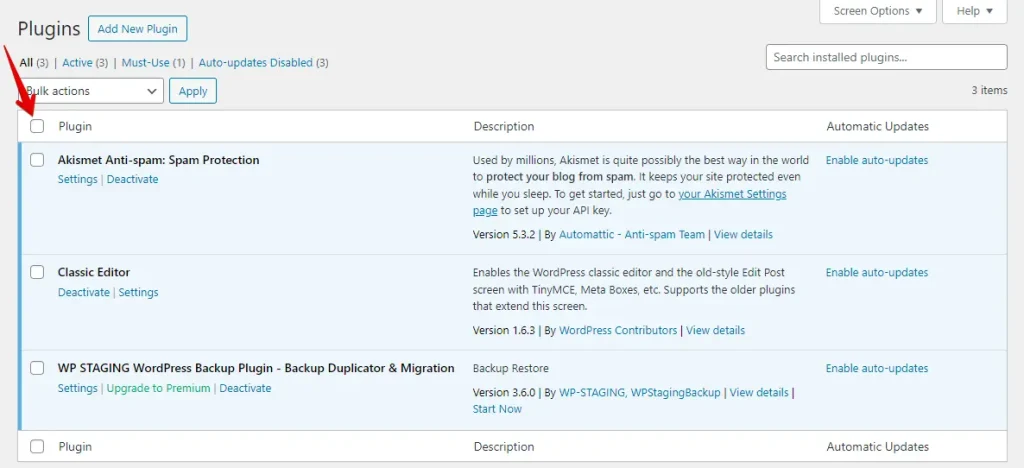
Choose Deactivate from the Bulk Actions dropdown and click Apply.
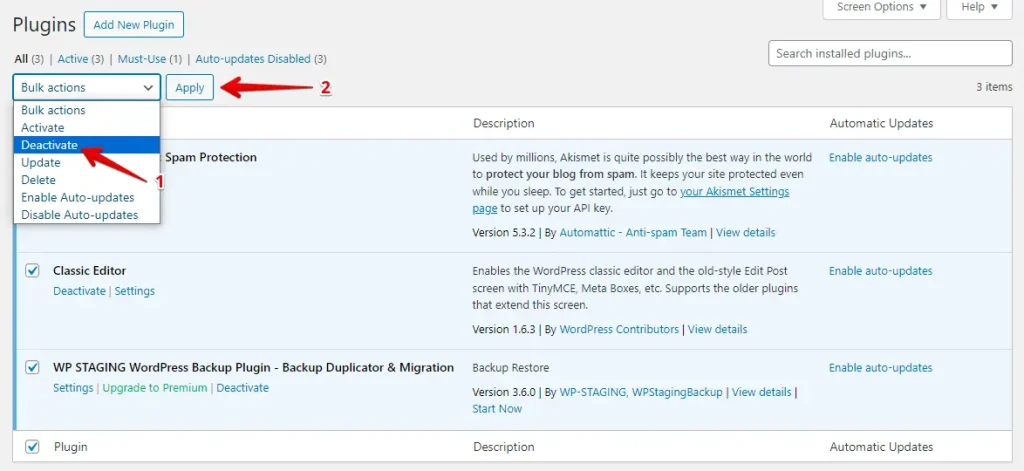
After deactivating all plugins, visit yourwebsite.com/feed and check whether the feed now validates. If it does, you have a plugin conflict. Reactivate your plugins one by one — starting with security, caching, and SEO plugins — checking the feed after each activation. When the error returns, the last plugin you activated is the cause. Update it, search for a newer version, or contact the plugin author.
Regularly monitoring your RSS feed after plugin updates will help you catch conflicts early and avoid extended outages.
How to Fix RSS Feed Errors Caused by Theme Issues
If the feed still errors after ruling out plugins, your active theme is likely injecting unexpected output. Switching to a default WordPress theme removes all custom theme code temporarily, isolating the cause.
Log in to your WordPress admin dashboard and navigate to Appearance → Themes.
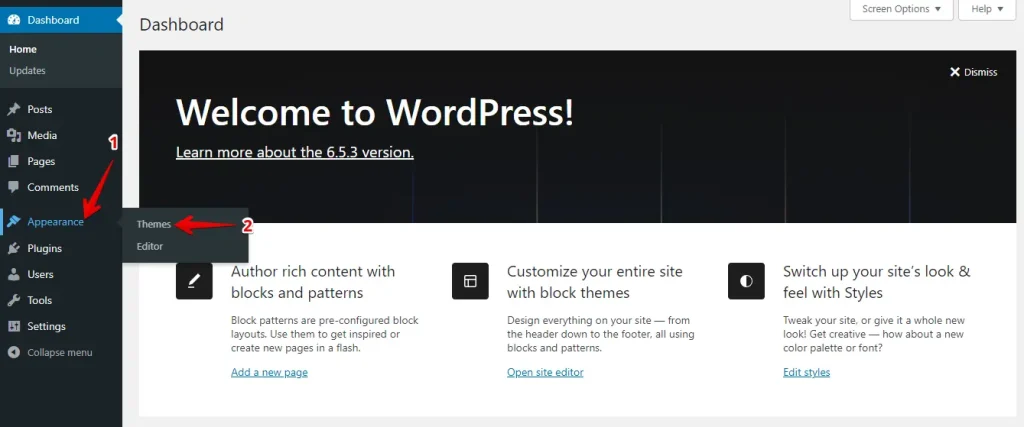
Find Twenty Twenty-Four (or another default WordPress theme) and click Activate.
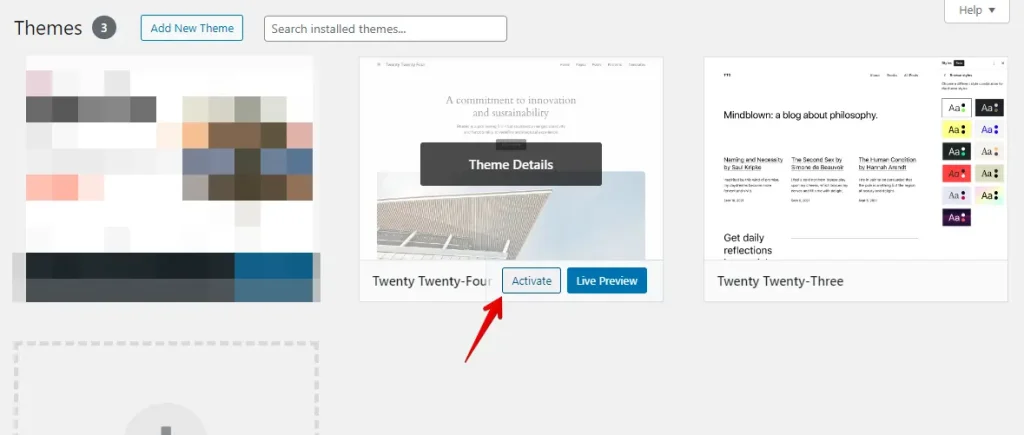
Visit yourwebsite.com/feed and check whether the error is gone. If the feed now works without errors, your original theme is the source of the problem. Contact the theme developer for support, or review the theme’s code for PHP or HTML errors if you are comfortable working with those files.
If switching themes resolves the issue but you need to keep your original theme, the fix is to find the hook that outputs content unconditionally and wrap it in an if ( ! is_feed() ) conditional. Switching to a default theme is a diagnostic tool — after confirming the cause, you can switch back and target the specific problematic code.
How to Fix RSS Feed Errors via functions.php
Your theme’s functions.php may contain a custom snippet that echoes HTML, prints a variable, or generates a PHP notice that appears before the XML declaration. Checking this file for recent changes is a reliable step when plugins and the active theme have not resolved the issue.
Log in to your hosting account’s cPanel and open File Manager.
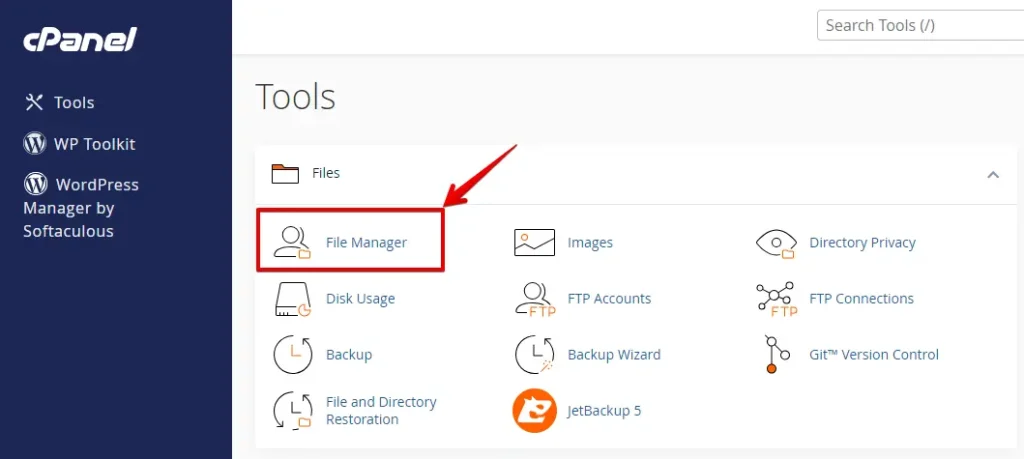
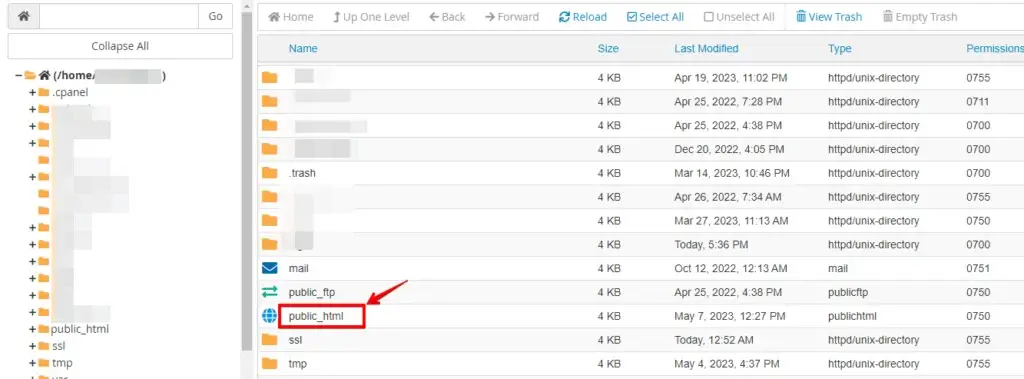
Navigate to public_html (or your WordPress installation directory).
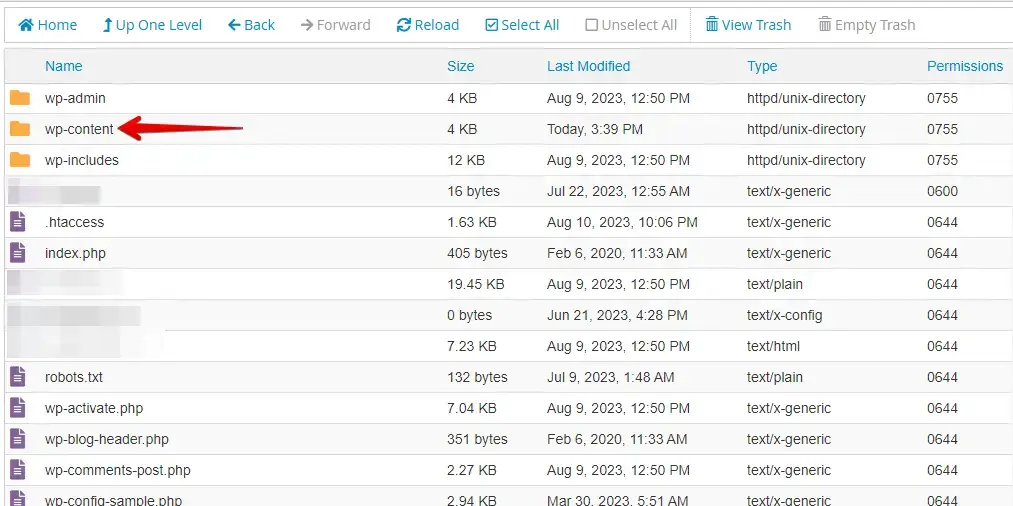
Open the wp-content folder.
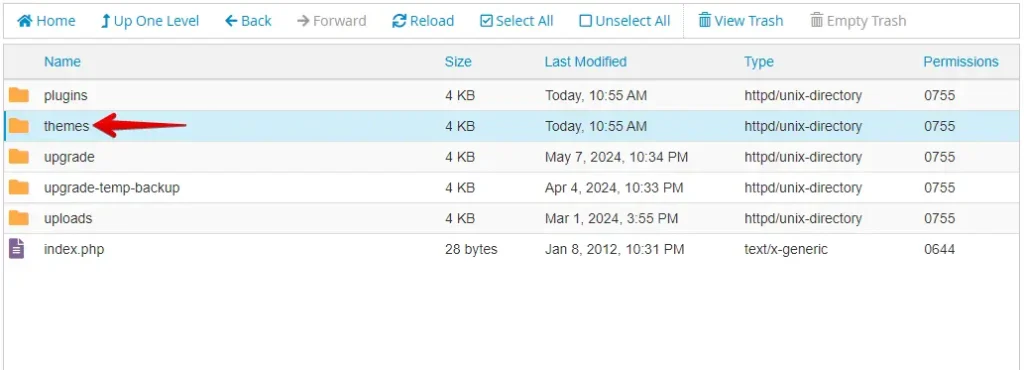
Open the themes folder.
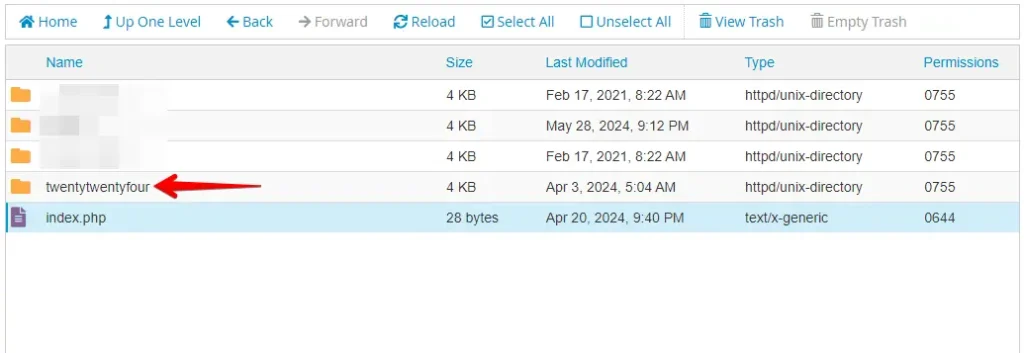
Open your active theme’s folder.
Right-click functions.php and choose Edit.
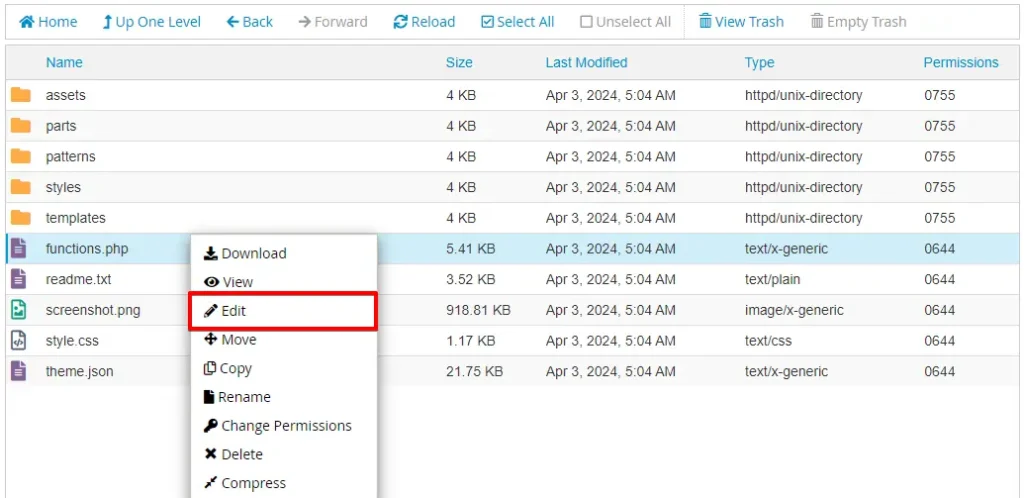
Review the functions.php code for recent changes, syntax errors, or custom snippets that may be causing RSS feed errors. Look for lines that call echo, print, or var_dump outside of a hook callback, PHP syntax errors such as mismatched brackets or missing semicolons, and any recently added code that does not include an is_feed() check. Add // at the beginning of each suspicious line to comment it out temporarily. Save the file.
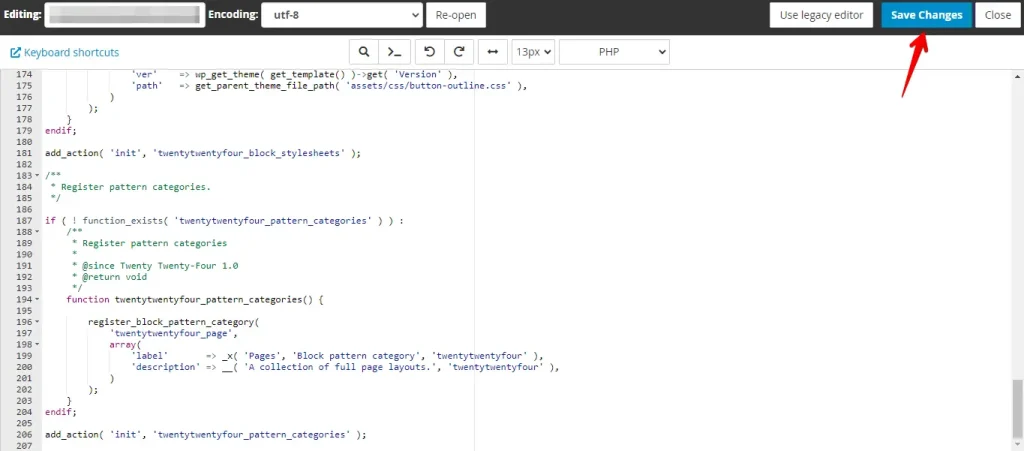
Visit yourwebsite.com/feed to check whether the RSS feed works properly. If it loads without issues, the commented-out code was the cause. Remove it permanently or wrap it in if ( ! is_feed() ) { ... } so it only runs on non-feed requests.
How to Fix RSS Feed Errors by Resetting Permalinks
WordPress stores its rewrite rules in the database. If these rules become stale — for example after a domain change, a server migration, or a failed plugin update — the /feed endpoint may stop routing correctly. Saving your permalink settings forces WordPress to regenerate the rewrite rules from scratch.
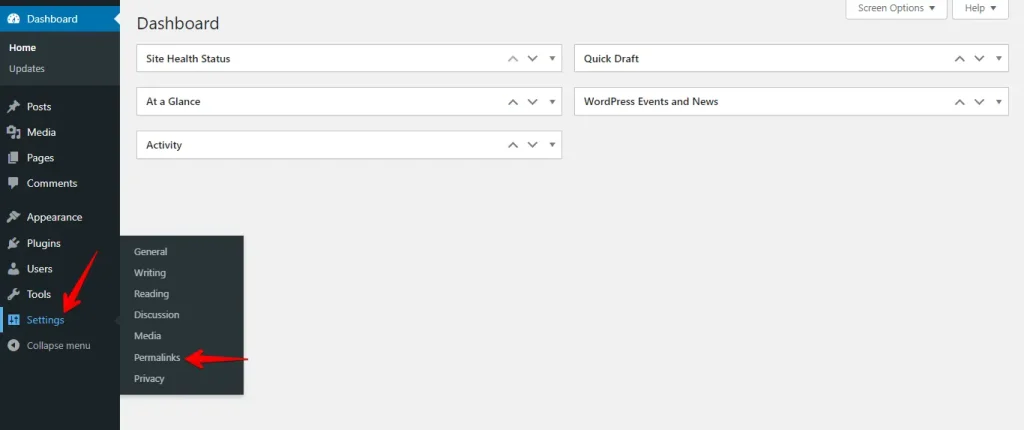
Log in to your WordPress dashboard, navigate to Settings, and click Permalinks.
Review your current permalink settings, which include options like "Plain," "Day and name," "Month and name," "Numeric," "Post name," and "Custom Structure." Note which option is currently selected — you do not need to change it.
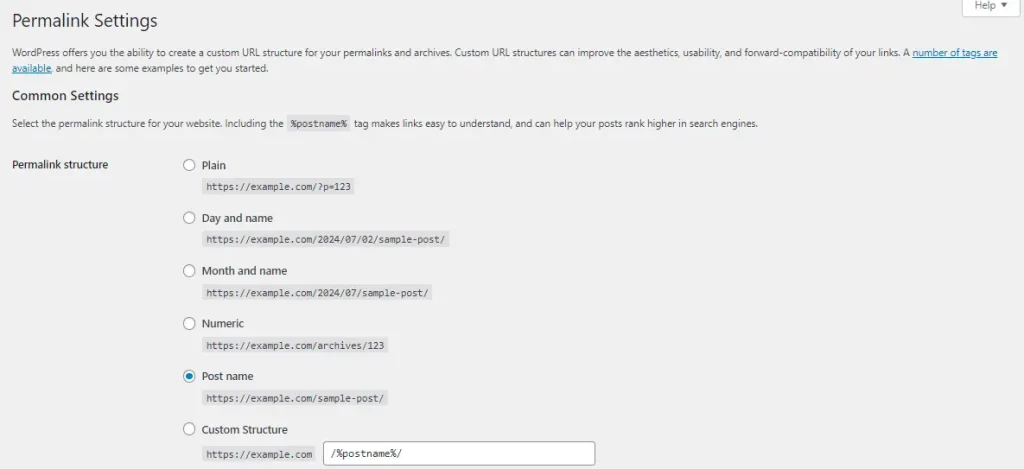
Scroll down and click Save Changes. This flush is sufficient to regenerate the rewrite rules even without changing any setting.
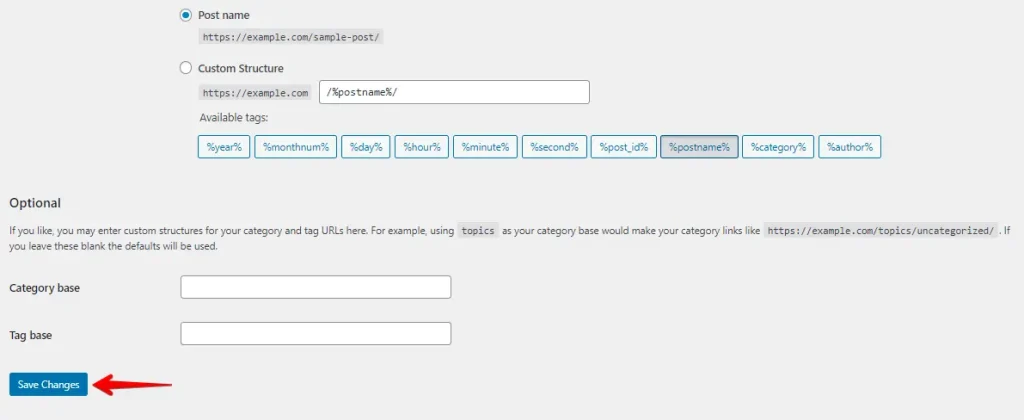
After saving, visit your RSS feed URL (usually yourwebsite.com/feed) to check whether the feed is now loading correctly. If it is, a stale rewrite rule was the cause.
What to Do If None of the Fixes Work
If the feed still returns errors after all five methods, the issue is likely one of the following less common causes:
- Yoast SEO feed redirect conflict — some Yoast SEO configurations redirect
/feedto a custom feed URL. Check Yoast SEO → Advanced → RSS settings to verify no unexpected redirects are active. - Output buffering plugin — a caching or page-speed plugin may be injecting whitespace before the XML declaration. Disable output buffering in the plugin settings or deactivate caching plugins entirely and test the feed.
- wp-config.php stray characters — open
wp-config.php(in the WordPress root directory, accessible via cPanel File Manager) and check the very beginning of the file for any character before<?php. Even a single stray space will break the feed.
If the issue persists after ruling out all of the above, use the line number from the W3C Feed Validation Service error report to locate the exact offending character in the feed output, then trace it back to the WordPress hook that generated it.
Conclusion
Fixing WordPress RSS feed errors is critical to ensuring your content reaches your audience smoothly. Start with the W3C Feed Validation Service to identify the exact error, then work through the five methods: validate the feed, test for plugin conflicts, switch to a default theme, check functions.php, and reset permalinks. If none of those resolve the issue, the "What to Do If None of the Fixes Work" section covers the less common causes — Yoast feed redirects, output buffering plugins, and wp-config.php stray characters. Regular upkeep of your WordPress plugins and theme code prevents most of these problems from recurring.
Related Articles
- WordPress Staging and SEO: How to Tackle Challenges?
- Featured Images don’t Show up in WordPress
- Fix the "Are You Sure You Want to Do This?" Error in WordPress
- Fix Missing PHP MySQL Extension in WordPress
- How to Fix Your WordPress Site Not Working After a Migration
