


Building and testing WordPress should not start with renting a server, editing config files, or breaking your live site. WP Staging Desktop lets you spin up a real, full WordPress site right on your own computer — in just a few minutes, with a few clicks.
Try a new theme. Test a plugin update before it touches your real site. Learn, experiment, and build with total freedom — everything runs locally, nothing goes online, and you can throw it all away and start fresh whenever you like.
In this guide
- What is WP Staging Desktop?
- Why build WordPress sites on your own computer?
- What you need before you start
- Step 1: Install the app
- Step 2: Create your first local WordPress site
- Step 3: Open and manage your site
- See what is running
- What is next
What is WP Staging Desktop?
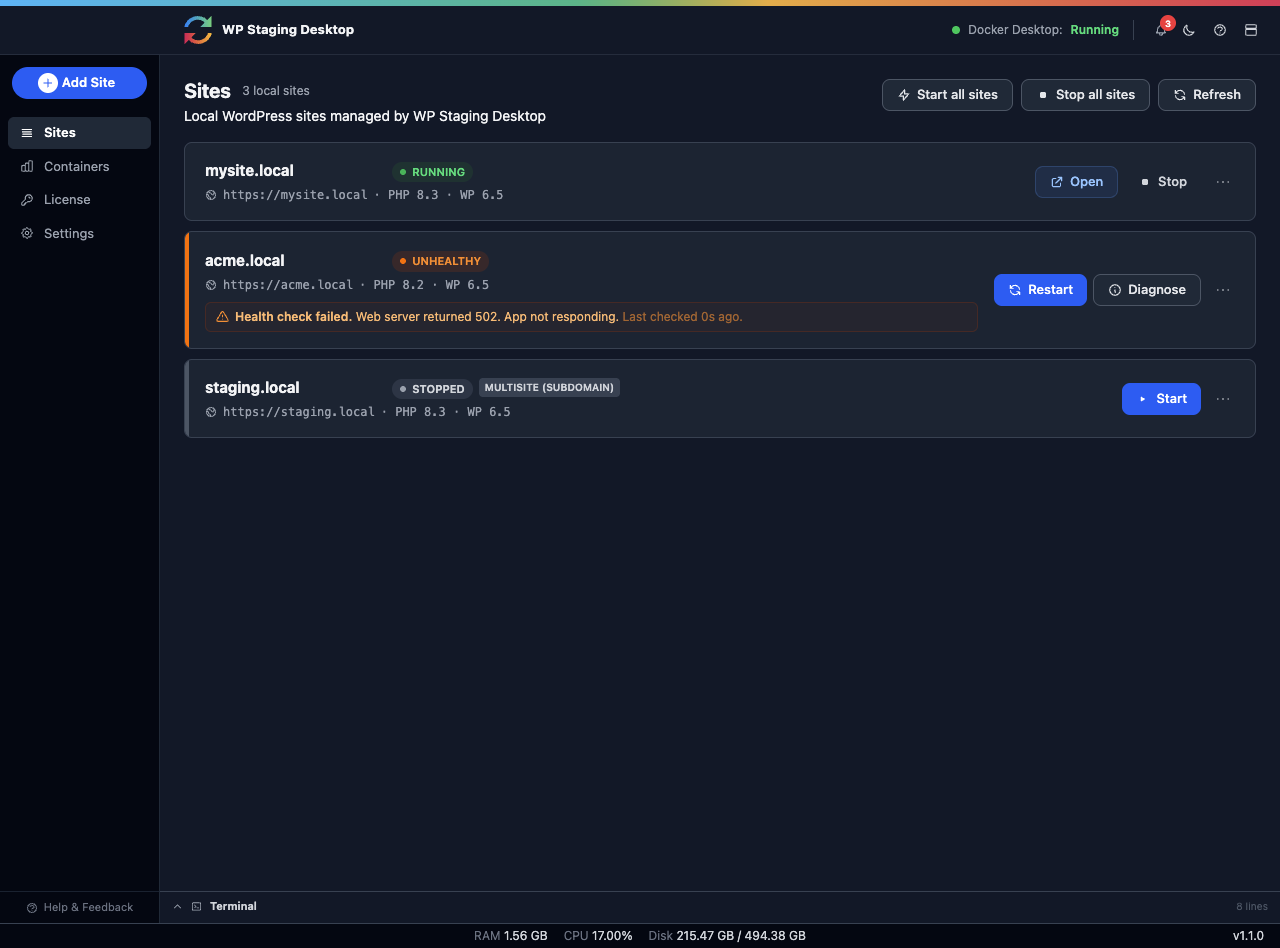
WP Staging Desktop is a free desktop app for Windows, macOS, and Linux. It creates complete WordPress sites on your own machine, so you can work on WordPress without any web hosting.
Each site you create is a real WordPress install with its own database, its own PHP version, and its own web address such as https://mysite.local. The app takes care of all the technical parts for you, behind a clean and simple interface.
Why build WordPress sites on your own computer?
- It is fast. A new site is ready in minutes — no hosting account, no setup wizard, no waiting.
- It is safe. Test risky changes, plugin updates, or a new theme without ever touching your live website.
- It is private. Everything stays on your computer. Nothing is published online unless you choose to.
- It is flexible. Run many sites side by side, each with a different PHP and WordPress version.
- It is tidy. Finished with a test? Delete the site in one click and reclaim the space.
What you need before you start
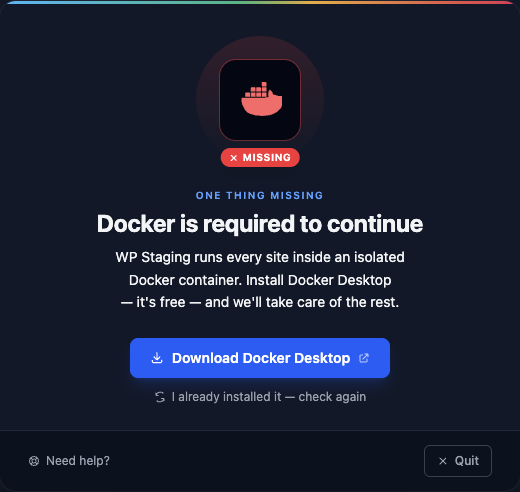
WP Staging Desktop runs your sites inside Docker, a free tool that keeps each site neatly separated. You only need two things:
- WP Staging Desktop — the app itself, for Windows, macOS, or Linux.
- Docker Desktop — the engine that runs your sites. The app checks for it and guides you if it is missing.
If Docker is not installed or not running, WP Staging Desktop shows a clear message with a button to fix it — you will never be left guessing.
Step 1: Install the app
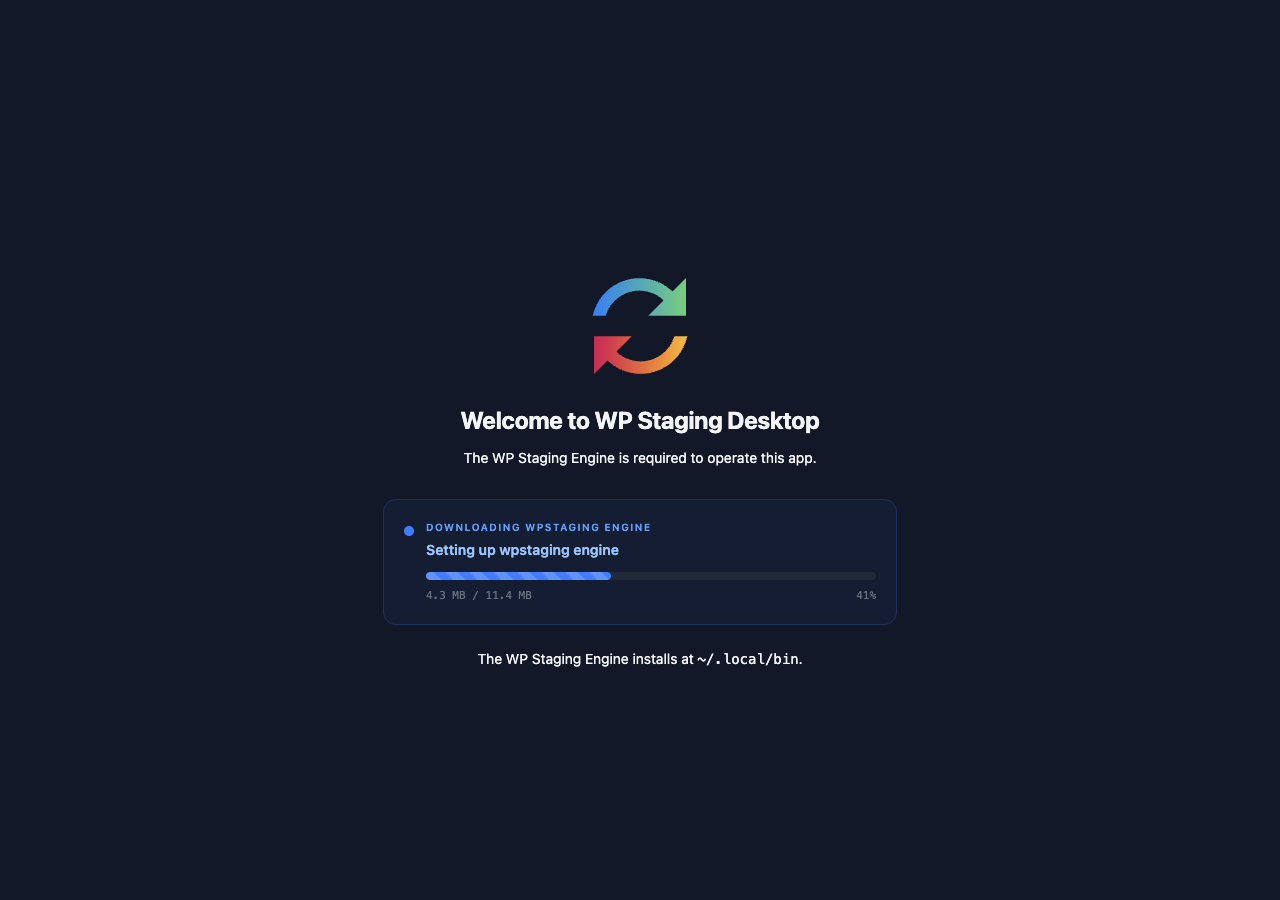
Download WP Staging Desktop for your system and open it. The first time you launch the app, it sets itself up automatically — it downloads and prepares the small engine it needs to manage your sites. You just watch the progress bar.
Step 2: Create your first local WordPress site
This is where the magic happens. Click Add Site, and a simple form appears. Give your site a name — that is really all you need. If you want more control, you can also choose the PHP version, the WordPress version, and other options.
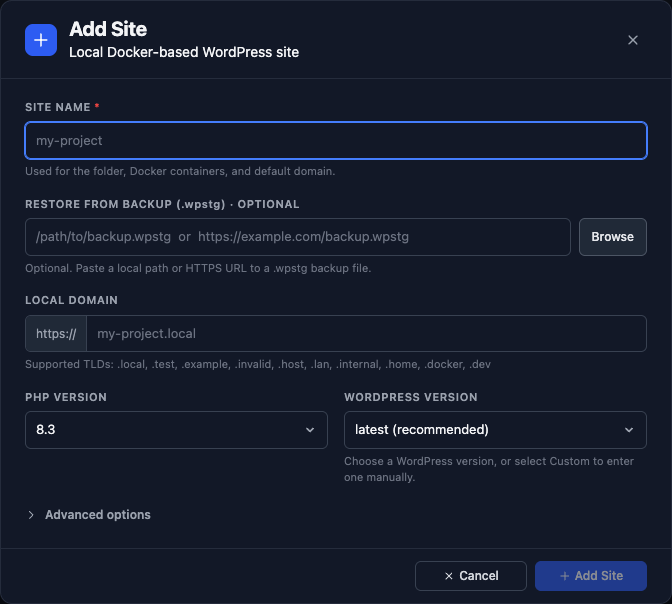
Click the button and WP Staging Desktop does the rest. It builds the site, sets up the database, installs WordPress, and prepares a secure local web address. You can follow each step as it happens.
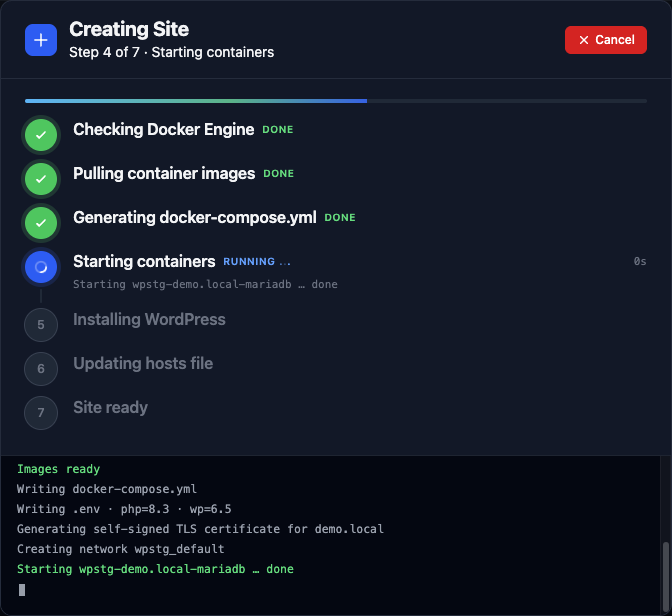
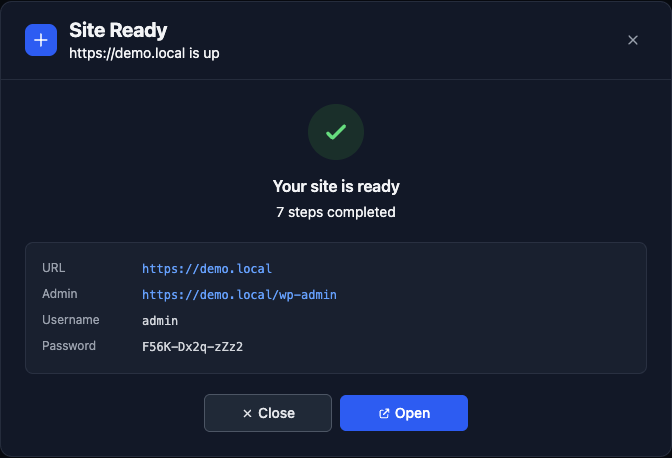
In a couple of minutes your site is ready. You get a link to open it in your browser and a link to the WordPress admin area, where you can log in right away.
Step 3: Open and manage your site
Every site has its own detail page. From here you can open the site, open the WordPress dashboard (you are signed in automatically), start or stop the site, and see all its key details in one place — the web address, the PHP and WordPress versions, the database, email testing, and more.
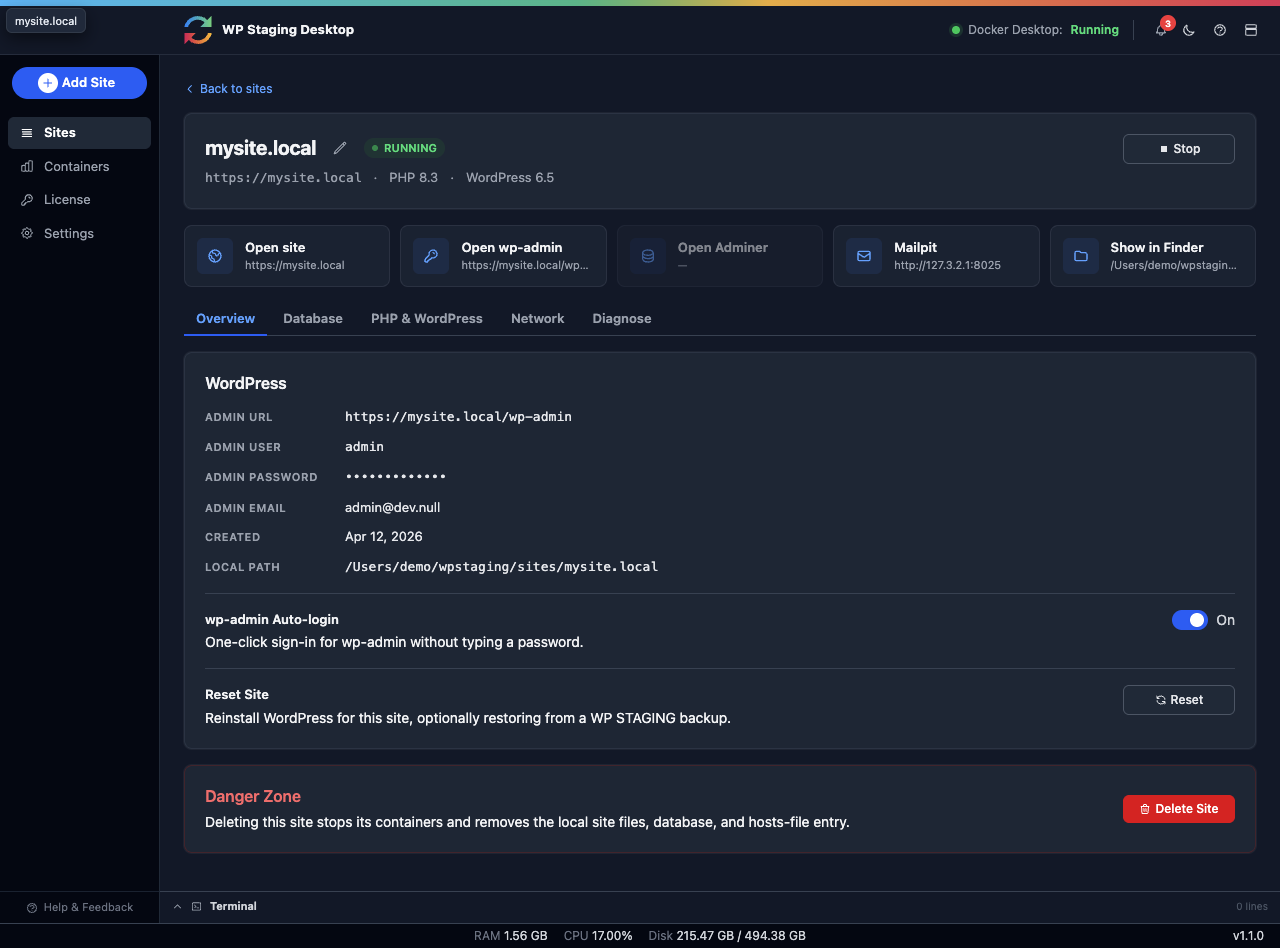
When you start a site, your browser opens at its local address. You then use WordPress exactly as you always do — install plugins, switch themes, write posts, and test anything you like. It is the real WordPress, just on your computer.
See what is running
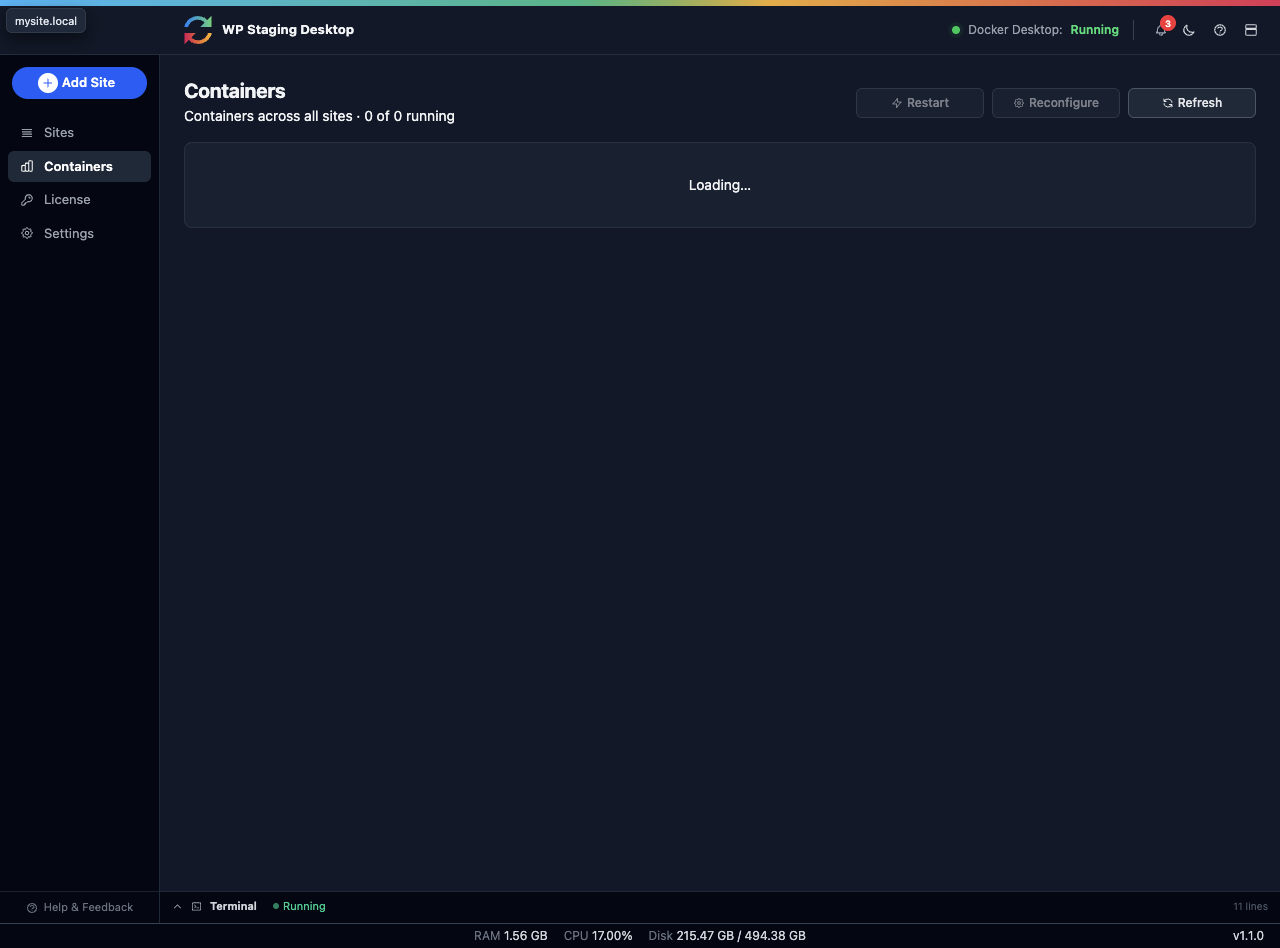
Curious about what powers your sites? The Containers view shows the services running behind the scenes for each site, such as the web server, the database, and the mail catcher. You do not need to touch any of it — but it is there if you ever want a look under the hood.
What is next
That is all it takes to build and run WordPress on your own computer. From here you can explore everything the app offers. We are adding detailed guides for each feature — check back for these soon:
- Choosing PHP and WordPress versions for a site (coming soon)
- Testing emails with the built-in mail catcher (coming soon)
- Managing your database with Adminer (coming soon)
- Resetting, renaming, and deleting a site (coming soon)
- Trusting the local HTTPS certificate (coming soon)
Ready to build your first local WordPress site? It only takes a few minutes.
