TL;DR WordPress uses its own pseudo-cron (
wp-cron.php) to publish scheduled posts. If wp-cron doesn’t fire — because your site has low traffic, your host has disabled it, or a plugin conflict blocks it — the post stays in "Scheduled" status indefinitely. The fastest fix is to confirm WP-Cron is enabled and, on low-traffic sites, replace it with a real server-side cron job.
Scheduled posts are a valuable WordPress feature, letting you plan content in advance and publish it at a specific time. When the system works, it’s seamless. When it doesn’t, the post sits in "Scheduled" status past its publish time and never goes live — a frustrating failure mode known as the "Missed Schedule" error.
The root cause is almost always WP-Cron: WordPress’s built-in task scheduler that relies on site traffic to fire. This guide walks you through diagnosing exactly why your scheduled posts are failing and the five most reliable fixes.
Contents
Common Causes
Not every missed schedule has the same root cause. This table lets you self-triage before jumping into fixes.
| Symptom | Most likely cause |
|---|---|
| All scheduled posts miss their time | WP-Cron is disabled (DISABLE_WP_CRON true in wp-config.php), or your server blocks loopback HTTP requests |
| Only posts on a low-traffic site miss schedule | WP-Cron depends on page visits to trigger; a quiet site may not receive a visit near the scheduled publish time |
| Missed schedules started after a plugin update | A recently updated or activated plugin is conflicting with the cron system |
| Posts publish late (minutes or hours) but eventually go live | Server resource limits are throttling WP-Cron; the job runs but is delayed |
| Posts miss schedule only on a specific hosting environment | The host restricts how WordPress executes scheduled tasks |
| Server time mismatch | Incorrect server timezone causing timing mismatches between WordPress settings and the server clock |
From WP STAGING support tickets, the most common pattern we see on shared hosting is low traffic combined with an aggressive caching layer that prevents WP-Cron from triggering reliably during quiet periods.
Diagnose First
Before applying any fix, spend a couple of minutes identifying the actual failure mode. The methods below target different root causes — picking the right one first saves time.
Check whether WP-Cron is disabled. Open wp-config.php and search for:
define('DISABLE_WP_CRON', true);If this line is present and set to true, WP-Cron is intentionally off. Skip directly to Method 5 (server-side cron) — that is the intended replacement.
Check WordPress Site Health. In your WordPress admin, go to Tools → Site Health → Info → WordPress Constants. The DISABLE_WP_CRON value is listed there. Site Health also surfaces server configuration issues that affect cron execution.
Test whether WP-Cron responds. Visit https://yoursite.com/wp-cron.php?doing_wp_cron in a browser. A blank page (no error output) means WP-Cron is reachable. A 403 or connection error means your host or a security plugin is blocking it.
Check the debug log. Enable WordPress debug logging and look for cron-related output near your scheduled publish time. If no cron hook entries appear in the log, WP-Cron is not running on your site.
5 Methods to Resolve the Missed Schedule Post Error
- Check Your WordPress Timezone Settings
- Clear Your WordPress Cache
- Increase WordPress Memory Limit
- Use a Missed Schedule WordPress Plugin
- Disable wp-cron and Set Up a New Cron Job
1. Check Your WordPress Timezone Settings
A timezone mismatch between WordPress settings and your server clock is a common trigger for the missed schedule error — posts appear to be scheduled correctly but publish at the wrong time or not at all. Here’s how to check:
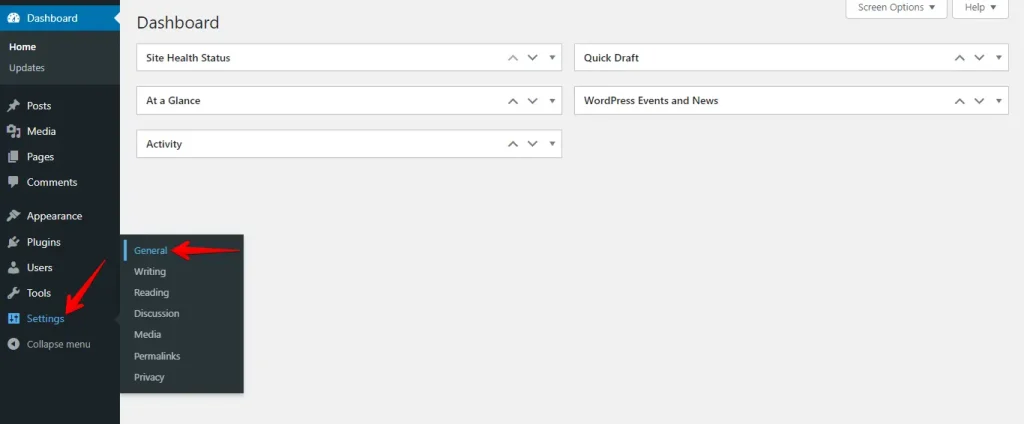
- Log into your Dashboard, navigate to Settings > General, and click on it.
- Find the Timezone option, select your correct timezone from the dropdown menu, and click Save Changes.
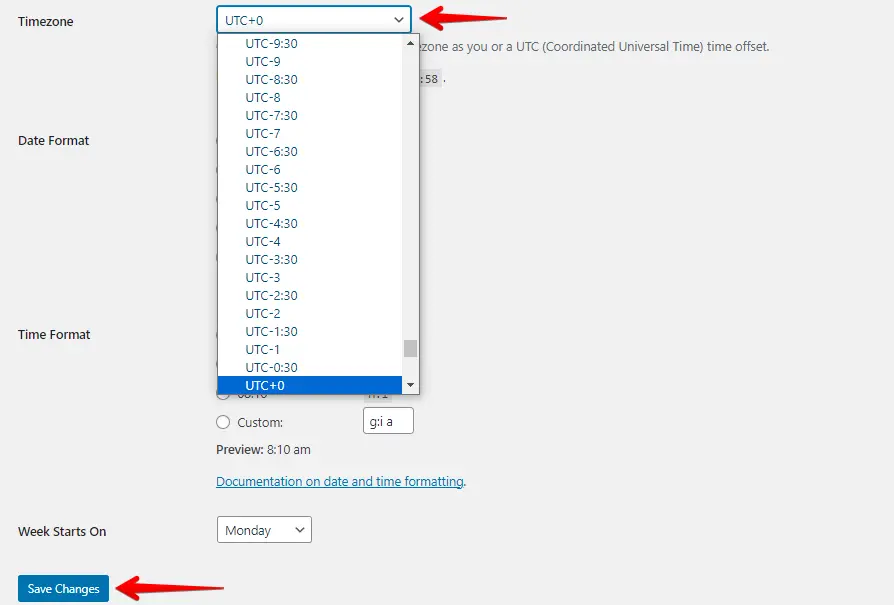
After saving, confirm the date and time displayed in General Settings match your local time. This rules out one of the most common causes before moving to more involved methods.
2. Clear Your WordPress Cache
Caching plugins store static versions of your site for performance, but a stale cache can interfere with scheduled task triggers. Here’s how to clear your WordPress cache:
- Log into your WordPress Dashboard, navigate to your caching plugin (e.g., WP Super Cache, W3 Total Cache) and click on it.
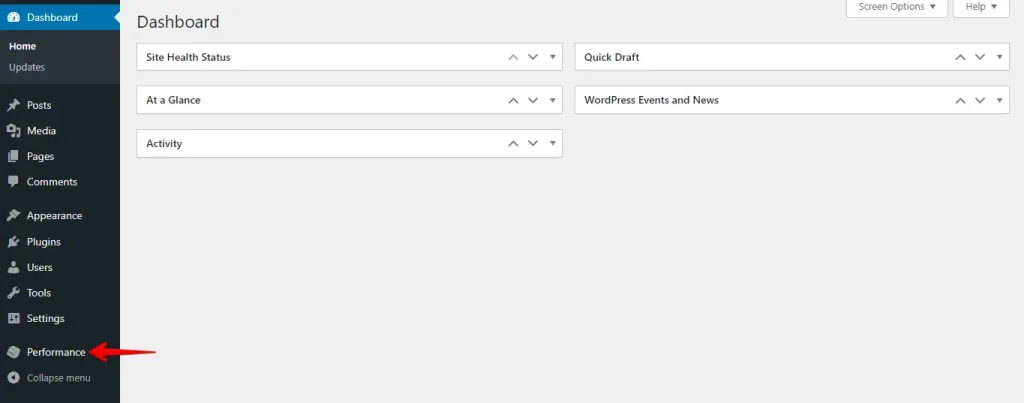
- Look for the option to clear or purge the cache — typically in the plugin’s settings or dashboard — and click it.
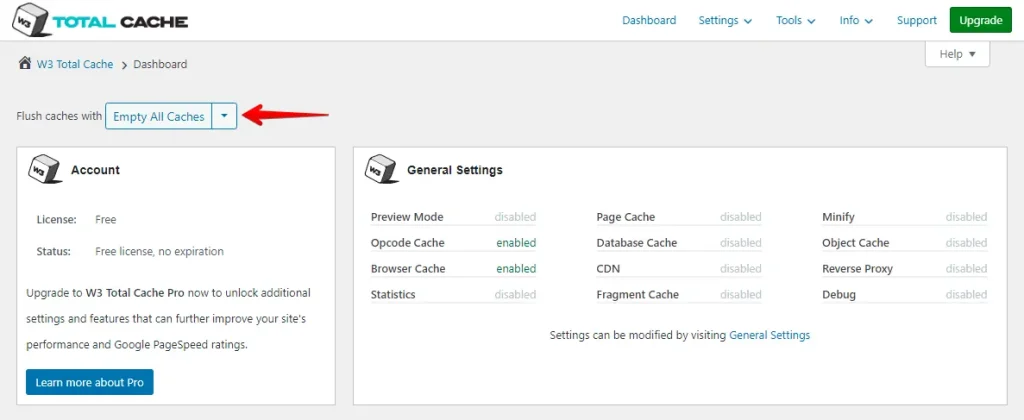
After clearing the cache, visit your site to confirm it was purged. Schedule a test post a few minutes into the future and check whether it publishes on time.
3. Increase WordPress Memory Limit
If your server is running low on PHP memory, WP-Cron events can fail silently. Increasing the WordPress memory limit gives the scheduler enough headroom to complete its work:
- Use an FTP client like FileZilla or your web host’s file manager to access your WordPress root directory.
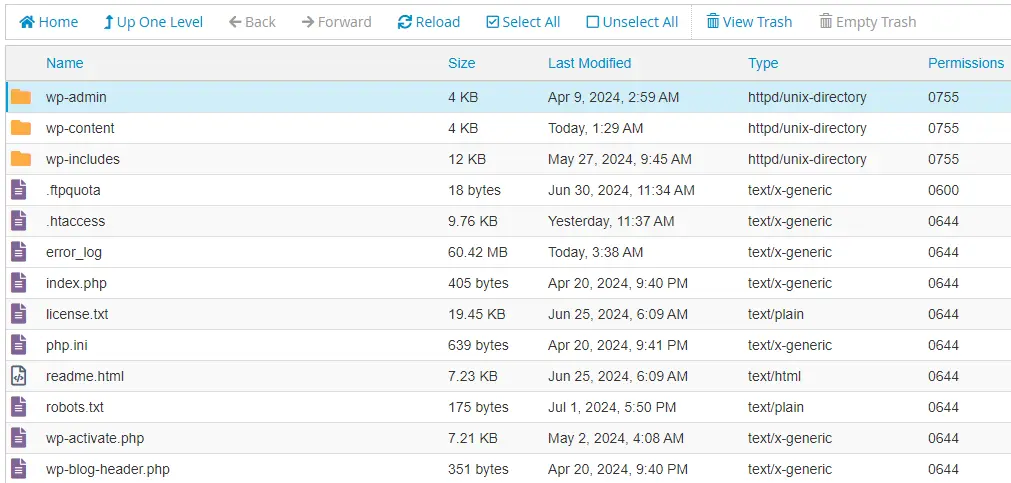
- Locate the
wp-config.phpfile, right-click, and choose the Edit option.
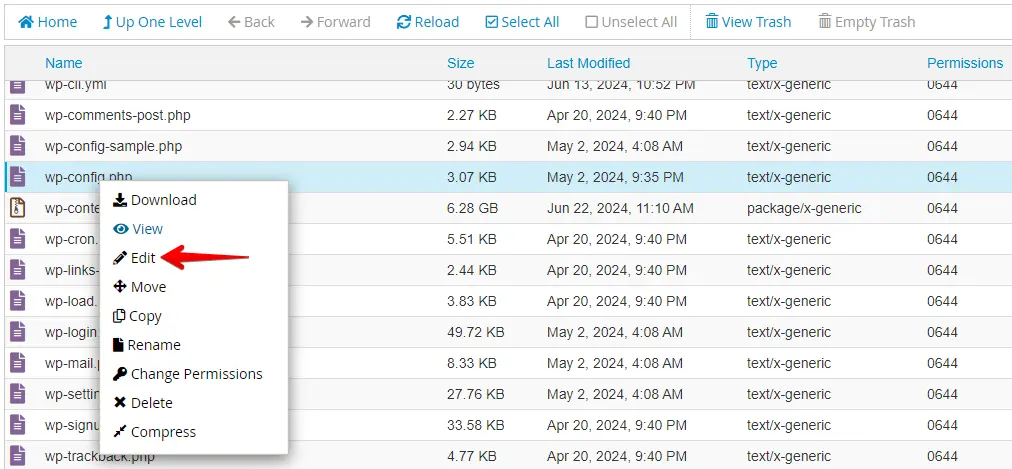
Add the following line before /* That's all, stop editing! Happy blogging. */ and save the file.
define('WP_MEMORY_LIMIT', '256M');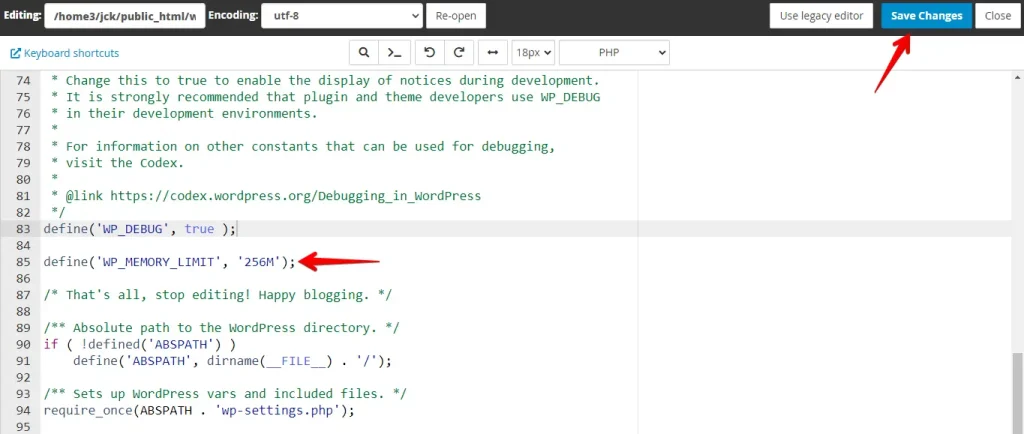
4. Use a Missed Schedule WordPress Plugin
A dedicated plugin acts as a safety net: it polls for missed scheduled posts at a regular interval and publishes them if WP-Cron has already missed its window. This is a good stopgap while you investigate the underlying cause.
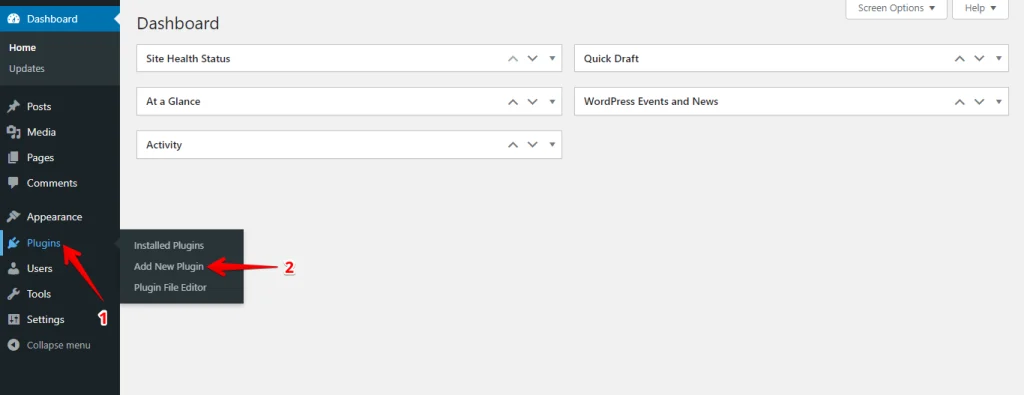
- Log in to your WordPress admin dashboard and navigate to Plugins > Add New.
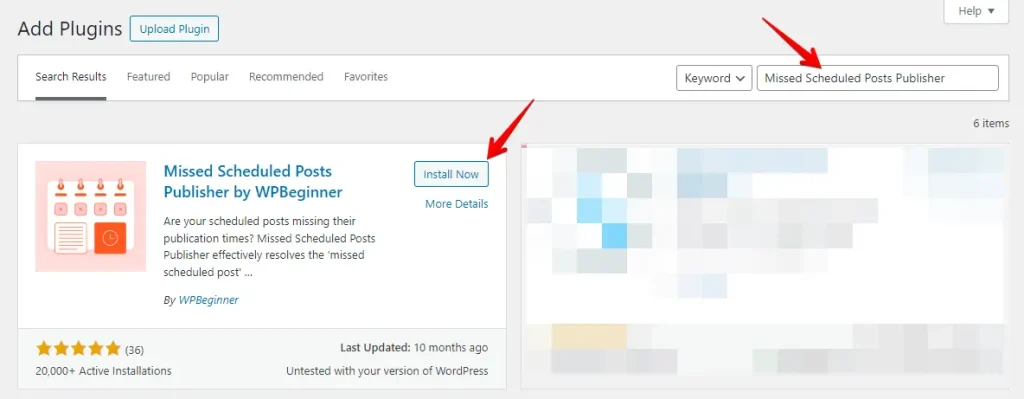
- In the search bar, type "Missed Schedule" and look for a plugin like Missed Scheduled Posts Publisher or Scheduled Post Trigger.
- After installation, click Activate.
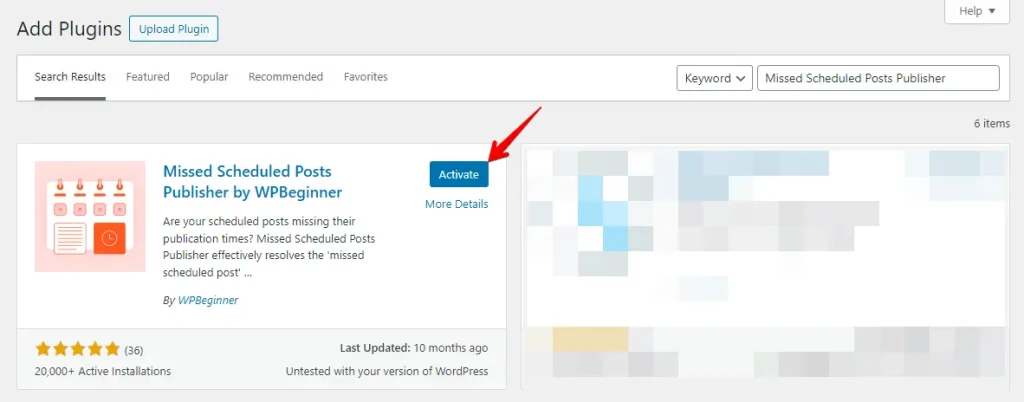
Once activated, most Missed Schedule plugins work automatically without additional configuration. They check periodically for any missed scheduled posts and publish them.
5. Disable wp-cron and Set Up a New Cron Job
Replacing WP-Cron with a real server-side cron job is the most reliable long-term fix. In our testing, this approach resolves missed schedule issues in cases where WP-Cron fails due to low traffic or host restrictions — it removes the dependency on page visits entirely.
- Use an FTP client like FileZilla or your web host’s file manager to access your WordPress root directory.
- Locate the
wp-config.phpfile, right-click on it, and select Edit.
- Add this line before
/* That's all, stop editing! Happy blogging. */and save.
define('DISABLE_WP_CRON', true);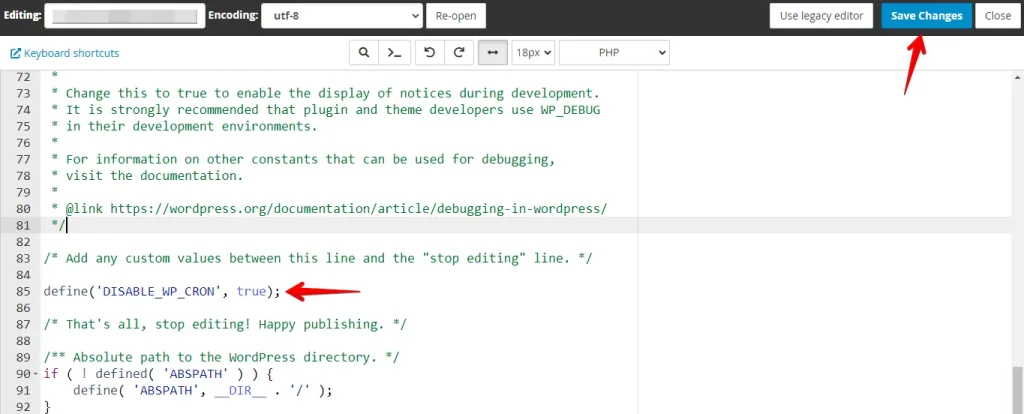
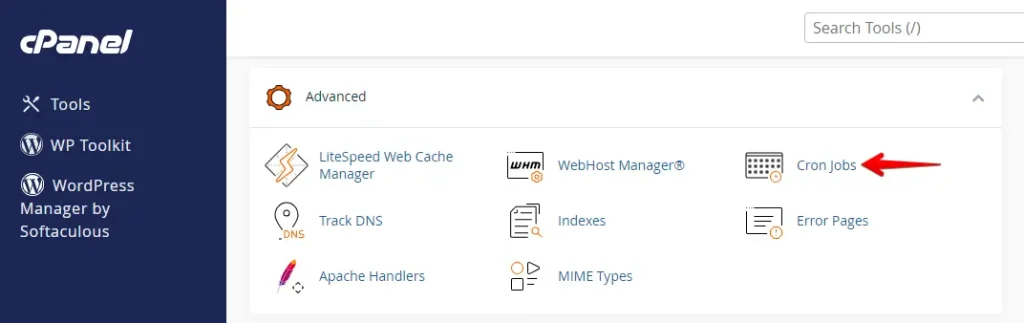
- Log in to your web hosting control panel (cPanel, Plesk, etc.) and find the Cron Jobs section — typically under Advanced or System.
Set the interval to every 15 minutes. In cPanel: Minute */15, Hour *, Day *, Month *, Weekday *. In the command field, enter the following (replace http://yourwebsite.com with your actual URL), then click Add New Cron Job.
wget -q -O - http://yourwebsite.com/wp-cron.php?doing_wp_cron > /dev/null 2>&1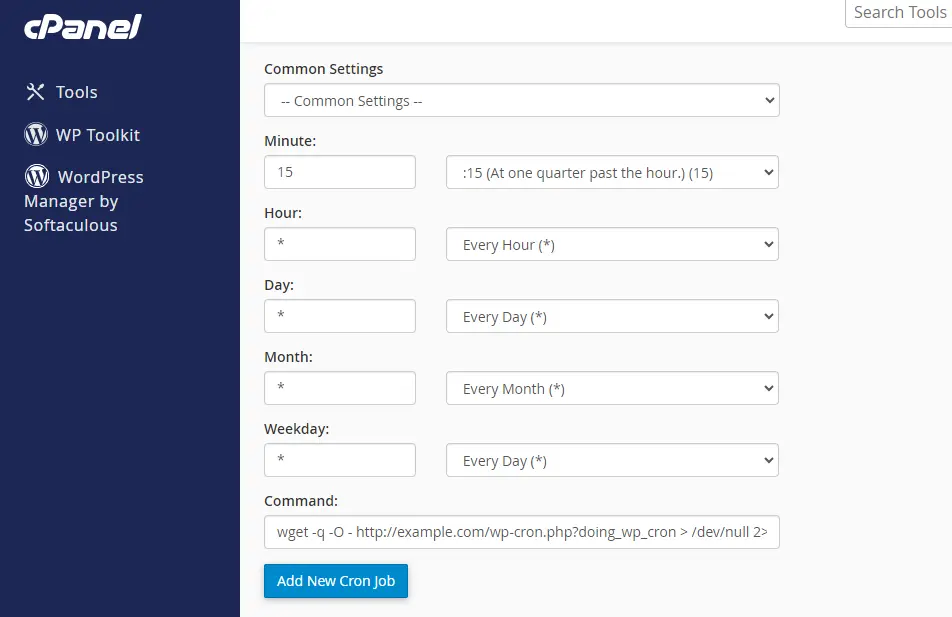
For the complete technical background, see the WordPress Cron documentation and the wp_schedule_event() function reference on developer.wordpress.org. Your hosting provider’s support documentation will cover the exact cron syntax for their platform.
For a detailed walkthrough of WordPress cron management, see how to add and modify WordPress cron jobs.
What to Do If None of the Fixes Work
If you have worked through all five methods and posts are still missing their schedule, use this escalation path:
Contact your host about loopback requests. Some managed WordPress hosts block outbound HTTP requests from the server back to itself — a pattern WP-Cron depends on. Ask your host whether they restrict loopback requests and whether they have a recommended cron configuration for their environment.
Audit must-use plugins. Must-use plugins (in wp-content/mu-plugins/) load before regular plugins and can intercept cron execution without appearing in the normal Plugins list. Temporarily rename the mu-plugins folder and test whether scheduling works — if it does, move plugins back one by one to identify the conflict.
Use WP-CLI to trigger missed events manually. If you have WP-CLI access, wp cron event run --due-now immediately publishes all posts whose schedule has passed. If this works but the automatic trigger doesn’t, the posts are queued correctly and only the cron trigger mechanism is broken.
Use Action Scheduler as a cron replacement. Action Scheduler is a scalable job queue used by WooCommerce and other high-volume plugins. It provides a more reliable execution model than WP-Cron and includes an admin UI for monitoring scheduled events. This is the appropriate solution for sites with high post volumes or frequent scheduling requirements.
Conclusion
The "Missed Schedule" error in WordPress is almost always a WP-Cron problem. The system is designed for convenience on typical traffic levels, but it fails quietly when traffic is low, when a host restricts loopback requests, or when a plugin conflict interferes.
Diagnose first to narrow down the cause, then apply the matching fix. For sites where scheduled publishing is business-critical, replacing WP-Cron with a real server-side cron job (Method 5) is the only approach that removes the dependency on visitor traffic entirely.
Related Articles