


Can you picture a WordPress site devoid of images? Images are essential in defining the character of your website’s content, and the WordPress media editor makes it easy to crop and resize them without leaving the admin dashboard.
However, you might occasionally encounter an error stating, "There has been an error cropping your image," when attempting to edit images in the media library. This issue typically arises because the PHP GD extension is missing or disabled on your server — GD is what WordPress uses to perform image manipulation tasks.
TL;DR: This error almost always means the PHP GD extension is disabled on your server. WordPress uses GD to process and crop images; without it, the media editor fails silently. Most fixes below take under five minutes — start with Method 6 if the error affects all images on all browsers.
Contents
- Quick Diagnostic: Which Method to Try First
- Method 1: Inspect the Image File
- Method 2: Clear Browser Cache
- Method 3: Increase PHP Memory Limit
- Method 4: Deactivate Plugins
- Method 5: Switch to a Default Theme
- Method 6: Ensuring the PHP GD Library is Active
- What to Do If None of the Fixes Work
- Conclusion
- Related Articles
Quick Diagnostic: Which Method to Try First
Use this table to pick the right starting point before working through every method in sequence:
| Symptom | Recommended starting point |
|---|---|
| Error appears only on one specific image | Method 1 — inspect the image file |
| Error started after installing or updating a plugin | Method 4 — deactivate plugins |
| Error started after a theme change or theme update | Method 5 — switch to a default theme |
| Error appears only in one browser | Method 2 — clear browser cache |
| Error appears on all images, on all browsers | Method 6 — verify PHP GD library (most common root cause) |
| Error appears specifically after uploading a large image | Method 3 — increase PHP memory limit |
Note: Before making any changes, it’s wise to back up your website. If anything goes wrong, you can easily restore it to its previous state. WP Staging offers a simple solution for automatic backups. For further assistance, refer to the backup and restore guide.
Method 1: Inspect the Image File
Use Method 1 when the cropping error appears for one specific image but not others. A single problematic file is the most straightforward case to rule out before investigating your server configuration.
Confirm the image file integrity. An essential step in troubleshooting the cropping error in WordPress is to ensure your image file is not corrupted. Here is how to check:
- Preview locally: Open your image using a local viewer before uploading it to WordPress. A corrupted file may not open properly or may display distortions.
- Regenerate or redownload the image: If the image seems corrupted, try downloading it again from its source, or if you created it, try exporting it again from your graphic design software.
Ensure image dimensions align with theme specifications. Your WordPress theme might require specific dimensions for images, particularly for headers or featured images. Dimensions that fall outside the expected range can trigger cropping errors.
If redownloading the file resolves the error, the root cause was file corruption rather than a server configuration problem, and you can skip the remaining methods.
Method 2: Clear Browser Cache
Use Method 2 when the error appears in one browser but not another, or when the media editor behaves inconsistently across sessions. Outdated cached JavaScript files from a previous WordPress version can interfere with the image editor’s crop interface.
Clearing your browser cache can effectively resolve the WordPress image cropping error. The cache stores temporary files to speed up loading, but outdated or corrupted data can cause unexpected errors in the admin dashboard.
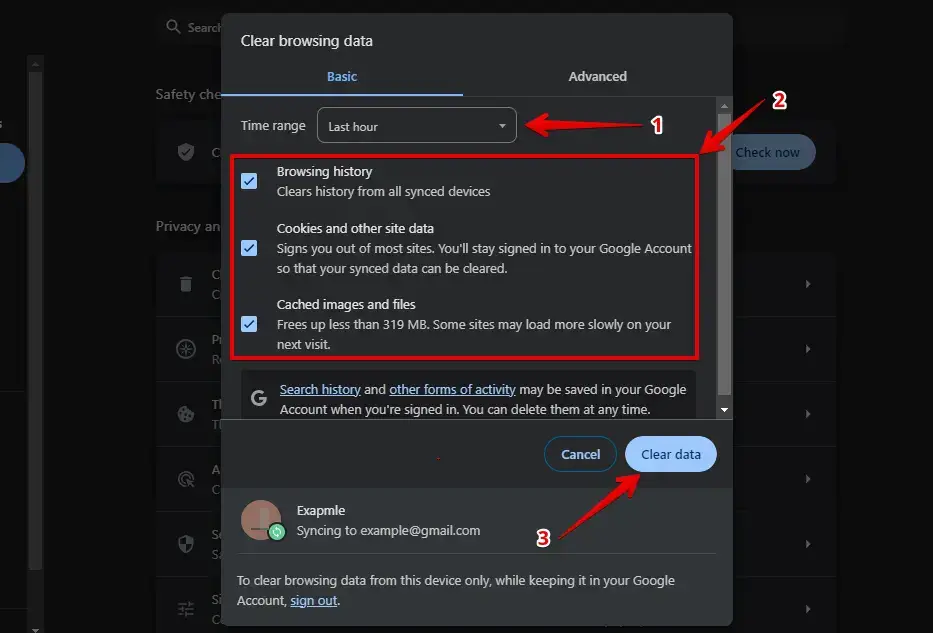
Google Chrome: Press Ctrl + Shift + Delete, select the desired time range, and click "Clear Data."
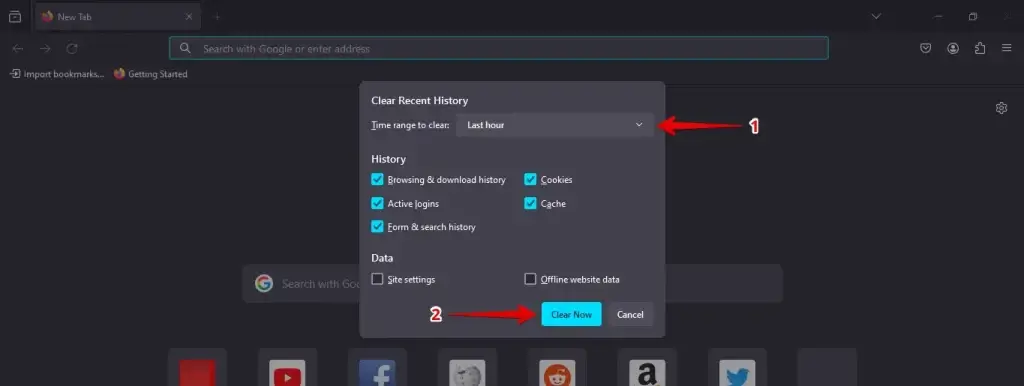
Mozilla Firefox: Press Ctrl + Shift + Delete, choose the appropriate time range, and click "Clear Now."
After clearing your cache, reload your site to check if the cropping error is fixed. If not, continue with the next method. Regularly clearing your cache helps ensure you are always running the latest version of WordPress’s admin scripts.
Method 3: Increase PHP Memory Limit
Use Method 3 when the error occurs specifically after uploading a large image. When WordPress runs out of the allocated PHP memory while loading a high-resolution file into the media editor, the crop operation fails before GD gets a chance to run.
The "Error Cropping Your Image" can happen if your server runs out of memory during the upload. Increasing the PHP memory limit gives WordPress more resources to handle larger image files.
Access your WordPress files through FTP or a file manager provided by your hosting provider.
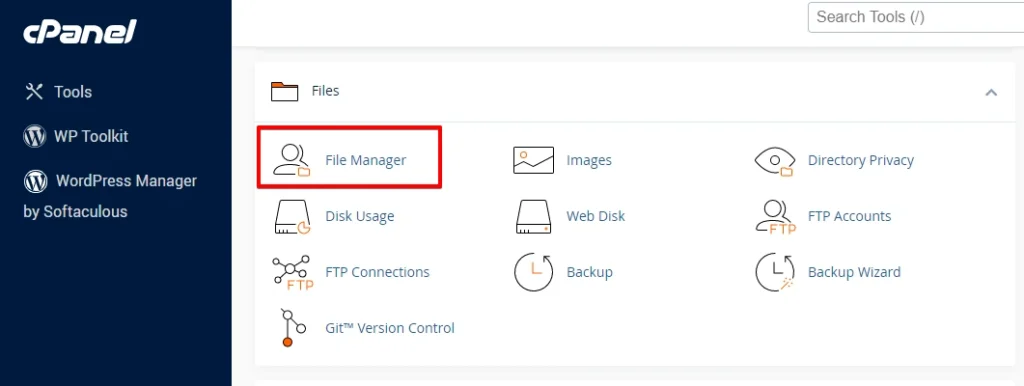
Locate the root directory of your WordPress installation (usually named "public_html" or "www").
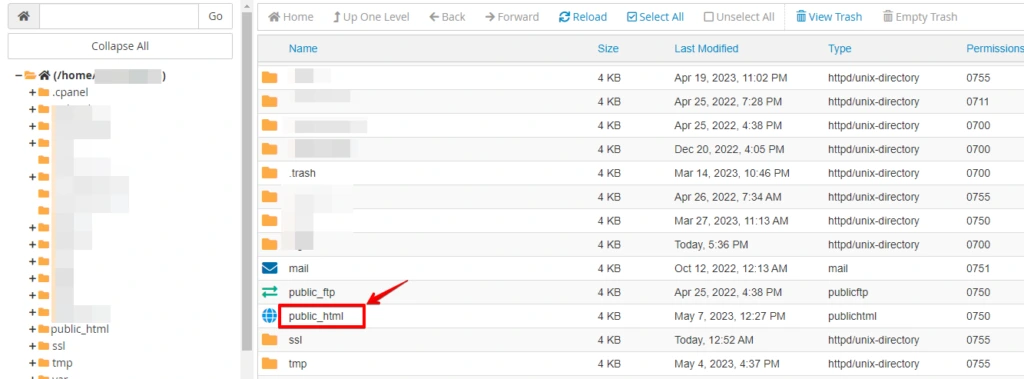
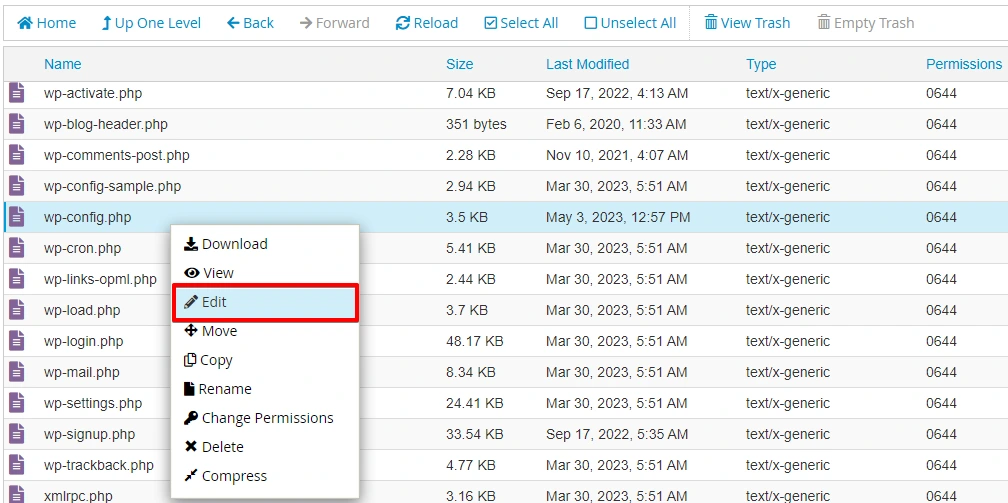
Open the wp-config.php file.
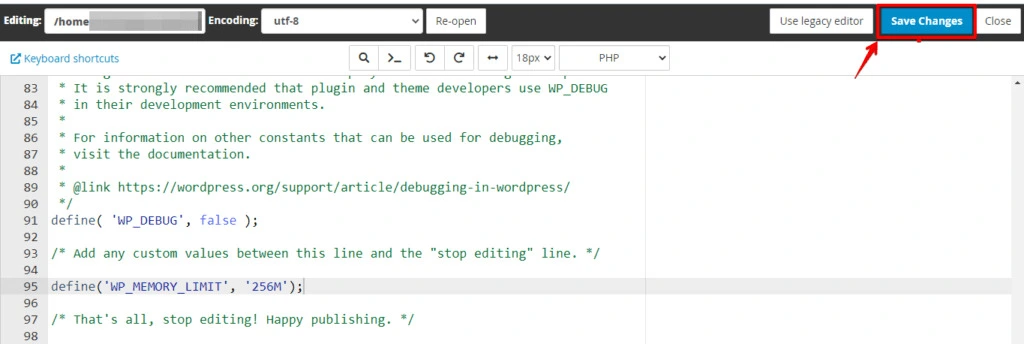
Scroll down to the PHP settings section and add the following line just above the line that reads "That’s all; stop editing! Happy blogging."
define('WP_MEMORY_LIMIT', '256M');You can adjust the memory limit value (for example, 256M) based on your specific requirements. Save the changes to the wp-config.php file.
In WP STAGING support tickets, we’ve observed this memory limit workaround help on shared hosts that cap GD’s memory allocation separately from the main PHP memory limit — even when the existing limit appears generous. If setting WP_MEMORY_LIMIT to 256M does not resolve the error, check whether your host also enforces a lower WP_MAX_MEMORY_LIMIT at the server level. You may need to contact your host to raise that ceiling, as it overrides any value you set in wp-config.php.
Method 4: Deactivate Plugins
Use Method 4 when the error appeared after you installed or updated a plugin, or when you need to rule out a plugin conflict before investigating server configuration. Security plugins, image-optimization plugins, and some page builders can intercept media editor requests and cause cropping operations to fail.
To isolate the cause:
- Log in to your site to access the WordPress admin dashboard.
- Go to "Plugins" in the sidebar and select the checkboxes next to all active plugins to select multiple at once.
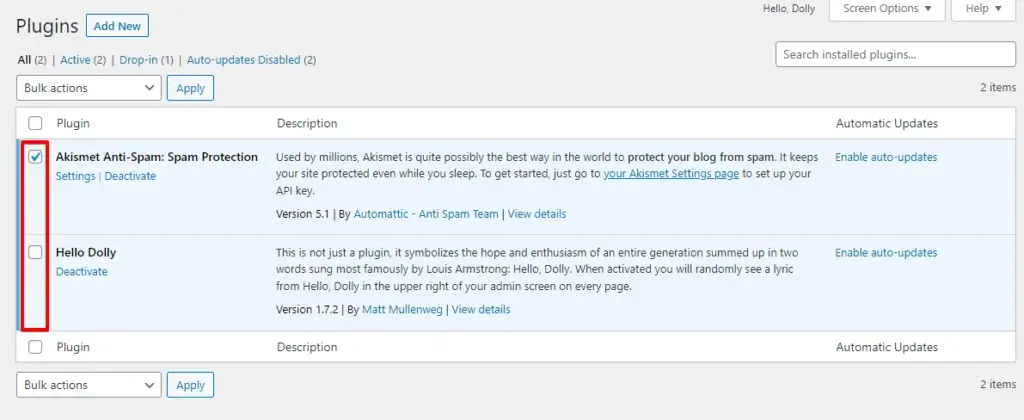
After selecting the plugins, go to the "Bulk Actions" dropdown at the top, choose "Deactivate," and click the "Apply" button.
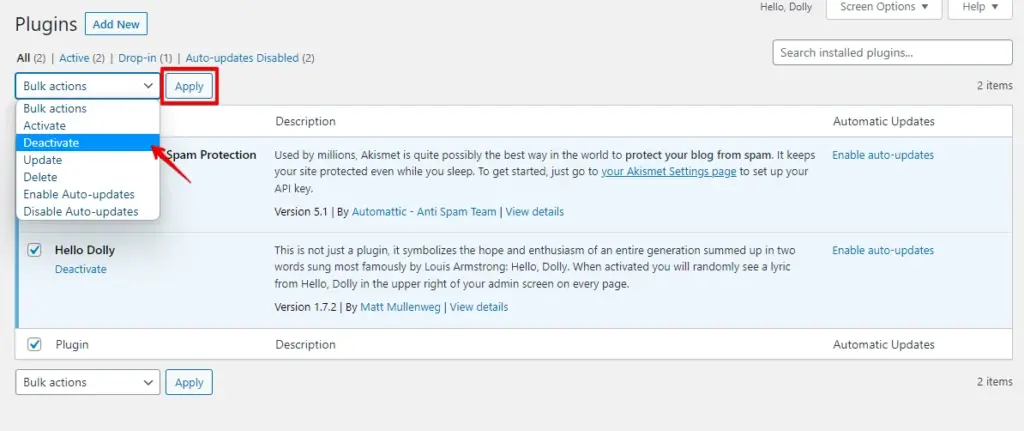
After deactivating all plugins, return to your site to check if the cropping error has been resolved. If the error is gone, reactivate each plugin one by one to identify which one is causing the conflict. Continue until you find the specific plugin that triggers the error.
Method 5: Switch to a Default Theme
Use Method 5 when the error started after a theme change or theme update. Themes can enqueue custom JavaScript that conflicts with the WordPress media editor, or they can register custom AJAX handlers that interfere with the image crop request.
Switching to a default WordPress theme confirms whether the active theme is responsible.
Log in to your WordPress dashboard, go to "Appearance" in the sidebar, click "Themes," and activate a default WordPress theme.
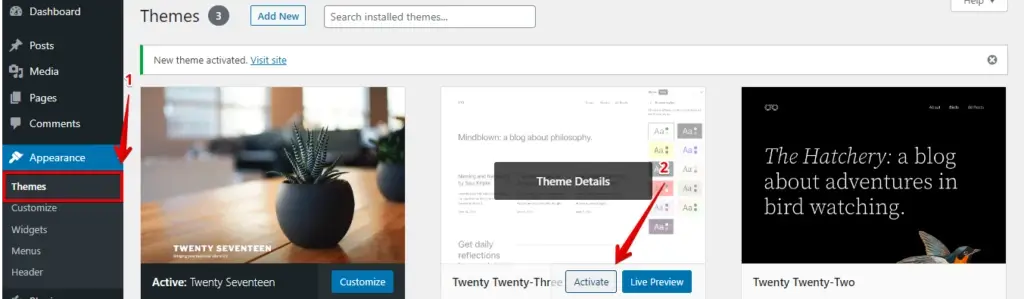
After switching to a default theme, check your site to see if the cropping error has resolved. If the error disappears, your original theme is the likely cause. Check for a pending theme update or contact the theme developer before reactivating it.
Method 6: Ensuring the PHP GD Library is Active
Use Method 6 when the error appears on all images and on all browsers, and none of the above methods resolved it. In WP STAGING support tickets, a disabled PHP GD extension is the root cause in the majority of cases we see on managed hosting providers that run stripped-down PHP builds.
PHP requires the GD extension to perform image operations in WordPress. GD supports a wide range of image formats including GIF, PNG, JPEG, WBMP, and XMP. Without it, every crop, resize, and thumbnail-generation task in the media library fails.
1. Verify GD library installation:
Run the following command in your server’s terminal to check whether GD is loaded:
php -m | grep gdIf gd appears in the output, the extension is loaded. If the command returns nothing, GD is either missing or disabled in your PHP configuration.
You can also call gd_info() from a PHP file to get a complete list of supported formats and library version details.
2. Install the GD library:
- Ubuntu / Debian:
sudo apt-get install php-gd - CentOS / RHEL:
sudo yum install php-gd
3. Enable the GD library:
Open your php.ini file and confirm that the line extension=gd is present and not commented out (no leading ;).
4. Restart your web server:
For Apache servers: sudo systemctl restart apache2
5. Confirm the changes:
Re-run php -m | grep gd to confirm GD is now listed, then retry the crop operation in the WordPress media editor.
For authoritative reference, see the PHP GD and Image Functions documentation at php.net and the WordPress Image Editor API on developer.wordpress.org.
What to Do If None of the Fixes Work
If you have worked through all six methods and the cropping error persists, the problem is likely at the server configuration level rather than within WordPress itself.
Contact your host about server-level GD compilation. On some managed hosting platforms, PHP is compiled without GD support and the extension cannot be installed by the account user. Your host needs to rebuild PHP with GD enabled or switch your account to a PHP build that includes it. Provide them with the output of php -m so they can confirm whether GD is compiled into your PHP binary.
Check for a WP_MAX_MEMORY_LIMIT ceiling. WordPress defines two memory constants: WP_MEMORY_LIMIT (the front-end limit) and WP_MAX_MEMORY_LIMIT (the admin-area ceiling). Raising WP_MEMORY_LIMIT in wp-config.php has no effect if your host enforces a lower WP_MAX_MEMORY_LIMIT at the server level. Ask your host to confirm the maximum allowed PHP memory for your account and whether the ceiling can be raised.
Check for an Imagick versus GD conflict. When both GD and Imagick are installed, WordPress uses Imagick as its preferred image editor and falls back to GD only if Imagick fails. If Imagick is installed but misconfigured — a scenario that arises on some shared cPanel hosts — WordPress may attempt to use it, fail, and not fall back cleanly. To force WordPress to prefer GD, add the following filter to your theme’s functions.php or a site-specific plugin:
add_filter( 'wp_image_editors', function( $editors ) {
    return array( 'WP_Image_Editor_GD', 'WP_Image_Editor_Imagick' );
} );
This reorders the preference list so GD runs first. If the crop error resolves after adding this filter, the root cause is a broken Imagick installation rather than a missing GD library.
Conclusion
The "there has been an error cropping your image" message in WordPress almost always traces back to a disabled PHP GD library, insufficient PHP memory, or a plugin or theme conflict. By using the diagnostic table at the top of this guide and working through each method in order, you can isolate and resolve the issue without guessing.
If you reach the end of the list without a fix, the problem is at the server level. Contact your hosting provider with the output of php -m and ask them to confirm that GD is compiled into your PHP build or available as a loadable extension.
Properly configuring your server environment enhances WordPress’s ability to process images efficiently, reducing interruptions to your workflow and ensuring a smoother site management experience.
Related Articles
- How to Fix 429 Too Many Requests Error in WordPress?
- How to Fix the HTTP Error During Image Upload on WordPress
- How to fix the "Sorry, You Are Not Allowed to Access This Page" Error in WordPress?
- How to Fix WordPress Login Page Refreshing & Redirecting Issues?
- Reduce HTTP Requests for a WordPress Site
