

Is your WordPress site stuck in maintenance mode? It occurs when WordPress is in the process of updates, such as upgrading themes or plugins, and temporarily takes your site offline. While your site is in maintenance mode, visitors will see a message that updates are in progress.
Usually, this lasts just a few seconds, but sometimes, WordPress gets "stuck" in maintenance mode. Don’t worry. That is a common issue, and the fix is simple.
In this guide, we’ll explain how to quickly remove your site from maintenance mode and share tips for preventing it from happening again.
Contents
Understanding Maintenance Mode
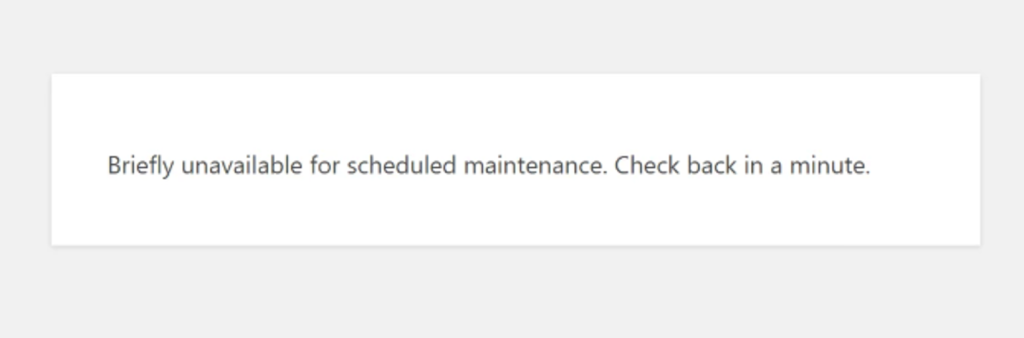
When you update WordPress, themes, or plugins, your site enters maintenance mode, typically displaying a message: "Briefly unavailable for scheduled maintenance. Check back in a minute." WordPress creates a temporary file named .maintenance in the root directory, which it removes after the updates are complete. If the file isn’t removed, the site remains in maintenance mode due to an interruption in the update process.
Common Reasons Your WordPress Site Gets Stuck in Maintenance Mode
WordPress enters maintenance mode during updates, creating a .maintenance file in the root directory to display the "briefly unavailable" message. Usually, WordPress deletes this file once the update is ready. However, your site stays in maintenance mode if it isn’t deleted.
Common causes include:
- Accidentally closed the browser during an update.
- Overloading the server by bulk updating many plugins or themes at once.
- Compatibility issues between WordPress and outdated themes or plugins.
- A timeout during the update process without deleting the
.maintenancefile.
Don’t worry, your site won’t stay stuck forever. There are simple ways to fix this error.
Note: It’s a good idea to back up your website before you make any changes. If something goes wrong, you can quickly restore it to its previous state*. You can use WP Staging for easy automatic backups.* Refer to thebackup and restore guidefor additional assistance*.*
Reload the Page
Reloading the page can sometimes resolve the issue where a WordPress site is stuck in maintenance mode. Error in WordPress, mainly if temporary server glitches or outdated cache data cause it.
By performing a simple reload or a hard refresh (using Ctrl + Shift + R on Windows or Command + Shift + R on macOS), You can ensure that your browser fetches the latest data from the server.
This method is quick, easy, and often effective, making it a significant first step in troubleshooting before moving on to more complex solutions.
Deleting the .maintenance File
To fix the ‘Briefly unavailable for scheduled maintenance. Check back in a minute.‘ in WordPress, delete the .maintenance file. This file, from updates, can cause an error. Deleting it restores website access. Let’s see how.
- Access your WordPress root directory using an FTP client or your hosting provider’s file manager.
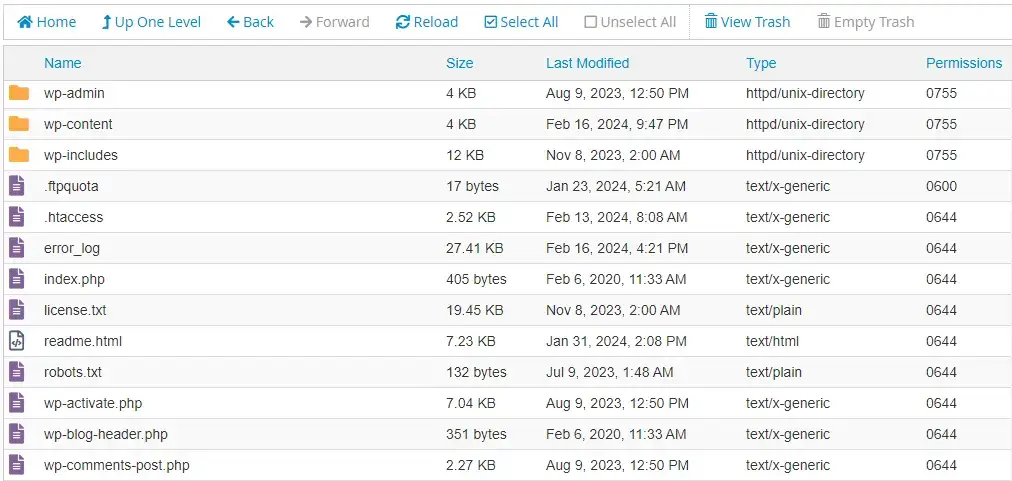
- Find the file
.maintenancein the root directory and delete it.
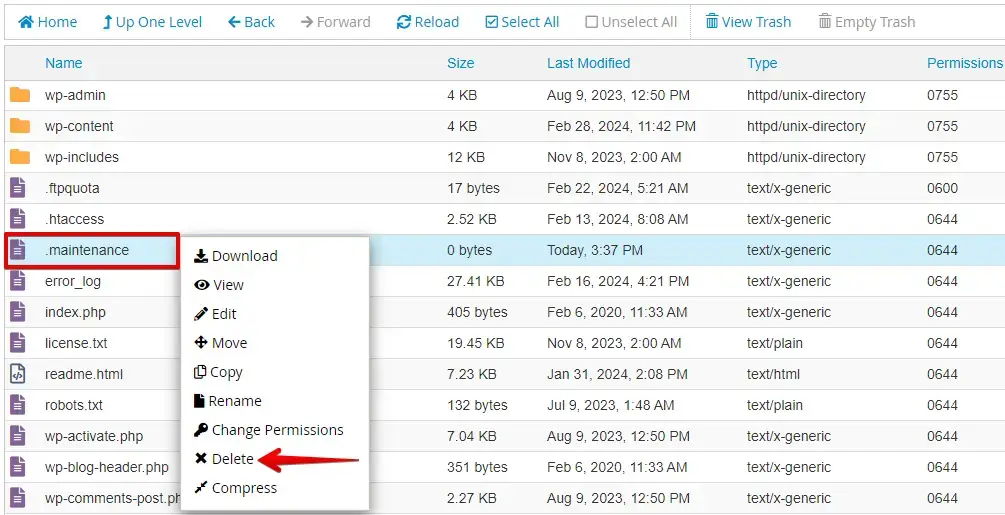
Verify that WordPress has deleted the file and check your website to ensure the error is resolved.
Follow these steps to delete the .maintenance file from your WordPress root directory, which will resolve the error "Briefly unavailable for scheduled maintenance. Check back in a minute" and restore your website.
Check File Permissions
To fix "Briefly Unavailable for Scheduled Maintenance" errors in WordPress, you can follow these steps:
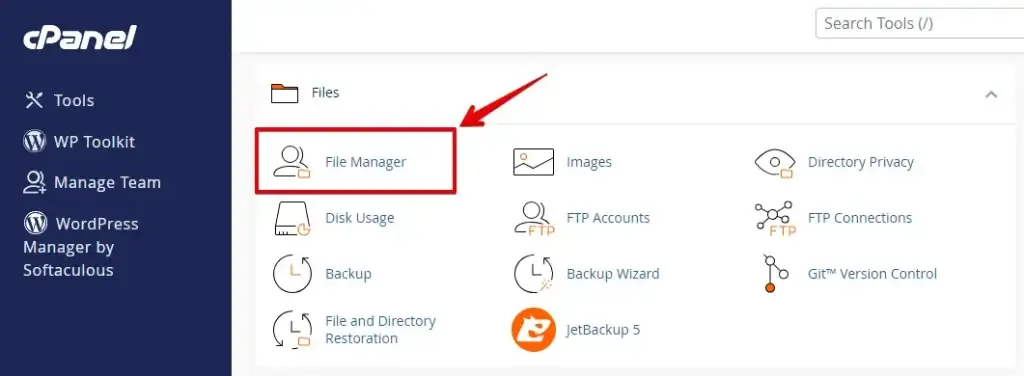
- Log in to your cPanel account. Locate the "File Manager" icon and click on it to open the file management tool.
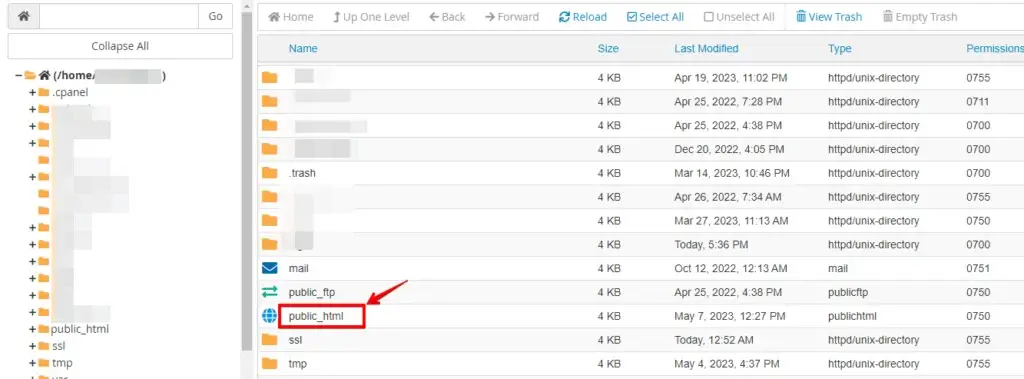
- Within the File Manager, go to the folder where your WordPress installation is situated. Typically, this folder is named public_html or "www".
- Find the wp-content folder in your WordPress root directory. Right-click on it and choose "File Permissions" or "Change Permissions".
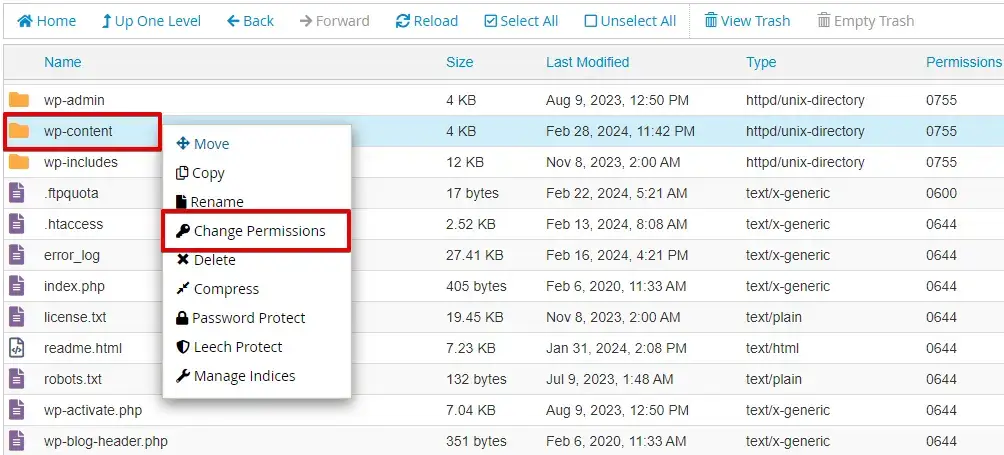
- Set permissions to "755" for proper access. If necessary, make adjustments by entering "755" and executing permissions. Then, click "Apply" or "Change Permissions" to save changes.
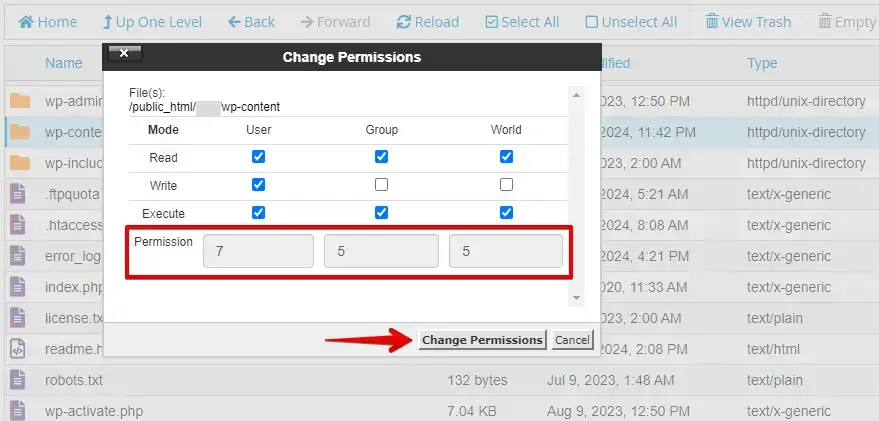
By following these steps, you can ensure that the file permissions on your WordPress site are correct, which can help prevent issues during updates and maintenance.
Clearing Cache Issues
Sometimes, cached versions of your website can cause issues. Clearing your cache ensures you see your site’s most current version. Here’s a step-by-step guide to clearing cache issues:
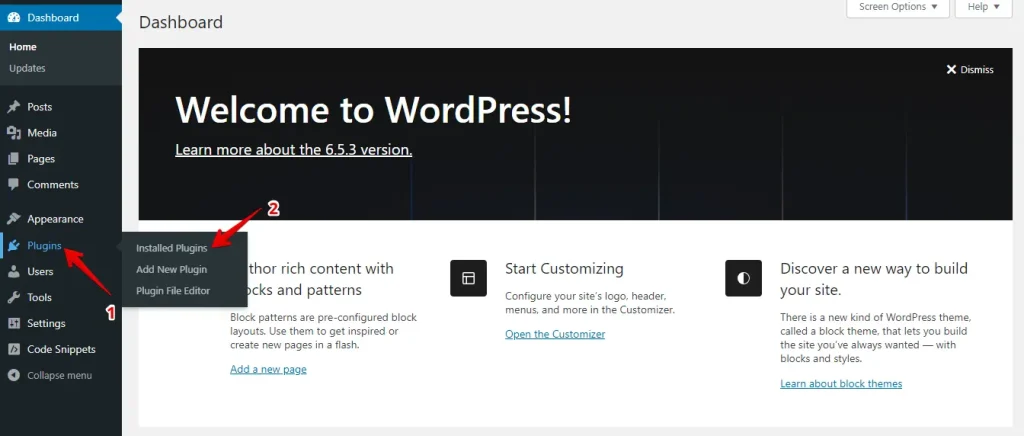
Log in to your WordPress dashboard, find the "Plugins" section in the left-hand menu, and click "Installed Plugins" to see a list of all installed plugins.
Find your caching plugin in the list and click the option to clear or purge the cache, usually labeled "Clear Cache," "Purge All Caches," or "Delete Cache."
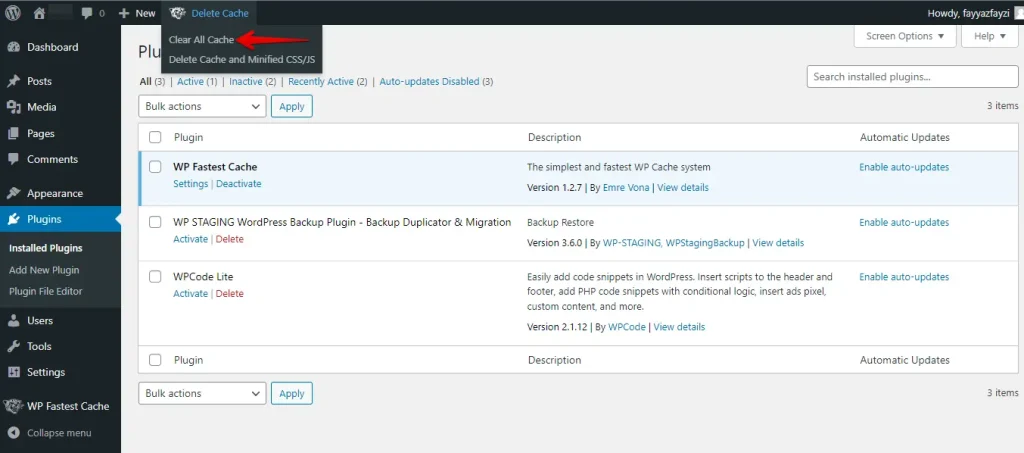
Clearing your site’s cache can often fix a WordPress site stuck in maintenance mode. This ensures you see the most up-to-date version of your site.
How to Prevent WordPress from Getting Stuck in Maintenance Mode
To avoid your WordPress site getting stuck in maintenance mode again, try these preventative measures:
- Keep Regular Backups: Always have a recent backup of your site. If something goes wrong, you can easily restore it to its previous state.
- Update During Low Traffic Hours: Schedule updates when your site has fewer visitors. This minimizes the chances of disruptions during the process.
- Update One at a Time: To prevent conflicts, avoid updating all your plugins and themes simultaneously. Update them individually.
- Test Updates on a Staging Site: Test updates before applying them to your live site using a staging environment. That lets you spot issues without affecting your users.
Final Tips
Test updates on a staging site before applying them to the live site to prevent your WordPress site from getting stuck in maintenance mode. Utilize a reliable maintenance service, select a hosting plan with sufficient resources, and maintain a stable internet connection.
These steps help keep your site running smoothly and avoid maintenance mode issues.
Related Articles
- Activate Post Name Permalinks on the Staging Site
- Folder Permission Error: Folder XY is not written and/or readable
- How to Install WordPress Locally, Manually, and on Your Website – Step-by-Step Tutorial
- How to fix a WordPress Blank White Page – Error 500
