


ERR_CONNECTION_REFUSED means your browser sent a request and the server — or a device between you and it — actively declined the connection. Unlike a timeout, a refused connection is immediate: the server (or firewall) sent back a rejection rather than simply not responding.
The fix depends entirely on which side is causing the refusal. Use a site-checker tool first to split the two paths before working through any steps.
TL;DR: If the site is down for everyone, the fix is on the server — check whether PHP-FPM or Apache/nginx is running, verify firewall rules allow ports 80 and 443, and inspect
.htaccessfor bad rewrite rules. If the site is up for everyone else, the fix is on your machine — clear your browser cache, flush DNS, or disable proxy settings. Both paths are covered step by step below.
Contents
Is It Your Browser or the Server?
Before working through any fix, determine whether the site is down for everyone or just for you. One check eliminates most wasted troubleshooting time.
| Your situation | Likely cause | Where to start |
|---|---|---|
| Site down for everyone (checker confirms) | Server process stopped, firewall blocking ports 80/443, bad .htaccess |
Server-side fixes section below |
| Site up for others; error only on your device | Browser cache, DNS, proxy, local firewall | Client-side fixes below |
Error only on localhost or 127.0.0.1 |
XAMPP/WAMP port conflict | Check local server port settings |
| Error only on staging URL after WP STAGING push | Network mapping or routing mis-config | WP STAGING section below |
Error only on /wp-admin; front end loads fine |
Security plugin lockout or IP block | Deactivate security plugin via FTP/SSH |
Common Causes
ERR_CONNECTION_REFUSED can arise from both client-side and server-side problems:
- Network connection issues: Problems with your internet connectivity can prevent website access.
- Misconfigured firewall or security software: Overly strict settings can block access on your machine or on the hosting server.
- Browser cache and cookies: Corrupted or outdated cached data can disrupt website loading.
- DNS issues: Problems translating website names into IP addresses can impede connection.
- Server process stopped: If the web server process (Apache, nginx, or PHP-FPM) has crashed or was not restarted after a reboot, every request is refused at the TCP layer.
- Firewall blocking ports 80 or 443: Hosting-panel firewalls sometimes close HTTP/HTTPS ports automatically after unusual traffic patterns or failed login attempts.
- Malformed
.htaccessor nginx rewrite rules: A bad rewrite rule introduced by a plugin update or manual edit can cause the server to refuse specific URLs — or all URLs.
7 Client-Side Fixes for ERR_CONNECTION_REFUSED
These fixes address the error when it is occurring on your device only — the site-checker tool confirms the site is accessible to others.
- Check the Website Status
- Check Your Network Connection
- Restart Your Router
- Clear Your Browser Cache
- Flush DNS Cache
- Disable Browser Extensions
- Disable Proxy Settings
1. Check the Website Status
Use a website monitoring tool like Down For Everyone or Just Me or Is It Down Right Now. Enter the website URL into the tool to check if it’s up or down for everyone.
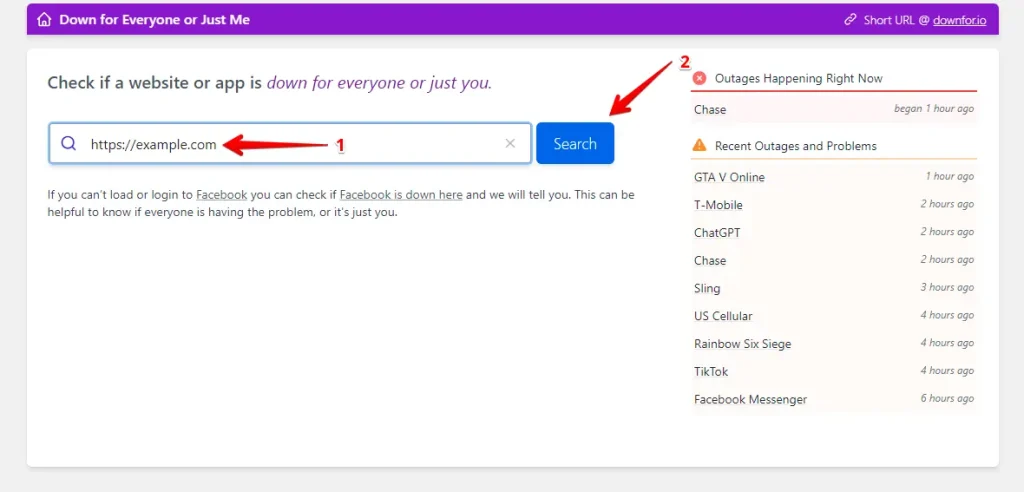
If the tool confirms the site is down for everyone, skip ahead to the server-side fixes section. If it reports the site is up, the problem is on your end — continue with the fixes below.
If this doesn’t resolve it: Some CDNs report a site as "up" even when the origin server is refusing connections. If the checker says "up" but multiple devices on different networks still see the error, treat it as a server-side issue.
2. Check Your Network Connection
Test other devices on the same network. If none can connect to the site, the issue may lie with your ISP — check for service outages or data-cap limits.
If this doesn’t resolve it: If other devices on the same network reach the site without a problem, the issue is device-specific. Try a different browser, or check whether VPN software is running in the background.
3. Restart Your Router
Unplug your router for 30 seconds, plug it back in, and wait for it to reconnect fully. Once it’s up, try reaccessing the website. This resets your network connection and can clear temporary routing glitches.
4. Clear Your Browser Cache
Your browser saves data from websites to speed up loading times. Old or corrupt cached data can sometimes cause connection errors.
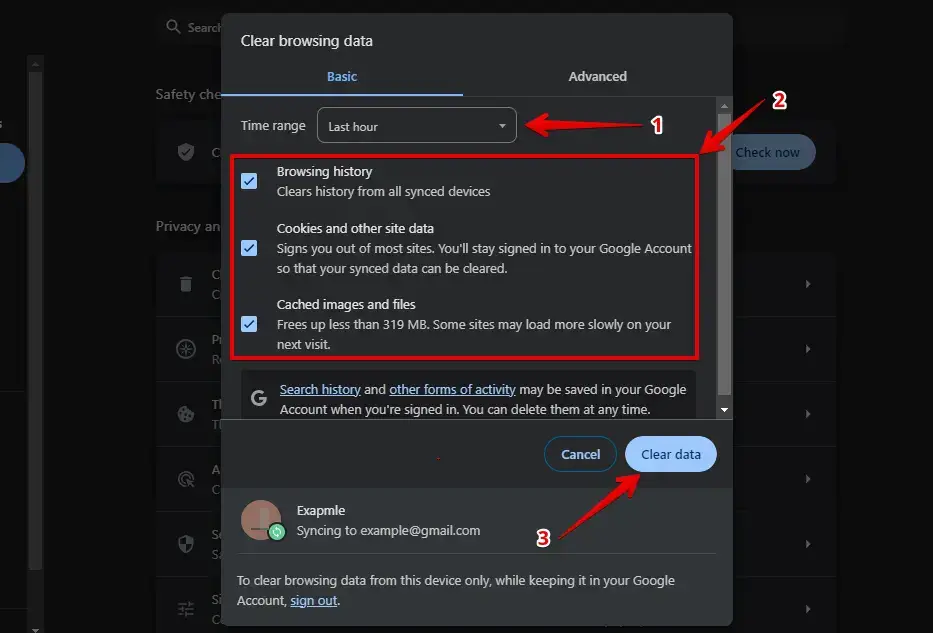
Google Chrome: Press Ctrl + Shift + Delete, choose your preferred time range, and click "Clear Data."
Mozilla Firefox: Press Ctrl + Shift + Delete, select the correct time range, and click "Clear Now."
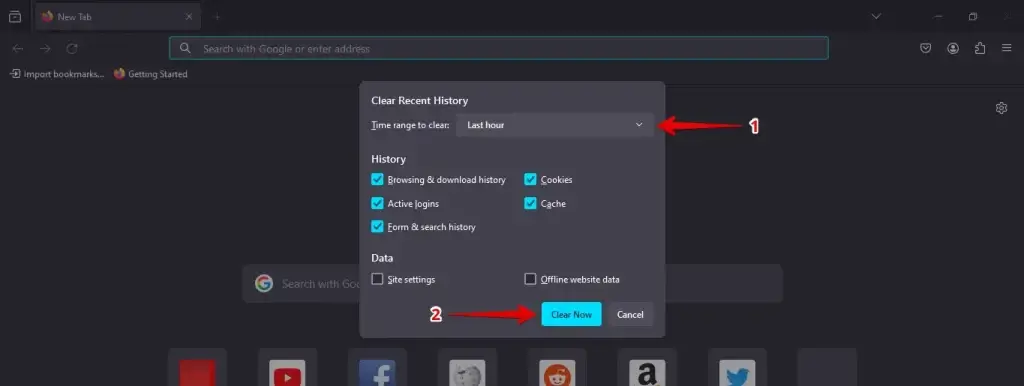
After clearing the cache, refresh the website to check if the error is resolved. If the page still doesn’t load, try closing and reopening your browser.
If this doesn’t resolve it: Test in a second browser (Edge, Firefox, Safari). If the second browser loads the page, the problem is browser-specific — reset the first browser’s settings or reinstall it.
5. Flush DNS Cache
Flushing your DNS cache removes outdated or corrupted hostname-to-IP mappings stored on your computer that might be causing connection issues.
Type cmd in the search bar, right-click on Command Prompt and select "Run as administrator."
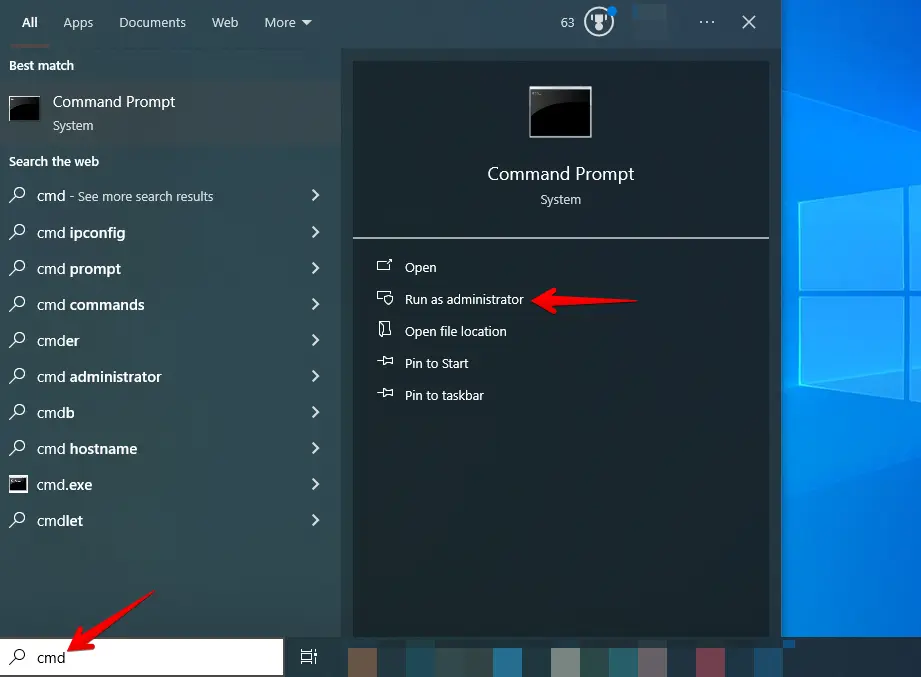
Type the following command and press Enter:
ipconfig /flushdns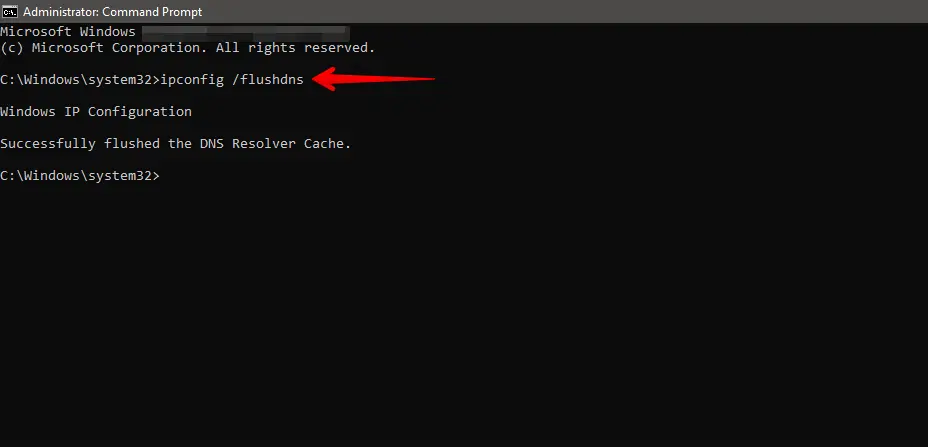
You should see a message confirming that the DNS Resolver Cache has been successfully flushed. After this, try refreshing the website to see if the error is resolved.
If this doesn’t resolve it: On macOS, open Terminal and run sudo dscacheutil -flushcache; sudo killall -HUP mDNSResponder. If the error persists on all browsers across your network, test the site on a mobile hotspot. If it loads there, your ISP may be blocking the port or intercepting DNS — try switching to a public DNS server.
6. Disable Browser Extensions
Ad blockers, VPN extensions, and proxy add-ons are common culprits for intercepting connections. Go to your browser’s settings and navigate to the extensions or add-ons section.
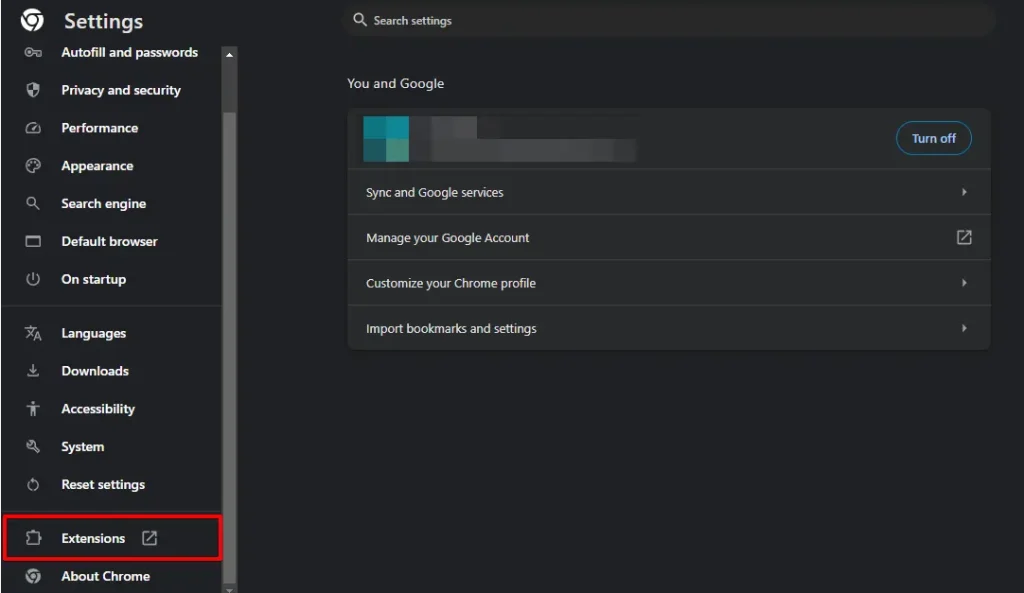
Temporarily disable all extensions by toggling them off.
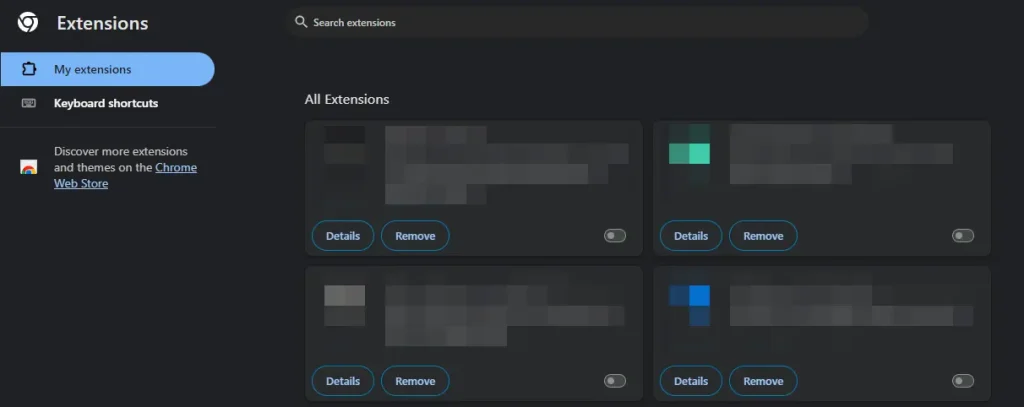
After disabling your extensions, reload the webpage. If the error disappears, one extension is causing the issue — re-enable them one at a time to identify it.
7. Disable Proxy Settings
A misconfigured or unresponsive proxy server acts as an intermediary for your connection, and incorrect proxy settings cause ERR_CONNECTION_REFUSED.
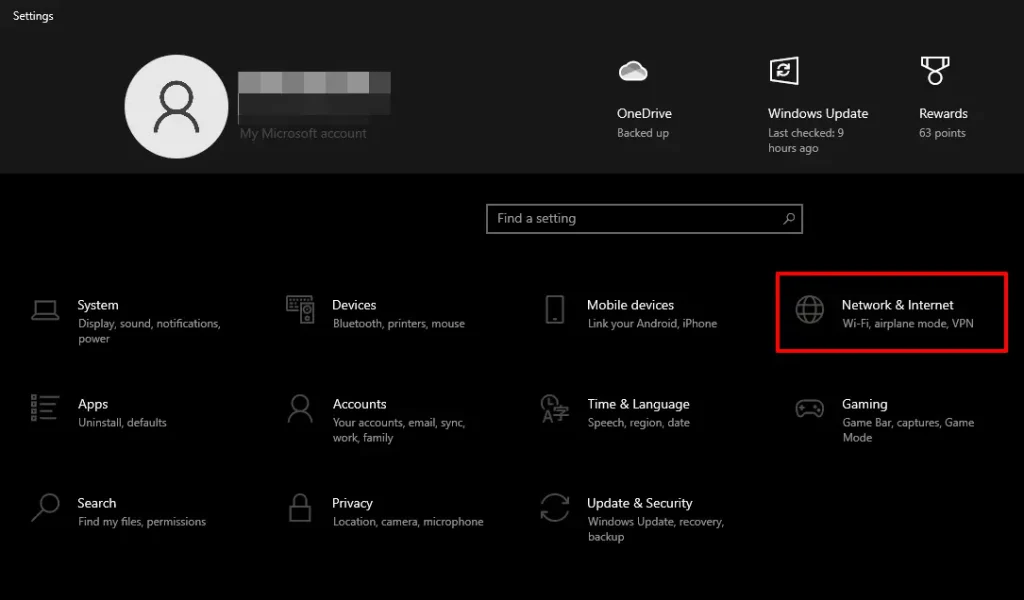
Open the Start menu, go to Settings, and click Network & Internet.
Select Proxy from the left menu, and under Manual proxy setup, toggle off Use a proxy server.
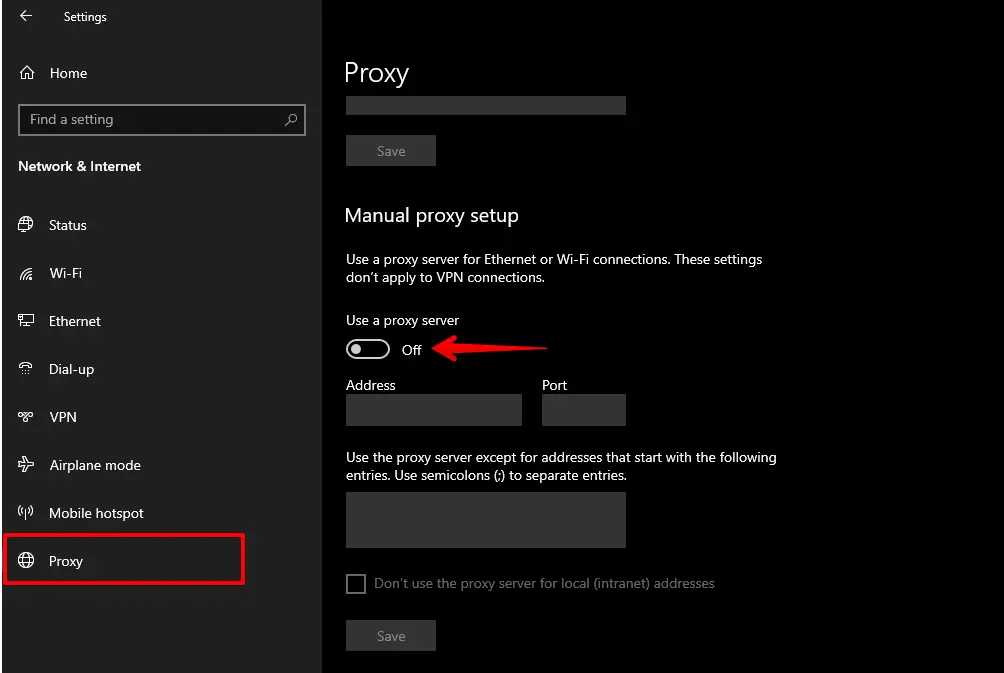
If your system or browser uses a proxy application or extension, go to the application or extension settings and turn off the proxy. After disabling the proxy, try reloading the website.
If this doesn’t resolve it: On corporate networks, a proxy may be enforced by IT policy. In that case, do not disable the system-wide proxy — instead, ask your IT administrator whether the specific site is whitelisted in the proxy configuration.
Server-Side Fixes for ERR_CONNECTION_REFUSED in WordPress
If the site-checker tool confirms the site is down for everyone, the problem is on the server. Before making any changes, back up your WordPress site first and enable WordPress debug mode so any underlying errors are written to wp-content/debug.log.
Check Whether the Web Server Process Is Running
On a VPS or dedicated server with SSH access, verify that Apache or nginx and PHP-FPM are active:
# Apache
sudo systemctl status apache2

# nginx
sudo systemctl status nginx

# PHP-FPM (replace 8.2 with your installed PHP version)
sudo systemctl status php8.2-fpm
If any service shows as inactive or failed, restart it:
sudo systemctl restart apache2 # or nginx, php8.2-fpmIn our support queue, a stopped PHP-FPM process is the most common server-side cause of ERR_CONNECTION_REFUSED on WordPress sites — it often stops silently after a server reboot if the service is not enabled to start automatically on boot.
Check Firewall Rules for Ports 80 and 443
If the web server process is running but connections are still refused, a hosting-panel firewall or iptables rule may be blocking ports 80 (HTTP) or 443 (HTTPS). Check your hosting control panel under Firewall or Security settings and confirm inbound rules allow TCP traffic on both ports.
On a VPS with ufw:
sudo ufw allow 80/tcp
sudo ufw allow 443/tcp
sudo ufw status
Check .htaccess and nginx Rewrite Rules
A malformed .htaccess file — often introduced by a WordPress plugin install or a manual edit — is a frequent cause of server-side refusals. Rename it temporarily to isolate the problem:
- Connect to your server via FTP or SSH.
- Rename
/public_html/.htaccessto.htaccess_backup. - Reload the site. If it loads,
.htaccesswas the cause. - Regenerate a clean
.htaccessby going to Settings → Permalinks in wp-admin and clicking Save.
For nginx setups, confirm that the WordPress try_files rewrite block is present and correctly formatted in your server block configuration.
Isolate a Conflicting Plugin or Theme
If the error appears only on /wp-admin while the front end loads, a security plugin or IP-blocking rule is likely refusing the admin connection. Check wp-content/debug.log for blocked-request entries after enabling WordPress debug mode.
To avoid making changes directly on your live site, create a WordPress staging site and deactivate plugins one at a time to isolate the conflict.
Occasionally, a database connection problem surfaces as ERR_CONNECTION_REFUSED in the browser when the real cause is a MySQL packet-size limit. Check wp-content/debug.log for "Packet too large" or "MySQL server has gone away" entries — if those appear, increase MySQL max_allowed_packet before continuing.
WP STAGING Staging and Push Errors
From WP STAGING support tickets, ERR_CONNECTION_REFUSED appears most often during a push-to-live operation when the target domain URL mapping is misconfigured — the staging site’s internal links still reference the staging domain after the push, causing the live server to refuse requests routed to the wrong host. Check WP STAGING → Settings → Network Mapping and confirm the destination URL matches your live domain exactly.
If push or clone operations are failing with a connection error on an otherwise accessible site, the underlying cause is frequently a blocked REST API endpoint. See fix WordPress REST API connection errors for the diagnostic steps. For timeout variants of the same problem, fix cURL error 28 connection timed out covers those cases.
Conclusion
ERR_CONNECTION_REFUSED splits cleanly into two root causes: something wrong on the client side (browser cache, DNS, proxy, network) or something wrong on the server (web server process stopped, firewall blocking ports, bad rewrite rules). The quickest way to identify which applies is a site-checker tool — if the site is up for others, work through the client-side fixes; if it’s down for everyone, go straight to the server checks.
For WordPress site owners, the server-side path is more consequential. Keeping a recent backup and testing configuration changes on a staging site before applying them to production avoids most of the worst outcomes. If you resolve ERR_CONNECTION_REFUSED and then encounter an SSL warning, fix ‘your connection is not private’ is the natural next step. For the empty-response variant of connection errors, see fix ERR_EMPTY_RESPONSE in WordPress.
Related Articles
